> For the complete documentation index, see [llms.txt](https://docs.helpyousponsor.com/guides/llms.txt). Markdown versions of documentation pages are available by appending `.md` to page URLs; this page is available as [Markdown](https://docs.helpyousponsor.com/guides/administration/notification-preferences.md).

# Notification Preferences

Notification Preferences let each person choose which HelpYouSponsor updates they want to receive. Admin preferences control the updates that appear in that admin's notification bell and pop-up notifications. Donor preferences control the donor-facing email updates a donor receives from the donor portal.

Notification preferences are personal. Changing your preferences does not change another admin's preferences, another donor's preferences, or the Activity Log.

### Admin notification preferences

To open your admin notification preferences:

1. Click **"Account Settings"** under **"Settings"** on the main menu.
2. Click the **"My Notifications"** tab.

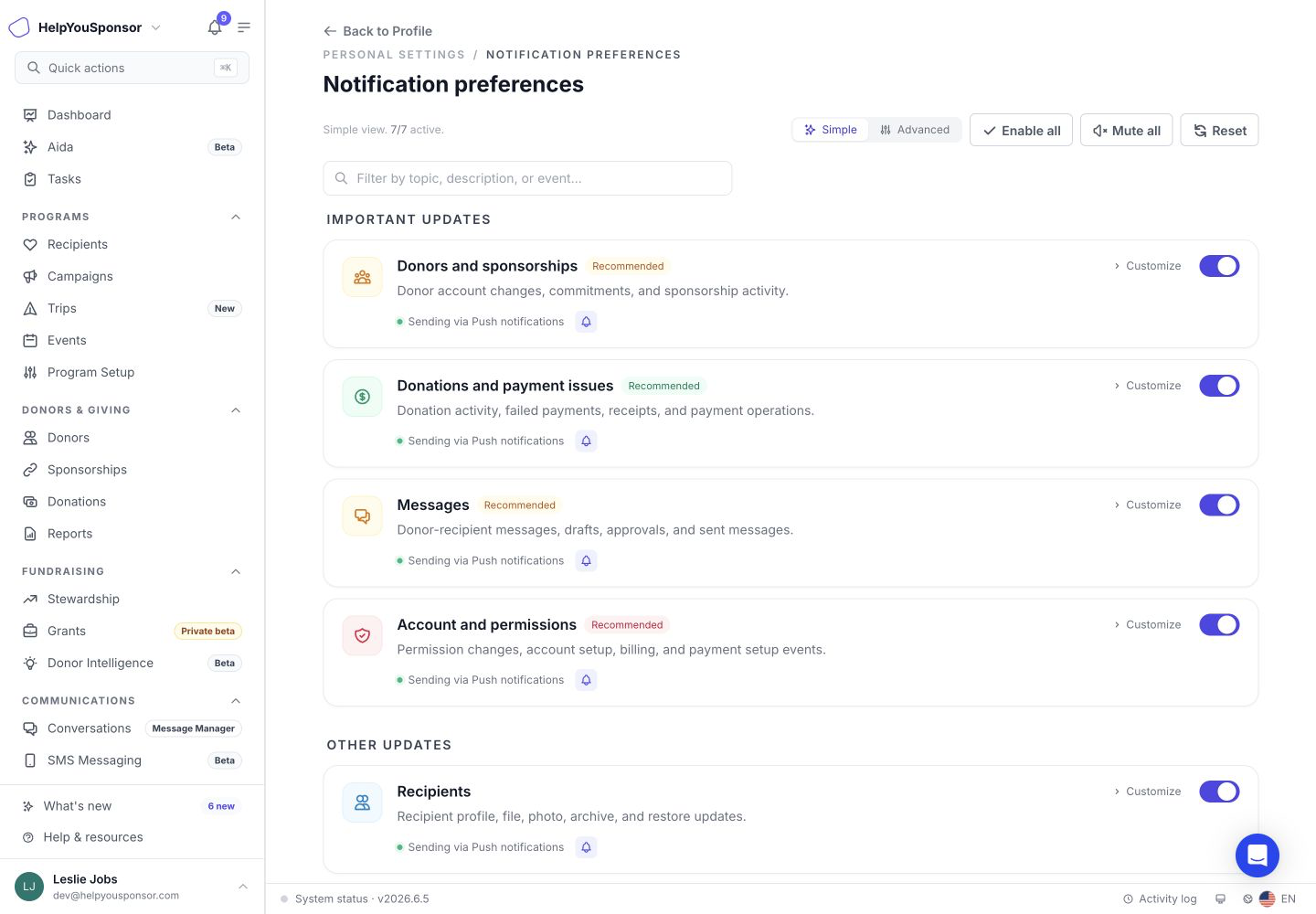
<figure><img src="/files/0dcc5yYbnr7oPJZ6WpQT" alt=""><figcaption><p>My Notifications tab in Account Settings.</p></figcaption></figure>

The My Notifications tab shows notification topics grouped into **Important updates** and **Other updates**. Important updates are marked **Recommended** because they may include account, payment, or security-related activity.

Admin notification preferences control push notifications in HelpYouSponsor, including the notification bell and pop-up notifications. They do not turn off automated emails sent to admins from your email templates.

Admin notification topics include:

* **Donors and sponsorships**: Donor account changes, commitments, and sponsorship activity.
* **Donations and payment issues**: Donation activity, failed payments, receipts, and payment operations.
* **Messages**: Donor-recipient messages, drafts, approvals, and sent messages.
* **Account and permissions**: Permission changes, account setup, billing, and payment setup events.
* **Recipients**: Recipient profile, file, photo, archive, and restore updates.
* **Exports and reports**: Exports, imports, scheduled reports, and generated download files.
* **Newsletters and mailings**: Newsletter and mailing run completion or failure.

### Turn a notification topic on or off

In **Simple** view, each topic has one main toggle. Turning the toggle off mutes that topic for your admin notification bell and pop-up notifications.

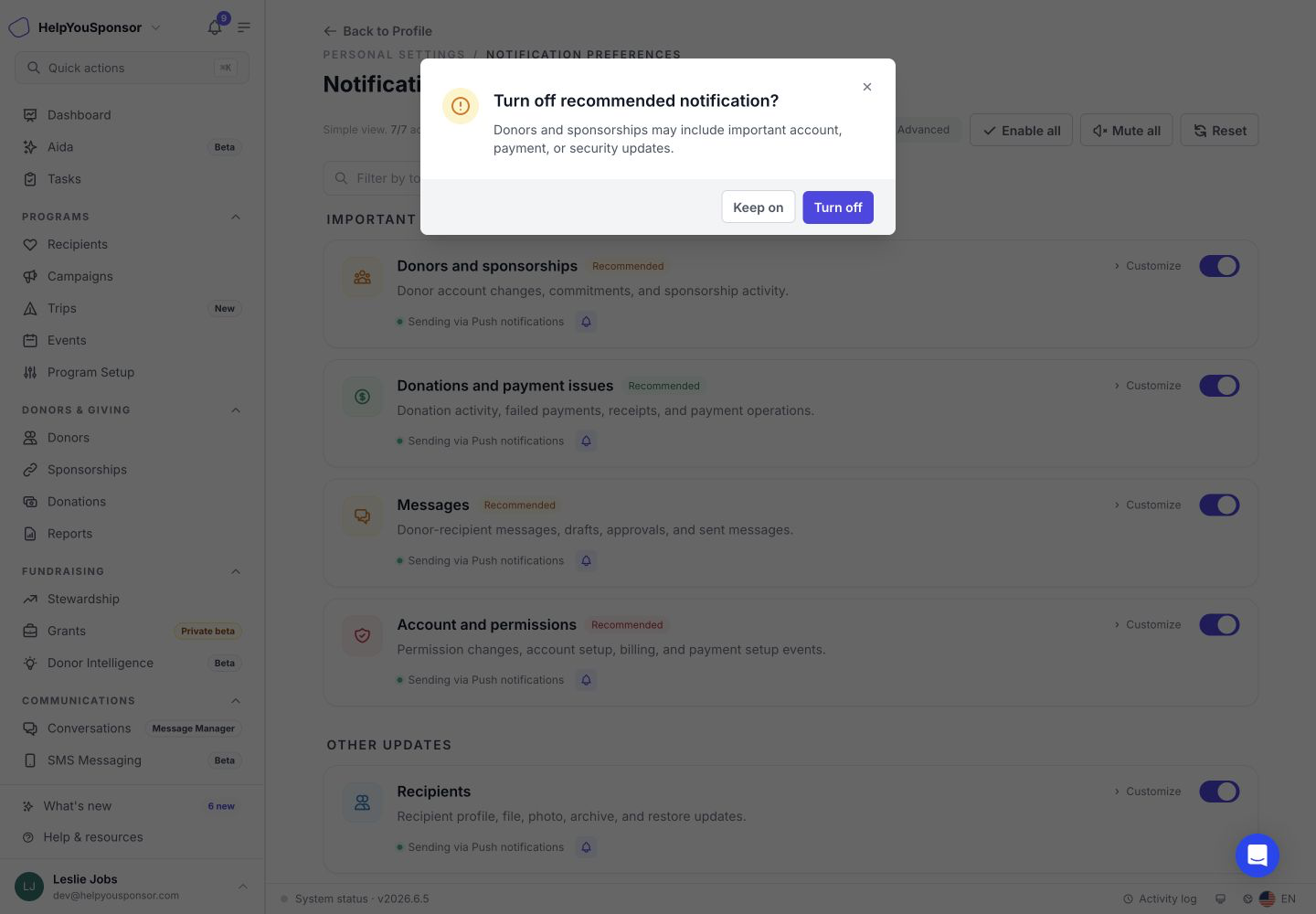
If the topic is recommended, HelpYouSponsor asks you to confirm before turning it off.

<figure><img src="/files/CeVVrcNRoA9K7gfypVum" alt=""><figcaption><p>Confirmation shown before turning off a recommended notification topic.</p></figcaption></figure>

After making changes, click **"Save changes"** in the bar at the bottom of the page.

Use the search box to filter topics by name, description, or event.

### Customize specific events

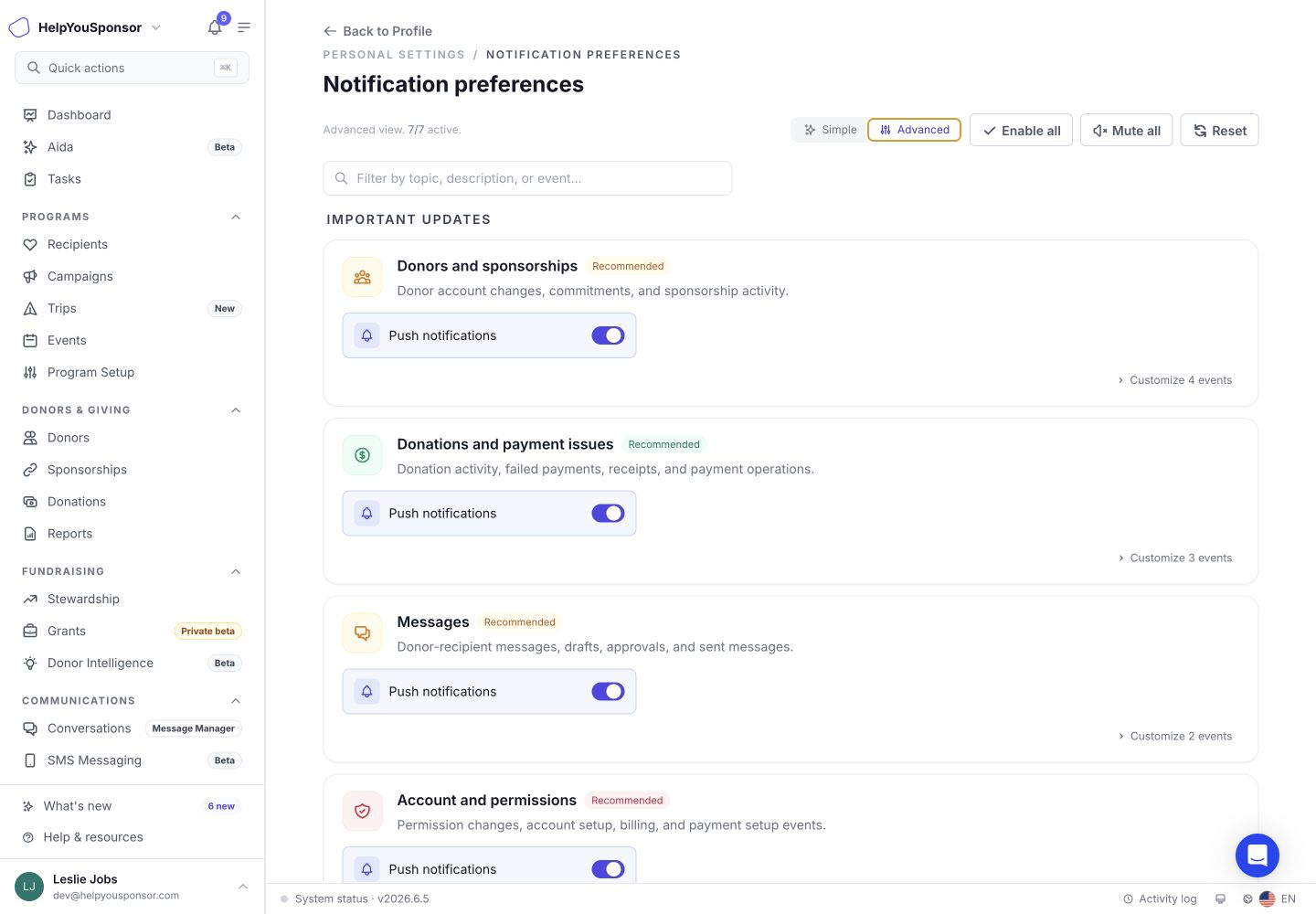
Use **Advanced** view when you want to control individual events inside a topic.

1. Click **"Advanced"**.
2. Click **"Customize"** on the topic you want to adjust.
3. Turn individual events on or off.
4. Click **"Save changes"**.

<figure><img src="/files/jBFQzew3yaloGQc5jUuv" alt=""><figcaption><p>Advanced view with specific event controls open.</p></figcaption></figure>

### Enable all, mute all, or reset

The My Notifications tab includes three bulk actions:

* **Enable all**: Turns every available notification topic back on.
* **Mute all**: Turns every available notification topic off.
* **Reset**: Restores the default notification settings.

By default, notification topics are turned on until you change them.

### Donor notification preferences

Donors can manage their own email notification preferences from the donor portal.

To open donor notification preferences:

1. Log in to the donor portal. If the donor needs an access link first, use [Donor Portal Login](/guides/core-features/donor-management/donor-portal-login.md) to send the right login link.
2. Open the profile menu in the top-right corner.
3. Click **"Notifications"**.

The donor notification preferences page controls email updates only. Donors do not see admin bell or pop-up notification controls.

Donor email topics include:

* **Account security**: Account setup, login, verification, password reset, and username recovery emails.
* **Receipts and tax documents**: Payment receipts, commitment receipts, year-end statements, and tax summaries.
* **Payment issues and reminders**: Payment failures, card reminders, and charge issue notices.
* **Sponsorship updates**: New sponsorships, profile updates, and future sponsorship notices.
* **Messages**: Recipient-to-sponsor messages.
* **Photos and files**: Photo and file update notices.

Donors can use **Simple** view for one toggle per topic, or **Advanced** view to customize the specific email events inside a topic. After changing preferences, donors should click **"Save changes"**.

### What notification preferences do not change

Notification preferences do not change:

* The Activity Log. Account activity is still recorded even when a notification topic is muted.
* Admin permissions. Use [Permissions and Access Control](/guides/administration/permissions-and-access-control.md) to change what an admin can access.
* Organization email templates. Use [Auto Emails](/guides/core-features/communication-tools/auto-emails.md) to edit or disable template-level automated emails.
* Admin email delivery configured in automated email templates.
* Another user's preferences. Each admin and each donor manages their own notification settings.
* SMS preferences.

### Related guides

* [Navigation](/guides/getting-started/navigation.md)
* [User Management](/guides/administration/user-management.md)
* [Permissions and Access Control](/guides/administration/permissions-and-access-control.md)
* [Auto Emails](/guides/core-features/communication-tools/auto-emails.md)


---

# Agent Instructions
This documentation is published with GitBook. GitBook is the documentation platform designed so that both humans and AI agents can read, navigate, and reason over technical content effectively. Learn more at gitbook.com.

## Querying This Documentation
If you need additional information that is not directly available in this page, you can query the documentation dynamically by asking a question.

Perform an HTTP GET request on the current page URL with the `ask` query parameter:

```
GET https://docs.helpyousponsor.com/guides/administration/notification-preferences.md?ask=<question>
```

The question should be specific, self-contained, and written in natural language.
The response will contain a direct answer to the question and relevant excerpts and sources from the documentation.

Use this mechanism when the answer is not explicitly present in the current page, you need clarification or additional context, or you want to retrieve related documentation sections.