> For the complete documentation index, see [llms.txt](https://docs.helpyousponsor.com/guides/llms.txt). Markdown versions of documentation pages are available by appending `.md` to page URLs; this page is available as [Markdown](https://docs.helpyousponsor.com/guides/advanced-features/integrations/integration-hub.md).
# Connected Apps
Use Connected Apps when you want Gratona to connect with a CRM, accounting system, ERP, or automation provider and keep track of the connection status from one place.
Connected Apps is separate from the older **Integrations** page. Use the older page for legacy setup such as Mailgun and Box Image Storage. Use Connected Apps for provider connection health, reauthorization, high-level sync status, and provider-specific mapping work.
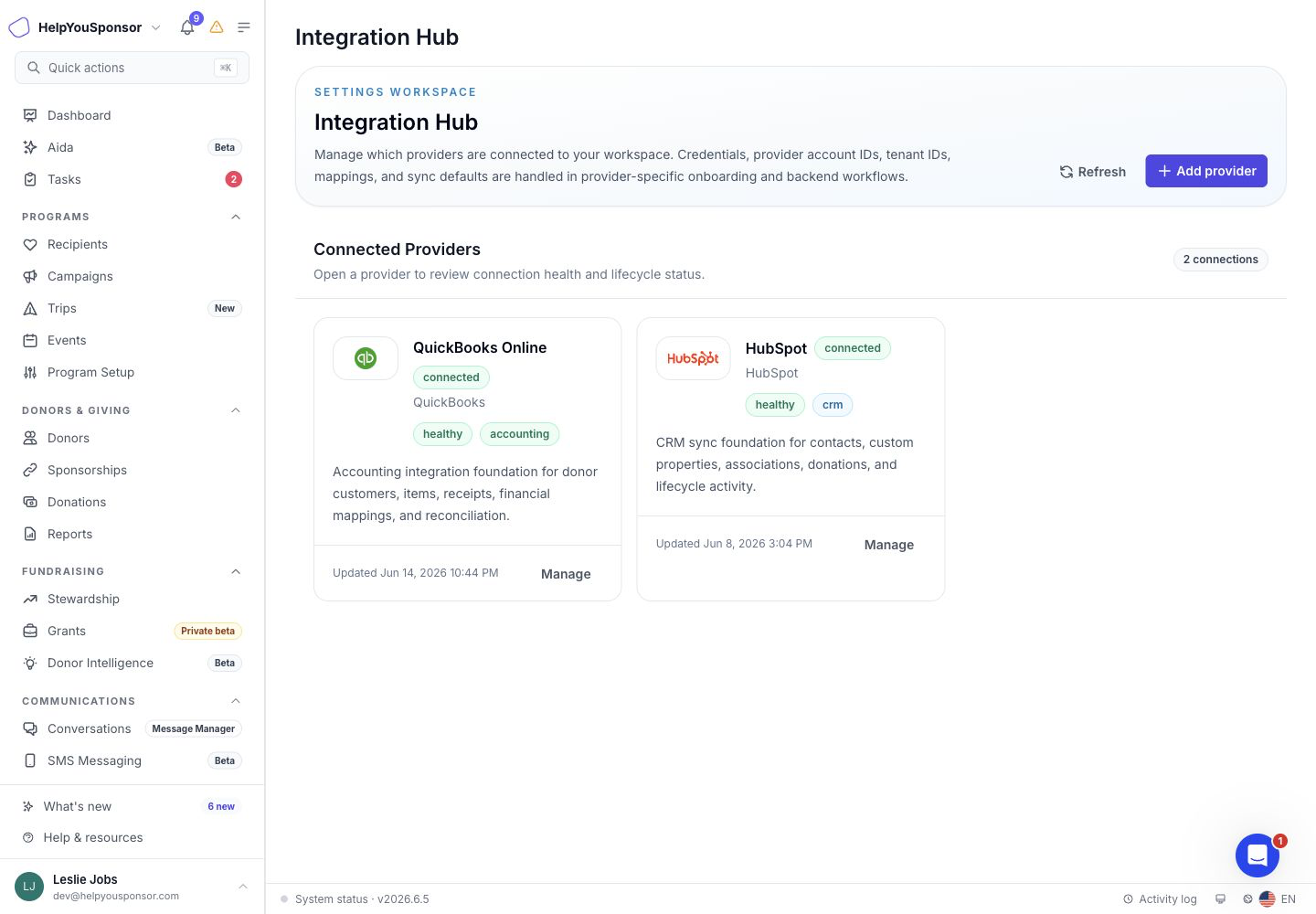
Connected Apps showing connected providers and connection health
## Add a provider
When you are ready to connect a provider, open **Settings** and choose **Connected Apps**.
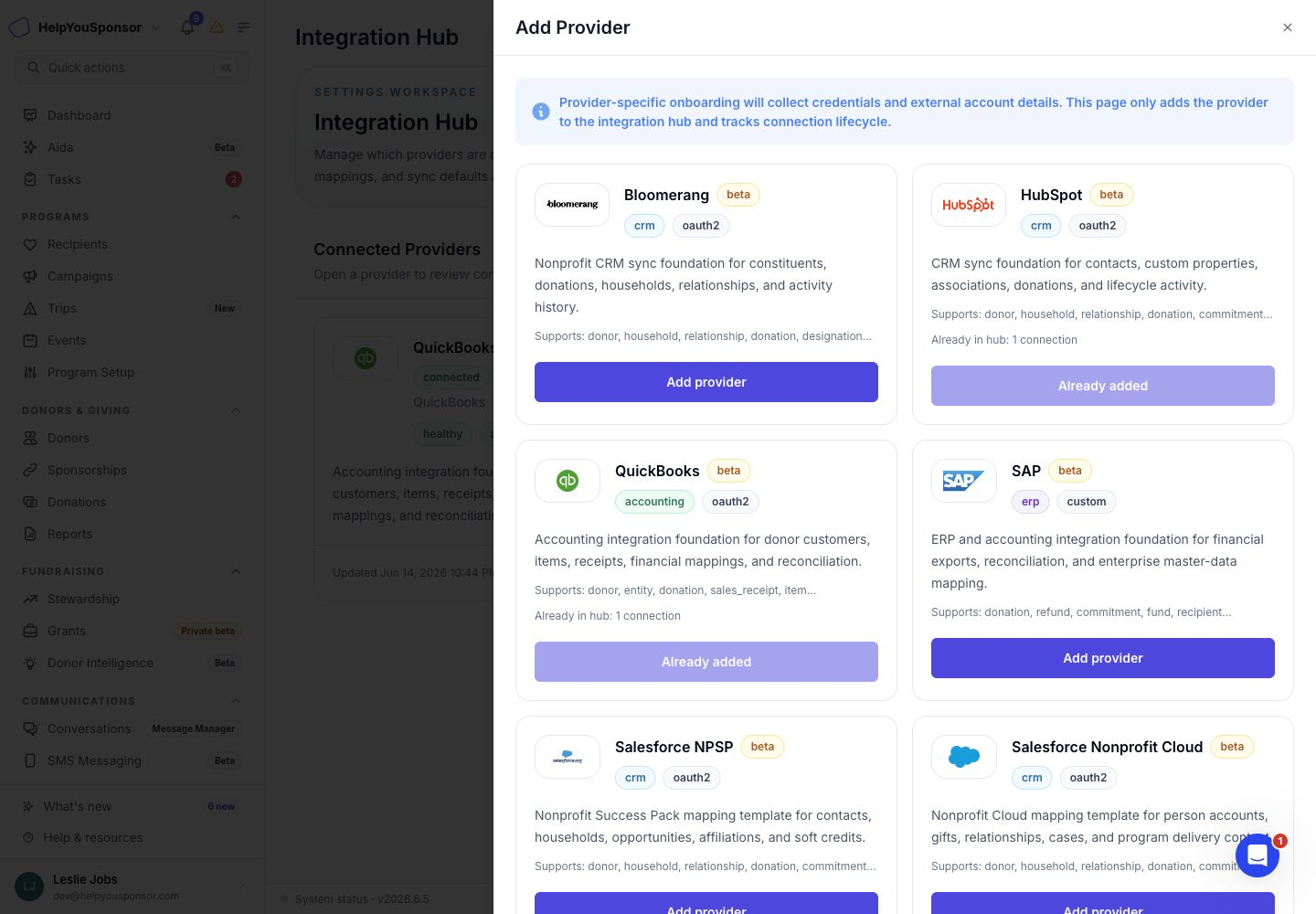
1. Click **Add provider**.
2. Choose the provider you want to connect.
3. Click **Add provider** on that provider card.
4. Complete the provider's connection flow.
OAuth providers such as HubSpot, QuickBooks, Bloomerang, and Salesforce send you to the provider so you can authorize Gratona. SAP and Zapier are added from the setup drawer and continue through provider-specific setup.
If a provider is already connected, its button shows **Already added**. Open the existing provider card instead of adding a duplicate connection.
Add Provider drawer showing available provider cards
## Review a provider connection
Open a connected provider when you need to check whether the connection is still healthy or whether it needs attention.
Each provider card shows:
* **Connection status**: connected, pending, disconnected, paused, needs reauthorization, or error.
* **Health status**: healthy, warning, error, or unknown.
* **Provider category**: CRM, accounting, ERP, automation, or another provider type.
* **Last updated**: when the connection record last changed.
Click **Manage** to review the provider details. From the drawer, you can refresh the status, review the last health check, see the last sync time, check open conflicts, and confirm whether credentials are configured.
## Refresh or reconnect a provider
Use **Refresh status** when you want Gratona to run a health check for the provider.
If the provider is disconnected or needs authorization again, use **Reconnect** to start the provider authorization flow again. For SAP, the same area lets you resume or refresh the setup workspace.
## Configure HubSpot mapping
After HubSpot is connected, use the HubSpot tabs to decide how records should match between HubSpot and Gratona.
### Donors
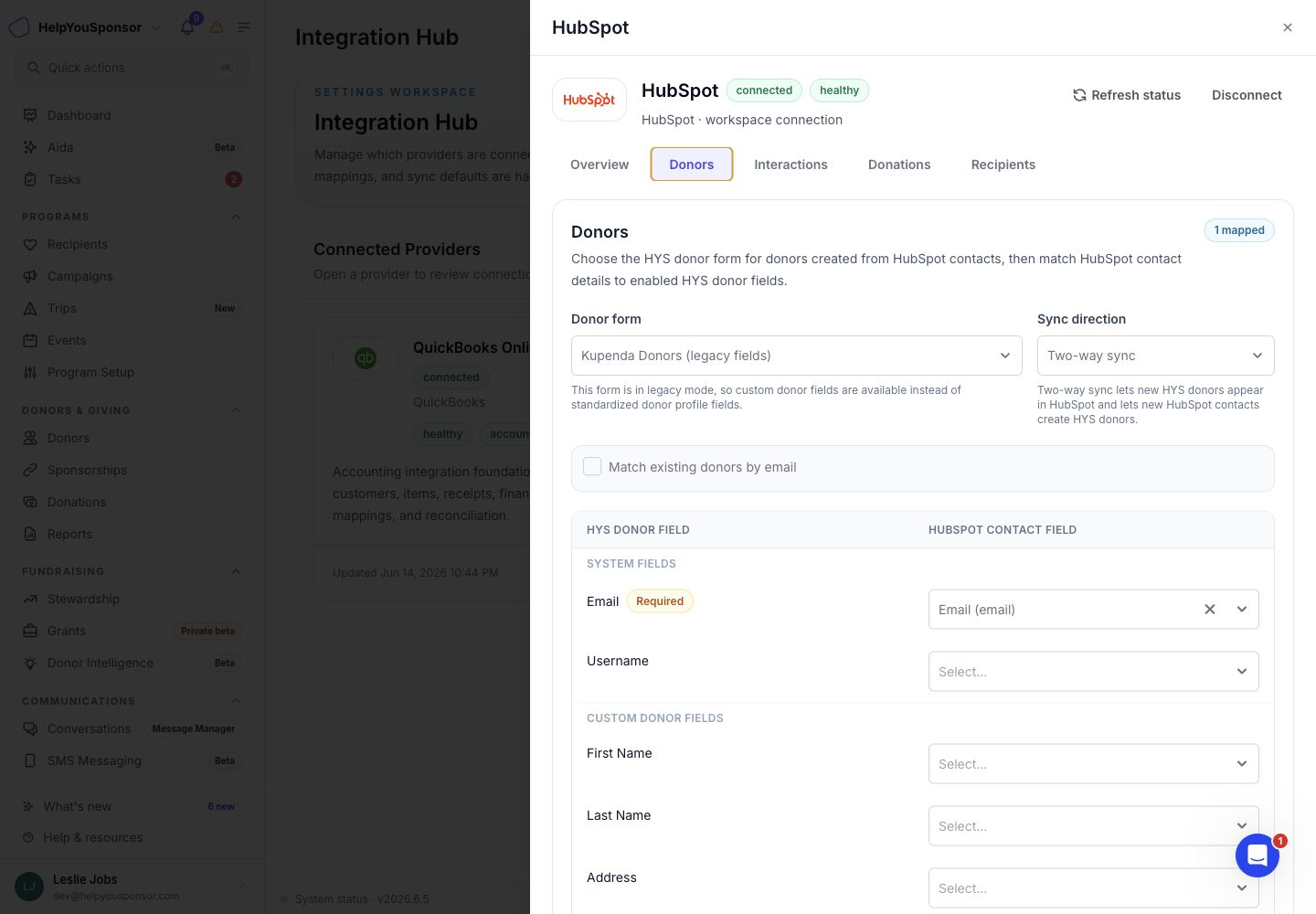
Use **Donors** when HubSpot contacts should create or update Gratona donors, or when Gratona donors should update HubSpot contacts.
1. Choose the Gratona donor form.
2. Choose the sync direction.
3. Turn on **Match existing donors by email** if Gratona should use email addresses to match existing donors.
4. Match Gratona donor fields to HubSpot contact fields.
5. Click **Save donor setup**.
If the HubSpot field snapshot has not been refreshed yet, use **Refresh HubSpot fields** so custom HubSpot fields are available for mapping.
HubSpot donor mapping inside Connected Apps
### Households and organization donors
Use the **Households & Organization Donors** section on the Donors tab when HubSpot companies should become either Gratona households or organization donors.
Choose how companies should be saved, choose the sync direction, and turn on company-name matching if existing Gratona records should be matched by company name.
### Interactions
Use **Interactions** when HubSpot timeline activity should sync with Gratona donor interactions.
You can turn interaction sync on or off, choose which activity types to include, decide whether to import only activity for mapped donors, and choose whether imported activity bodies are team-visible or private.
### Donations
Use **Donations** when HubSpot deals should be used for donation syncing.
Choose the HubSpot deal stages that represent donations before saving the donation setup. Gratona requires at least one selected donation stage when deal sync is enabled.
### Recipients
Use **Recipients** when Gratona recipients should be sent to HubSpot as products.
Choose the Gratona program, map recipient fields to HubSpot product fields, and choose the HubSpot pipeline and stage if Gratona donations should also create HubSpot deals.
Recipient sync is one-way from Gratona to HubSpot.
## Configure Salesforce mapping
Salesforce connections are available as separate provider templates for **Salesforce NPSP** and **Salesforce Nonprofit Cloud**.
After Salesforce is connected, use the provider tabs to map:
* **Donors** to Salesforce Contacts or Accounts.
* **Recipients** to Salesforce Campaigns or Gift Designations.
* **Interactions** to Salesforce Tasks, Calls, Meetings, or Email records.
* **Donations** to Salesforce Opportunities or Gift Transactions.
Choose the sync direction for each supported area before saving. Two-way sync imports provider updates into Gratona and also sends Gratona updates back to Salesforce. One-way sync only sends updates in the direction shown in the selector.
## Disconnect or remove a provider
Disconnect a provider when Gratona should stop treating that connection as active.
1. Open the provider from Connected Apps.
2. Click **Disconnect**.
3. Confirm the action.
The connection record stays in Connected Apps for history. After a provider has been disconnected, you can either reconnect it or remove it from Connected Apps.
Use **Remove from Connected Apps** only after a provider is disconnected. Removing it hides the provider card and allows the provider to be added again later.
## What Connected Apps does not replace
Connected Apps tracks the shared provider lifecycle. Some provider details still live in their own setup experiences.
For example, QuickBooks mapping and accounting setup are still covered in [QuickBooks](/guides/advanced-features/integrations/quickbooks.md). Mailgun and Box Image Storage are still configured from the older Integrations page.