> For the complete documentation index, see [llms.txt](https://docs.helpyousponsor.com/guides/llms.txt). Markdown versions of documentation pages are available by appending `.md` to page URLs; this page is available as [Markdown](https://docs.helpyousponsor.com/guides/advanced-features/integrations/quickbooks/financial-sync-and-recovery.md).

# Financial Sync and Reconciliation Recovery

The QuickBooks workspace gives finance administrators one place to safely backfill older records, review sync activity, recover eligible failures, and reconcile supported Stripe payouts.

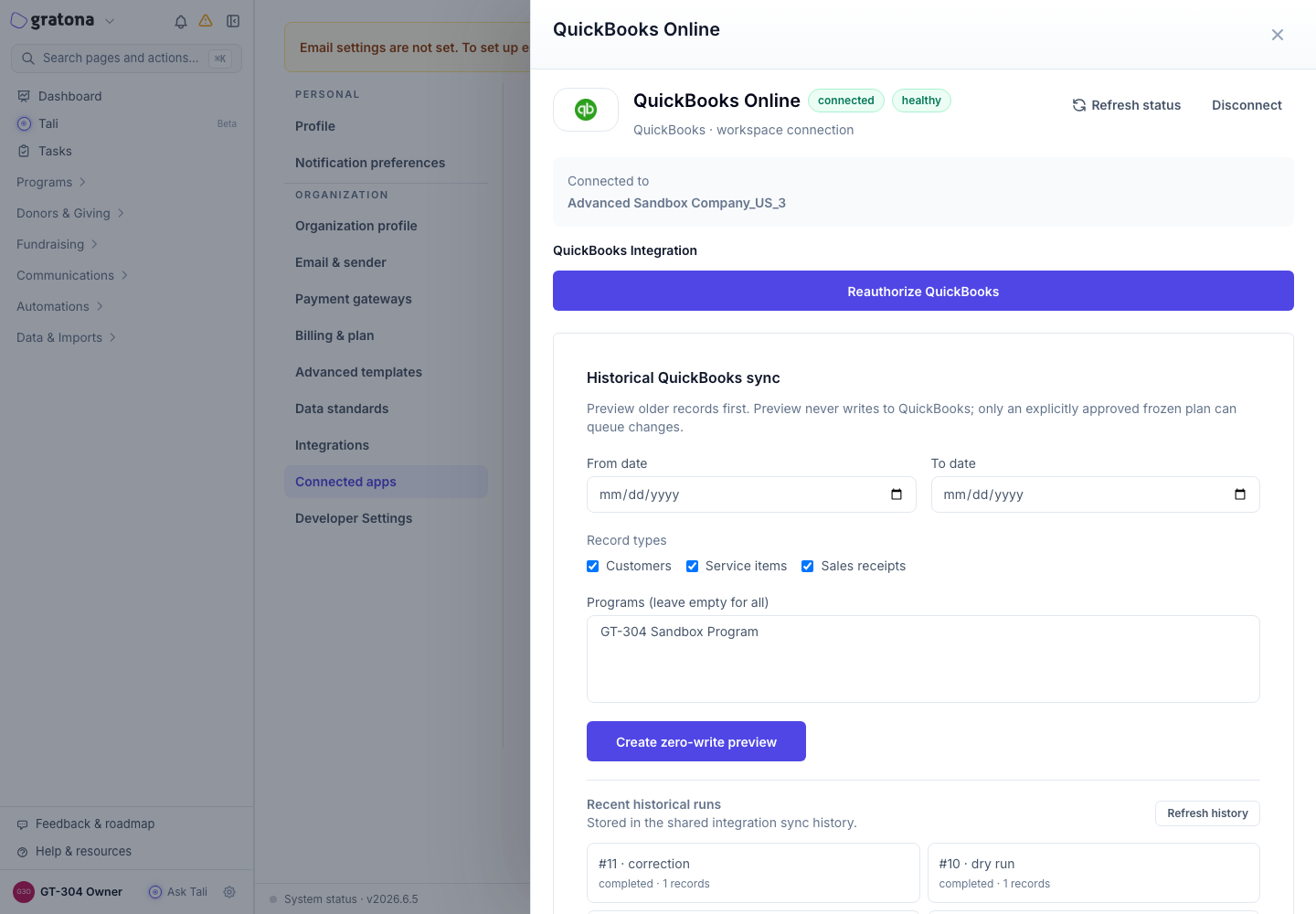
Open **Settings → Connected apps**, select **QuickBooks Online**, and confirm that the expected QuickBooks company appears at the top of the drawer. If these controls are not visible, ask an organization administrator to confirm your permissions and the feature availability for your organization.

## Sync historical records

Use **Historical QuickBooks sync** for records created before the QuickBooks connection or for a deliberately scoped backfill.

1. Choose a **From date** and **To date** if you want to limit the period.
2. Select one or more record types: **Customers**, **Service items**, or **Sales receipts**.
3. Select programs, or leave the program list empty to include every program you can access.
4. Click **Create zero-write preview**.

<figure><img src="https://3594793218-files.gitbook.io/~/files/v0/b/gitbook-x-prod.appspot.com/o/spaces%2FoKO2daI6MQ1KQOLltE3m%2Fuploads%2Fgit-blob-2d14e3240d3502a5f91f7216a50cbd21549cdf55%2Fquickbooks-historical-scope-preview.png?alt=media" alt="Historical QuickBooks sync scope with dates, record types, programs, and the zero-write preview action"><figcaption><p>Choose the records to inspect before anything is written to QuickBooks.</p></figcaption></figure>

The preview does not change QuickBooks. It classifies each record as a create, update, link, skip, or conflict and freezes the proposed plan against the currently connected QuickBooks company.

Review the records and totals. If they are correct, click **Approve and queue frozen plan**. Approval queues exactly the plan displayed in the preview; create a new preview if the scope or source data needs to change.

<figure><img src="https://3594793218-files.gitbook.io/~/files/v0/b/gitbook-x-prod.appspot.com/o/spaces%2FoKO2daI6MQ1KQOLltE3m%2Fuploads%2Fgit-blob-6ba9b099a91c189415c998a112406cedd59d733d%2Fquickbooks-historical-review-approve.png?alt=media" alt="Frozen historical QuickBooks plan ready for approval"><figcaption><p>Approve only after reviewing the frozen plan and connected company.</p></figcaption></figure>

### Monitor or correct a historical run

Recent previews, backfills, and corrections remain under **Recent historical runs**.

* Open a run to inspect its current status and individual checkpoints.
* Use **Retry** only on a checkpoint marked as retryable.
* Use **Resume** when an interrupted run is eligible to continue.
* Use **Preview correction** to build another zero-write plan from the current Gratona state. Review and approve that correction in the same way as the original backfill.

Do not disconnect QuickBooks or switch the connected company during an approved run. If the QuickBooks company changes, Gratona stops using mappings from the previous company and asks for review.

## Review sync activity and recover failures

The **QuickBooks sync activity** section separates records that need attention from the complete audit trail.

* **Open issues** shows failures, conflicts, and records that need an accounting decision.
* **All attempts** shows completed, queued, skipped, failed, and review-required attempts. Filter by status or record type.
* Each row identifies the affected record, outcome, time, attempt count, and a stable reason code.
* A manual **Retry** appears only after automatic retries have finished and the record is safe to retry. If the button is disabled, ask an administrator with integration-management access.

<figure><img src="https://3594793218-files.gitbook.io/~/files/v0/b/gitbook-x-prod.appspot.com/o/spaces%2FoKO2daI6MQ1KQOLltE3m%2Fuploads%2Fgit-blob-5ed1fbb5ef1ceab0d27601c31585d1d8af33b712%2Fquickbooks-sync-open-issues.png?alt=media" alt="QuickBooks sync activity showing donation, refund, and dispute issues"><figcaption><p>Use the explanation on each issue to correct its mapping or accounting prerequisite before retrying.</p></figcaption></figure>

Common actions include reconnecting QuickBooks, restoring a Customer or Service Item mapping, choosing the required account, or resolving a company mismatch. Refresh the list after making the correction.

## Refunds, disputes, and recognition credits

Gratona keeps financial movements separate from nonfinancial recognition:

* A partial refund is tracked as its own accounting event. It can post only when the original donation is linked to its QuickBooks Sales Receipt and the required accounting context is available.
* A dispute that needs an accounting decision is held under **Open issues** instead of silently writing an unsupported adjustment.
* DAF attribution, soft credits, and other recognition credits remain nonfinancial. They can appear as context on a sync issue but do not create an additional donation amount in QuickBooks.

Use the issue explanation to resolve the accounting treatment. Do not repeatedly recreate or edit the original donation to force a retry.

## Reconcile Stripe payouts

The payout workflow posts a supported Stripe payout as one QuickBooks Deposit while preserving its receipts, refunds, disputes, and processor fees.

### Configure payout accounts

Before posting a payout, select and save:

1. **Stripe clearing account** — a Bank or Other Current Asset account.
2. **Bank deposit account** — the bank account that received the payout.
3. **Processor-fee expense account**.
4. **Dispute expense account**.
5. **Donor fee-recovery service item**.

<figure><img src="https://3594793218-files.gitbook.io/~/files/v0/b/gitbook-x-prod.appspot.com/o/spaces%2FoKO2daI6MQ1KQOLltE3m%2Fuploads%2Fgit-blob-00b65bc2a8b162def4f75a42c2f8d4e5f793acc8%2Fquickbooks-stripe-payout-settings.png?alt=media" alt="QuickBooks Stripe payout reconciliation account settings"><figcaption><p>Map the clearing, bank, fee, dispute, and fee-recovery records before reviewing a payout.</p></figcaption></figure>

### Preview and post a payout

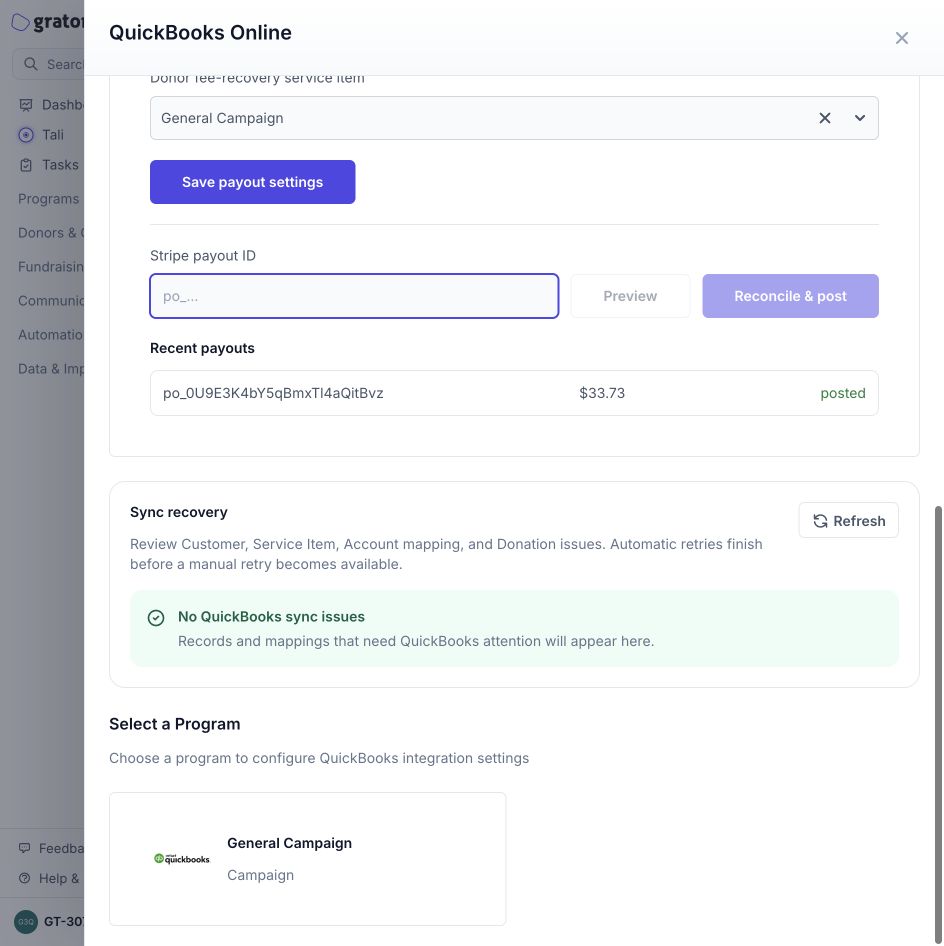
1. Copy the paid Stripe payout ID, beginning with `po_`, into **Stripe payout ID**.
2. Click **Preview**.
3. Confirm that the displayed equation balances: gross receipts minus refunds, disputes, and fees equals the payout.
4. If the result is **Ready to post**, click **Reconcile & post**.
5. Confirm the **Posted to QuickBooks** result and QuickBooks Deposit ID. The payout also appears under **Recent payouts**.

<figure><img src="https://3594793218-files.gitbook.io/~/files/v0/b/gitbook-x-prod.appspot.com/o/spaces%2FoKO2daI6MQ1KQOLltE3m%2Fuploads%2Fgit-blob-963c510c728b79673f0ee27841e9029ad83bd145%2Fquickbooks-stripe-payout-posted.png?alt=media" alt="Stripe payout posted to QuickBooks with a recent payout record"><figcaption><p>A posted payout is retained in recent history with its amount and status.</p></figcaption></figure>

Posting is idempotent: retrying the same payout does not intentionally create a second Deposit. Gratona holds the payout for review rather than posting when it is unpaid, manual, instant, sent to a non-bank destination, mixed-currency, adjusted, imbalanced, missing required lineage or mappings, or associated with a different QuickBooks company.

## Before month-end close

1. Confirm the expected QuickBooks company is connected and healthy.
2. Review **Open issues** and resolve every relevant mapping or accounting decision.
3. Check **All attempts** for skipped or failed records in the closing period.
4. Review recent historical runs and payout results.
5. Compare the posted QuickBooks totals with the corresponding Gratona and Stripe period totals.

Keep unresolved items open for review; do not disconnect and reconnect to another QuickBooks company as a shortcut.