> For the complete documentation index, see [llms.txt](https://docs.helpyousponsor.com/guides/llms.txt). Markdown versions of documentation pages are available by appending `.md` to page URLs; this page is available as [Markdown](https://docs.helpyousponsor.com/guides/core-features/communication-tools/auto-emails.md).

# Auto Emails

Use **Auto Emails** when you need to set up automated email notifications for donors and administrators. Each auto email set groups related email templates that share a sender address. When a trigger event happens — a new sponsorship, a payment, a profile update, or a message — HelpYouSponsor sends the matching email automatically.

## Find the Auto Emails Page

Open **Auto Emails** from the sidebar under Communications. If you do not see it in the sidebar, your account may not have the communications permission.

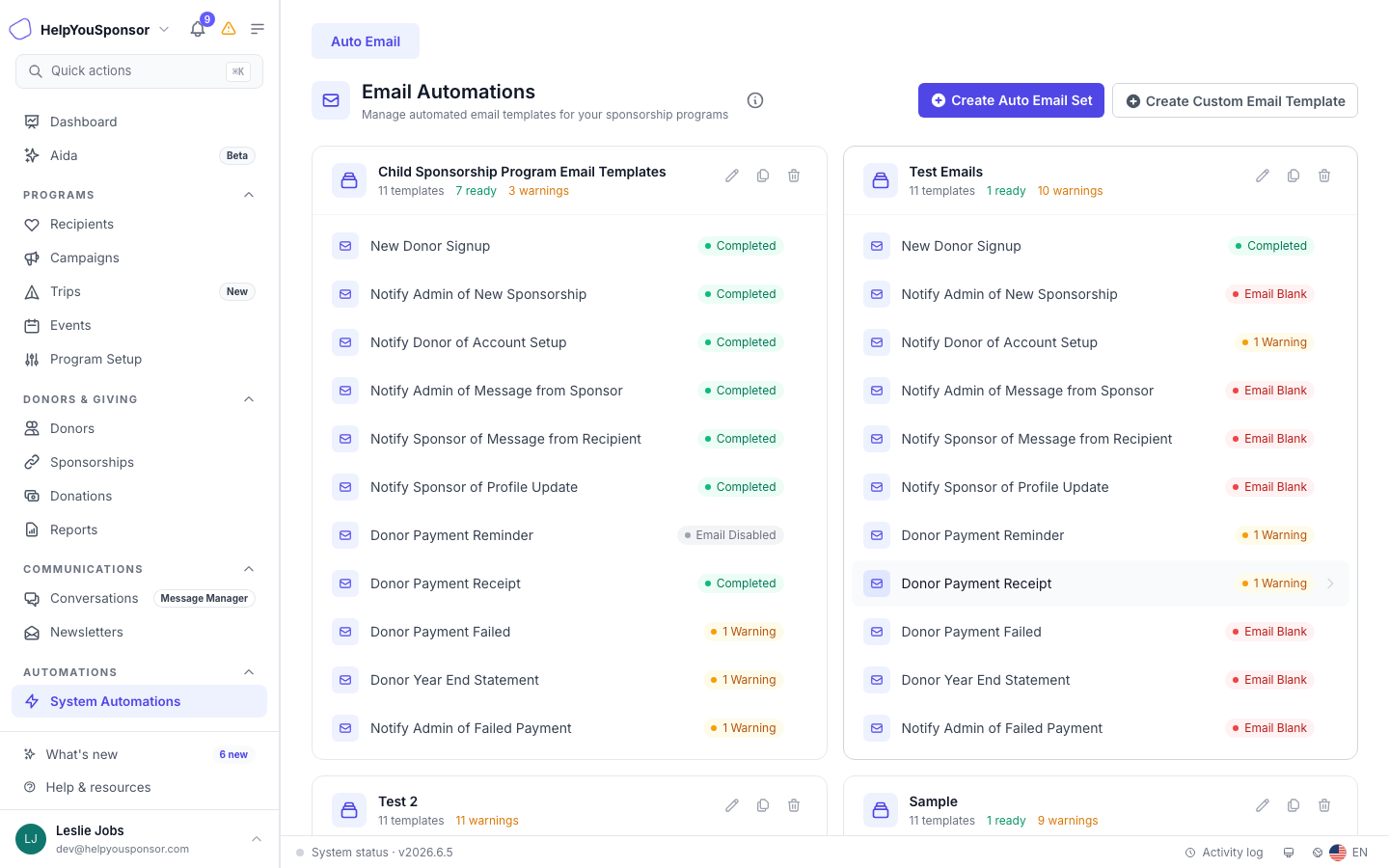
<figure><img src="/files/YoUXL6GkUr7iURUKKour" alt=""><figcaption><p>The Auto Emails page shows email set cards with template counts and status badges.</p></figcaption></figure>

## Create an Auto Email Set

An auto email set is a group of email templates that share a from-address and are connected to one or more programs.

1. Open **Auto Emails**.
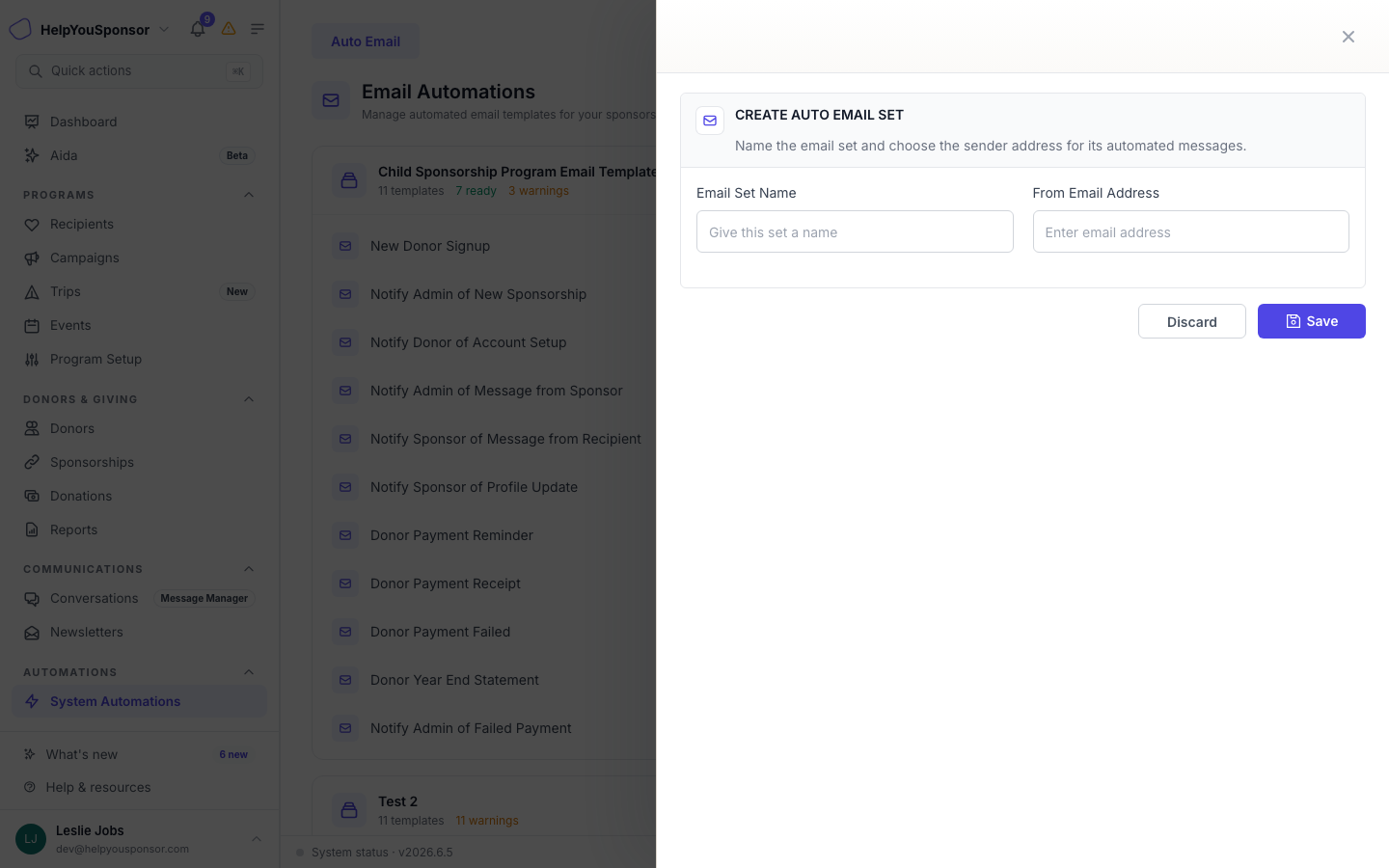
2. Select **Create Auto Email Set**.
3. Enter an **Email Set Name** that helps you identify the set.
4. Enter the **From Email Address** that donors and administrators will see as the sender.
5. Select **Submit**.

<figure><img src="/files/cll8rs4SBVYTLE86r1zK" alt=""><figcaption><p>The Create Auto Email Set drawer asks for a name and from-email address.</p></figcaption></figure>

After you create the set, HelpYouSponsor populates it with default email templates for the supported trigger events.

## Review Email Templates in a Set

Each auto email set contains individual email templates. Select an email set card to see its templates.

<figure><img src="/files/YoUXL6GkUr7iURUKKour" alt=""><figcaption><p>Each template shows a status badge: Completed, Warning, or Email Disabled.</p></figcaption></figure>

### Default Templates Sent to Donors

| Template                                     | When It Is Sent                                                                   |
| -------------------------------------------- | --------------------------------------------------------------------------------- |
| **New Donor Signup**                         | When a new donor signs up in HelpYouSponsor.                                      |
| **Notify Donor of Account Setup**            | When an admin sets up an account for a donor.                                     |
| **Notify Sponsor of Message from Recipient** | When a message is sent from a recipient to a sponsor through the message manager. |
| **Notify Sponsor of Profile Update**         | When a donor profile is edited or updated.                                        |
| **Donor Payment Reminder**                   | When a payment date is approaching.                                               |
| **Donor Payment Receipt**                    | When a donation payment is successful.                                            |
| **Donor Payment Failed**                     | When a donation payment fails.                                                    |
| **Donor Year End Statement**                 | When a year-end statement is generated for a donor.                               |

### Default Templates Sent to Administrators

| Template                                 | When It Is Sent                        |
| ---------------------------------------- | -------------------------------------- |
| **Notify Admin of New Sponsorship**      | When a donor sponsors a new recipient. |
| **Notify Admin of Message from Sponsor** | When a sponsor messages a recipient.   |
| **Notify Admin of Failed Payment**       | When a subscription payment fails.     |

### Status Tags

Each template shows a status badge:

* **Completed** — the template has been reviewed and saved with short codes.
* **Warning** — some short codes are unused. The email will still be sent.
* **Email Disabled** — the template will not be sent. Select the template and uncheck the disable option to re-enable it.

## Edit an Email Template

Select any template in the set to open the template editor. The editor lets you customize the message that donors or administrators receive.

<figure><img src="/files/9cJa36rfY8RrG8jehi3p" alt=""><figcaption><p>The template editor shows a rich email designer with merge tags on the right.</p></figcaption></figure>

### Set the Subject and Message

1. **Subject** — the email subject line. Use short codes to personalize it, for example `Welcome [donor_first_name]!`.
2. **Message** — the email body. Use the **Unlayer drag-drop editor** to design rich HTML emails, or switch to the code editor for plain HTML.
3. **Disable Email** — check this to stop the template from being sent. Uncheck to re-enable it.

### Use Short Codes (Merge Tags)

Short codes personalize each email with data from the donor, recipient, or system. The available short codes depend on the template trigger and the program form attached to the email set.

<figure><img src="/files/9cJa36rfY8RrG8jehi3p" alt=""><figcaption><p>Short codes are grouped by type: Recipient, Donor, and System short codes.</p></figcaption></figure>

<figure><img src="/files/hzq49n3XxeRWHIIo7mt6" alt="" width="375"><figcaption><p>Merge Tags</p></figcaption></figure>

Short code groups include:

* **Recipient Short Codes** — fields from the recipient program form attached to the email set. For example, `[en_child_name]` inserts the recipient name.
* **Donor Short Codes** — fields from the donor form attached to the email set. Standard donor short codes like `[donor_first_name]` and `[donor_email]` are always available.
* **Custom Donor Short Codes** — custom fields from the donor form.
* **Trip Participant Short Codes** — participant fields when the program is a trip program.
* **In-Kind Donation Short Codes** — additional short codes for in-kind donation receipt templates.
* **System Short Codes** — provided by HelpYouSponsor. These vary by trigger and can include values like the sponsorship amount, next payment date, or organization name.

Select a short code to insert it at the cursor position in the editor.

> **Note:** Use only the short codes listed in the editor. Unrecognised short codes prevent the template from being saved.

## Work with Donation-Type Variants

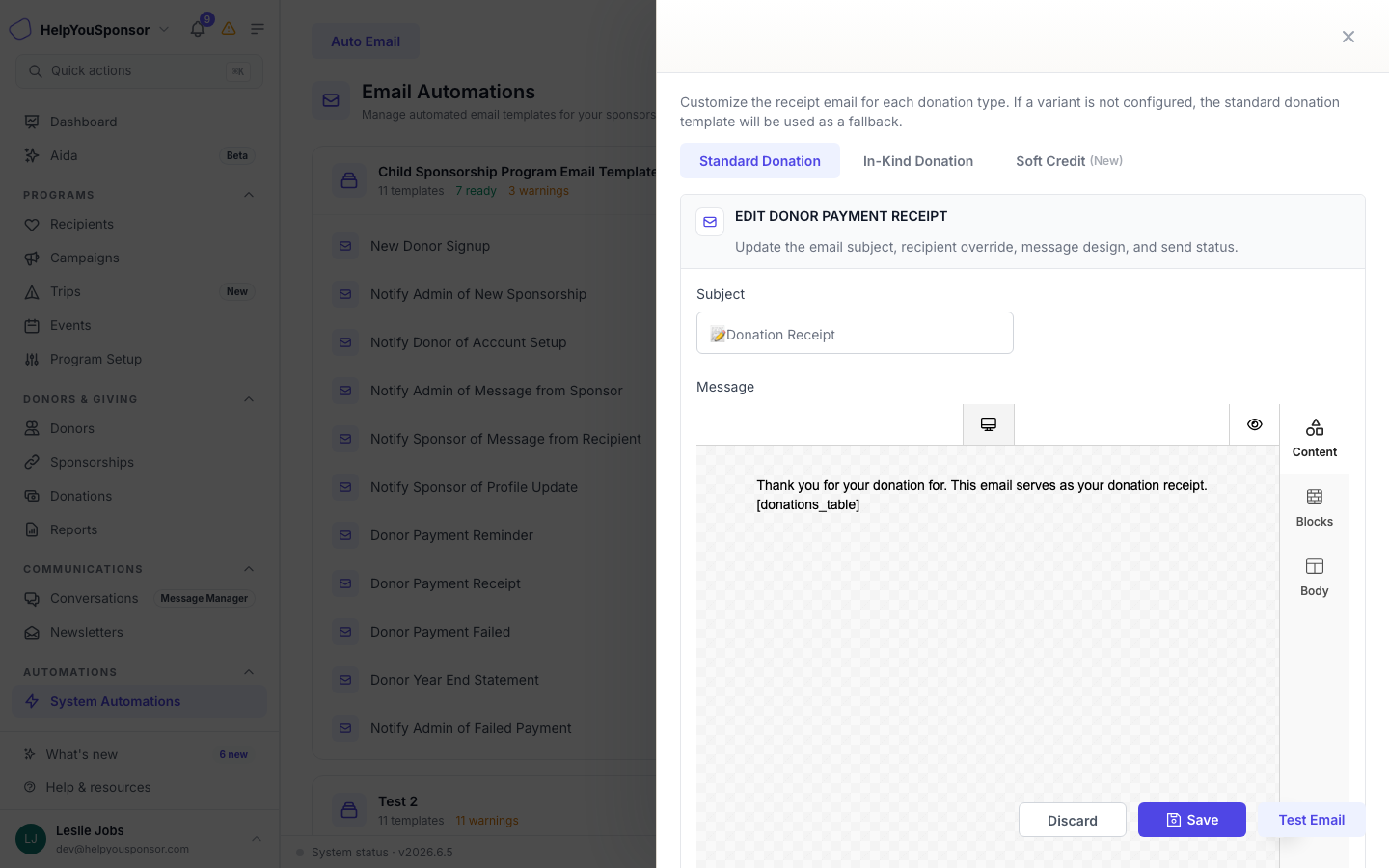
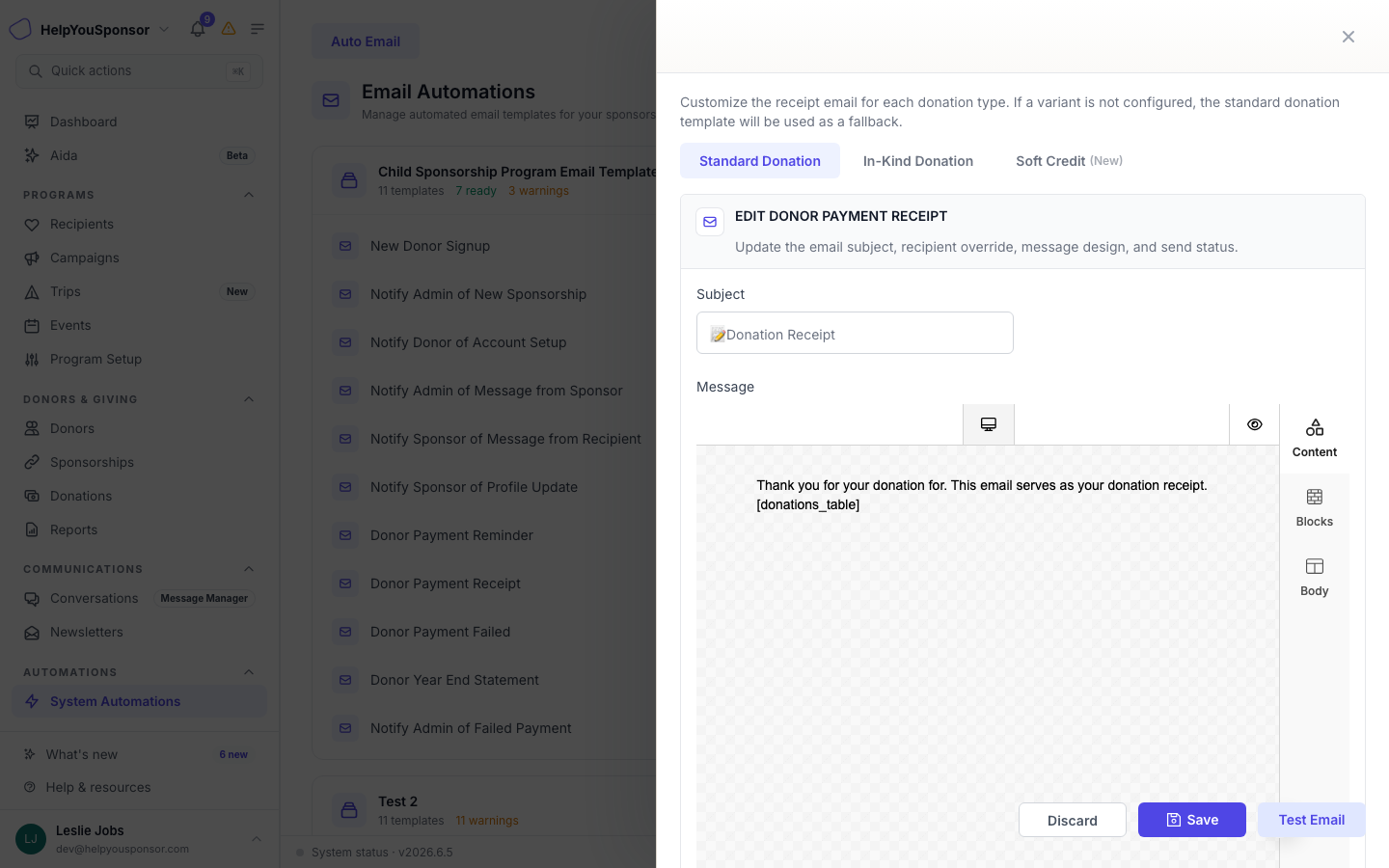
For payment receipt templates, you can create donation-type variants. Each variant sends a different message depending on whether the donation is a standard donation, an in-kind gift, or a soft credit.

<figure><img src="/files/BDUlPH9ENK3d8xBYkdUB" alt=""><figcaption><p>Variant tabs let you customize the message for each donation type.</p></figcaption></figure>

1. Open the **Donor Payment Receipt** template.
2. Select the **In-Kind** or **Soft Credit** tab.
3. HelpYouSponsor creates a copy of the default template for that donation type.
4. Customize the subject and message. In-kind and soft credit templates have additional short codes available.

## Test an Email Template

Use **Test Email** to send a preview of the template to your own email address before the template goes live.

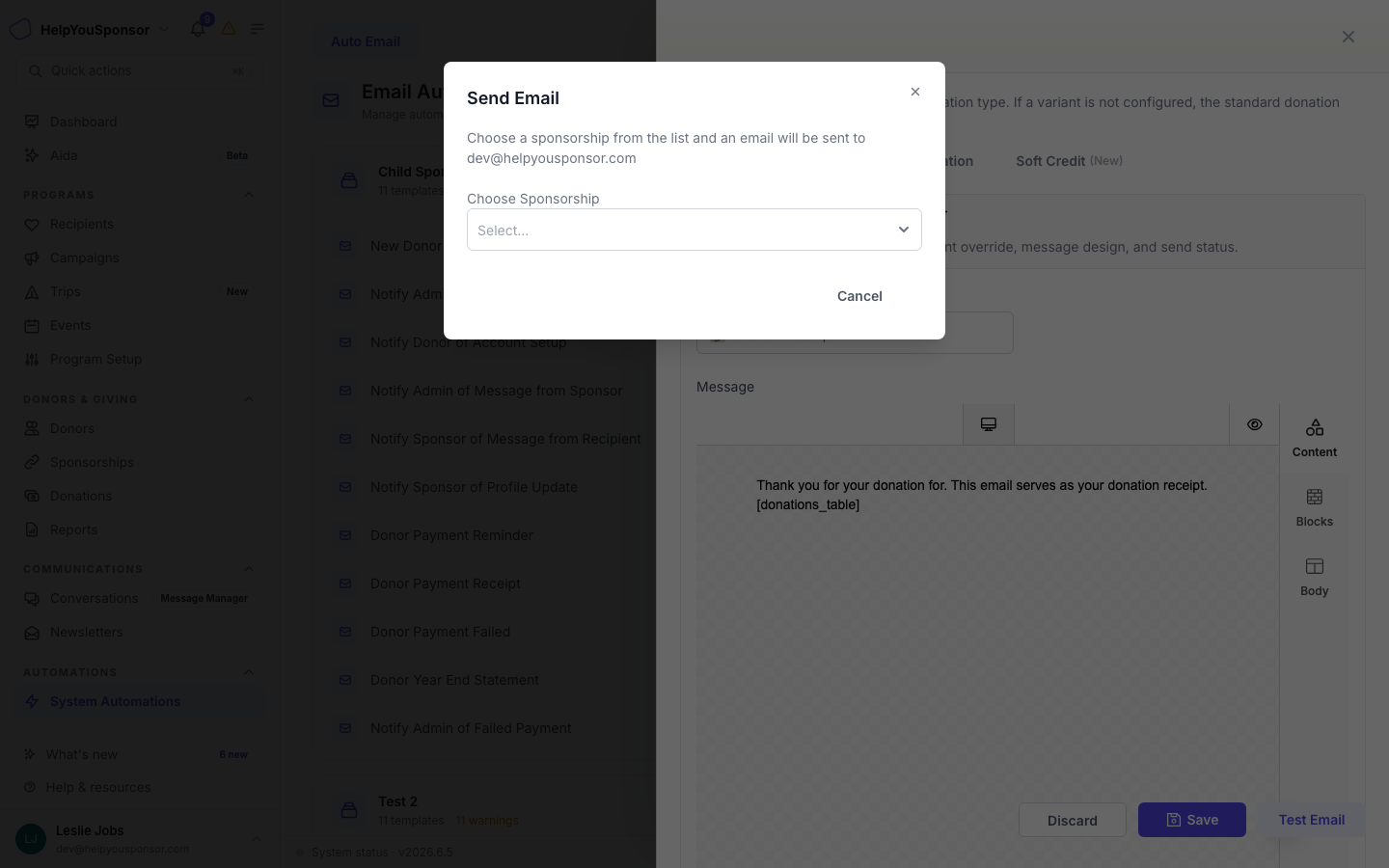
<figure><img src="/files/4GpXxNowXDYhIhZkRYX8" alt=""><figcaption><p>The test email dialog asks you to choose a sponsorship to use for the preview data.</p></figcaption></figure>

1. Open the template you want to test.
2. Select **Test Email**.
3. Choose a sponsorship relationship. The sponsorship provides the donor and recipient data used to resolve short codes in the preview.
4. Select **Send**.

The test email is sent to the from-email address of the email set. Check your inbox and spam folder. Test emails are sent even when the template is disabled, so you can verify the content before enabling it.

## Manage Email Sets

### Clone an Email Set

Use **Clone** when you want to duplicate an existing email set and its templates. This is useful when you need a similar set for a different program.

1. Open **Auto Emails**.
2. Select the clone action on the email set card.
3. Enter a name for the cloned set.
4. Select **Clone**.

### Delete an Email Set

Use **Delete** when an email set is no longer needed. Deleting an email set removes all templates in the set. Programs attached to the deleted set will not send auto emails.

1. Open **Auto Emails**.
2. Select the delete action on the email set card.
3. Confirm the deletion.

## Create Custom Email Templates

Use **Create Custom Email Template** when you need an email template for a trigger that is not part of the default set.

Custom triggers currently available:

* **Notify donor of photo permission change** — sent when a recipient file permission is changed to public.
* **Notify Donor Of Future Sponsorship** — sent when a future sponsorship is set up for a donor.

For full instructions, see [Custom Auto Emails](/guides/core-features/communication-tools/auto-emails/custom-auto-emails.md).

## Permissions

Your role controls whether you can view, create, edit, clone, or delete auto email sets and templates. If the **Auto Emails** page or the action buttons are missing, your account may not have the communications permission.

## Related Guides

* [Custom Auto Emails](/guides/core-features/communication-tools/auto-emails/custom-auto-emails.md)
* [Message Manager](/guides/core-features/communication-tools/message-manager.md)
* [Program Forms](/guides/core-features/program-management/program-forms.md)
* [First Program Setup](/guides/getting-started/account-setup/first-program-setup.md)