> For the complete documentation index, see [llms.txt](https://docs.helpyousponsor.com/guides/llms.txt). Markdown versions of documentation pages are available by appending `.md` to page URLs; this page is available as [Markdown](https://docs.helpyousponsor.com/guides/core-features/communication-tools/sms-messaging.md).

# SMS Messaging

SMS Messaging is the shared inbox for donor text conversations in HelpYouSponsor. Use it when your team needs to review incoming donor replies, send one-to-one SMS responses, assign conversations, close completed threads, link unknown numbers to donor records, and keep donor text history in one place.

SMS Messaging is different from [Message Manager](/guides/core-features/communication-tools/message-manager.md). Message Manager is for sponsor and recipient messages. SMS Messaging is for donor text conversations sent and received through Sendblue.

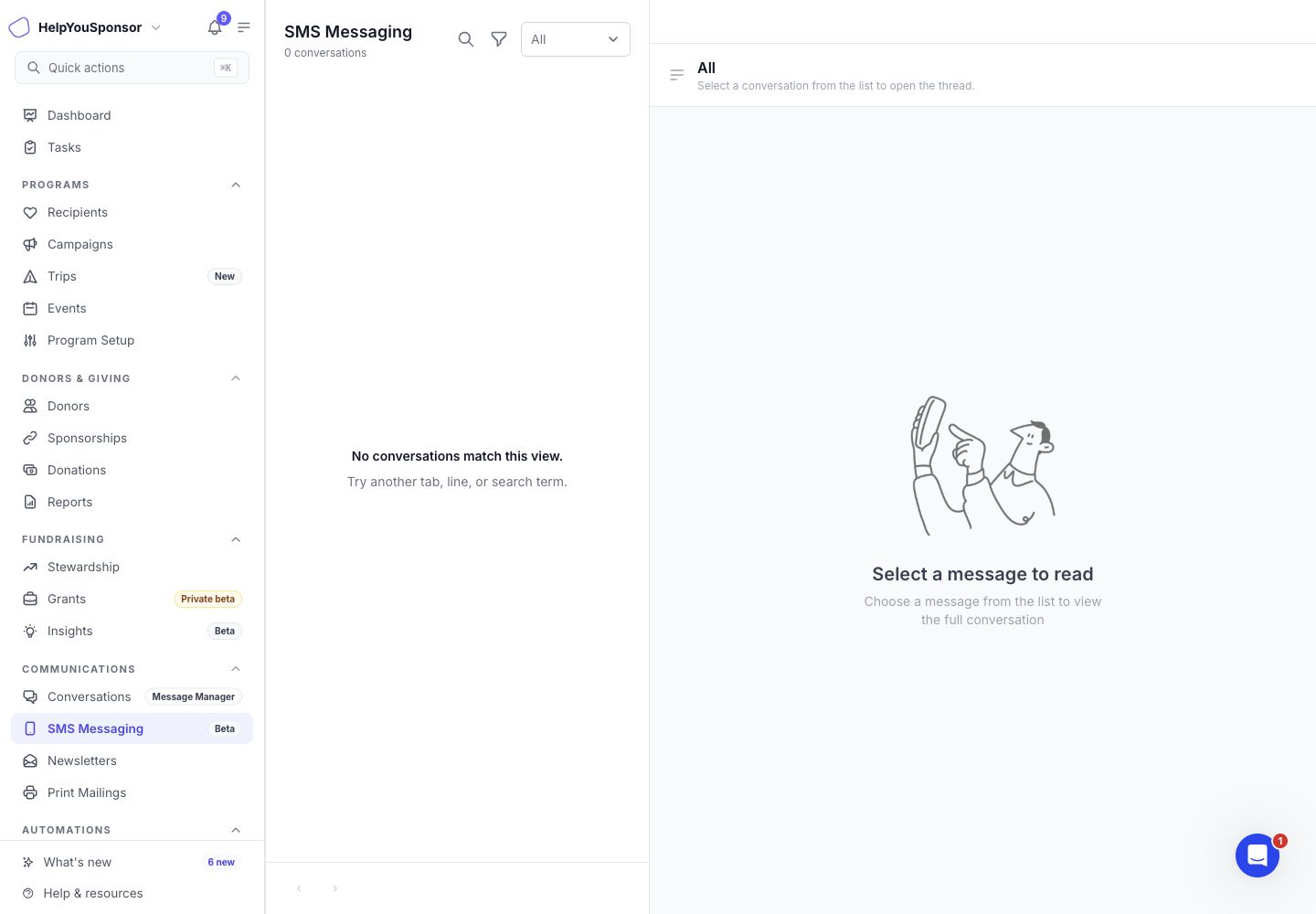
<figure><img src="/files/6Aa8HhXh6sfuNkmgCfVW" alt=""><figcaption><p>SMS Messaging inbox with search, line filtering, mailbox filters, and an empty queue state.</p></figcaption></figure>

## Before you start

Make sure the account and the admin user are ready for donor texting.

You need:

* SMS Messaging enabled for your organization.
* Access to the **SMS Messaging** page under **Communications**.
* An active Sendblue line configured for the account.
* Donor records with SMS-ready phone numbers.
* Donors who are opted in to receive SMS.

Your permission set controls what you can do:

* **View SMS shared inbox** lets you open SMS Messaging and read conversations.
* **Reply from SMS shared inbox** lets you start conversations and send replies.
* **Manage SMS shared inbox** lets you assign conversations, change statuses, and link conversations to donors.

{% hint style="info" %}
If you cannot see SMS Messaging, ask an organization admin to review your permission set and confirm that SMS Messaging is enabled for your account. SMS Messaging can also require beta access depending on your account setup.
{% endhint %}

## Review donor text conversations

Use SMS Messaging when you want to work through donor text conversations from a shared queue.

1. Open **Communications**.
2. Choose **SMS Messaging**.
3. Select the conversation you want to review.

The inbox list shows the donor name when HelpYouSponsor can match the phone number to a donor. If the number is not matched, the conversation appears as **Unknown Number** and is treated as a triage item.

Use the mailbox filter to focus the list:

* **All** shows open conversations.
* **Unread** shows open conversations with unread inbound messages.
* **Mine** shows open conversations assigned to you.
* **Unassigned** shows open conversations that no admin owns yet.
* **Needs Triage** shows conversations from unmatched or ambiguous phone numbers.
* **Closed** shows closed and archived conversations.
* **Spam** shows conversations marked as spam.

Use **Search** when you need to find a conversation by donor name, donor email, or phone number. Use **Filter** when you need to review conversations for a specific Sendblue line.

## Reply to a donor

Use the conversation thread when you are ready to answer a donor by SMS.

1. Open the donor conversation.
2. Choose **Reply**.
3. Write the SMS message.
4. Add an attachment if needed.
5. Send the reply.

<figure><img src="/files/6Aa8HhXh6sfuNkmgCfVW" alt=""><figcaption><p>SMS Messaging thread pane before a conversation is selected. The reply composer appears after opening an eligible conversation.</p></figcaption></figure>

After you send a reply, HelpYouSponsor queues the message for Sendblue. Outbound message bubbles can show delivery state, including **Sending**, **Sent**, **Delivered**, or **Could not send**.

Replies can be unavailable when:

* the donor has opted out of text messages,
* the Sendblue line is blocked,
* the selected line is not active, or
* your permission set lets you view but not reply.

## Add attachments to a reply

Use the attachment button in the reply composer when the donor needs an image or PDF.

Supported upload types are:

* JPG
* JPEG
* PNG
* GIF
* PDF

Images can be previewed in the conversation. PDFs and other supported files appear as attachment chips that can be opened or downloaded.

{% hint style="info" %}
Attachments are only available when the conversation is linked to a donor and Sendblue is configured for attachment uploads. Each file can be up to 10 MB.
{% endhint %}

## Assign, close, or triage a conversation

Use **Conversation details** when you need to manage ownership or status.

1. Open the conversation.
2. Choose the details button in the top-right of the thread.
3. Update the assignment, status, or associated donor.

<figure><img src="/files/6Aa8HhXh6sfuNkmgCfVW" alt=""><figcaption><p>SMS Messaging empty queue before selecting a conversation. Conversation details appear after a thread is open.</p></figcaption></figure>

You can assign the conversation to an admin when one person should own the follow-up. You can also change the conversation status:

* **Open** keeps the conversation in the active queue.
* **Closed** removes completed work from the open queue.
* **Spam** moves unwanted messages to the spam queue.
* **Archived** keeps the conversation out of the active queue while preserving history.

Use **Open Donor** when the conversation is already linked and you need to review the donor profile before replying.

## Link an unknown number to a donor

Use **Needs Triage** when HelpYouSponsor receives a text from a number that is not clearly matched to one donor.

1. Open **Needs Triage**.
2. Select the conversation from the unknown or ambiguous number.
3. Open **Conversation details**.
4. Search for the donor by name or email.
5. Select the donor to link the conversation.

HelpYouSponsor checks the donor's SMS-ready phone number before linking. If the donor phone number does not match the conversation phone number, the conversation cannot be linked to that donor.

After the conversation is linked, it uses the donor name in the inbox and can appear in that donor's SMS history.

## Continue texting from a donor profile

Use the donor profile when you already know which donor you want to text.

1. Open the donor profile.
2. Choose **Send SMS**.
3. Use the **Conversation** tab to review the text thread or send a reply.

<figure><img src="/files/so9uPiFZXtRZMFkuW8Nl" alt=""><figcaption><p>Donor profile Send SMS drawer with the Conversation tab open and the Auto SMS tab available separately.</p></figcaption></figure>

If the donor has no conversation history yet, HelpYouSponsor can start a conversation when:

* you have permission to reply from SMS Messaging,
* the donor has an SMS-ready phone number,
* the donor is opted in to receive SMS, and
* at least one active Sendblue line is available.

If more than one active line is available, choose the line your team should use for that donor conversation. If the donor already has conversations on multiple lines, choose the conversation line you want to continue.

Use the **Auto SMS** tab in the same drawer when you need to send a template-based operational SMS. Use **Conversation** when you need to continue the shared one-to-one thread.

## Set up Sendblue for replies

Sendblue provides the phone lines and delivery connection for SMS Messaging. Before donor replies can appear in HelpYouSponsor, Sendblue must be configured for the account.

To set up Sendblue:

1. Open **Settings**.
2. Choose **Integrations**.
3. Open **Sendblue**.
4. Choose the connection type.
5. Configure the sending number or lines.
6. Choose the default sending number.
7. Save the settings.

<figure><img src="/files/ieTLbm54po2TuxcShTBY" alt=""><figcaption><p>Sendblue integration settings for SMS Messaging lines and webhook setup.</p></figcaption></figure>

### Disabled

Use **Disabled** when the organization should not send or receive donor text messages through Sendblue.

### Self-managed Sendblue

Use **Self-managed** Sendblue when your organization owns its Sendblue account and approved numbers.

Configure:

* **API Key ID**
* **API Secret Key**
* **Default sending number**
* each approved number the account should use
* line label
* line owner
* line role
* line visibility

After saving Sendblue settings, HelpYouSponsor shows the **Shared Inbox webhook setup** section. Copy the webhook URL and webhook secret into Sendblue for both inbound and outbound message webhooks.

### HYS-managed Sendblue

Use **HYS-managed** Sendblue when HelpYouSponsor provisions the Sendblue connection for the organization.

The settings show the managed provisioning status, requested area code when one is present, assigned number when one has been assigned, and whether inbound texting is active or pending.

### Sendblue lines and visibility

Sendblue lines control which number HelpYouSponsor uses to send and receive donor texts.

Use shared visibility when the line should be available to the team. Use restricted visibility when a line should only be visible to its assigned owner and admins with SMS inbox management access.

## Troubleshooting

### I cannot see SMS Messaging

Ask an organization admin to confirm that SMS Messaging is enabled and that your permission set includes SMS inbox access. SMS Messaging can also require beta access depending on your account setup.

### I cannot start a donor conversation

Check that the donor has an SMS-ready phone number, the donor is opted in to receive SMS, and at least one active Sendblue line exists for the account.

### Replies are disabled

Replies can be disabled when the donor has opted out, the Sendblue line is blocked, or the selected line is not active.

### Attachments are not uploading

Check that Sendblue is configured, the file type is supported, and the file is 10 MB or smaller. If the conversation is not linked to a donor, link the donor before adding attachments.

### A message could not send

Open the conversation and review the outbound message status. A failed message can include details from Sendblue. Check the donor phone number, Sendblue line status, and Sendblue account setup before trying again.

### A donor reply is missing

Check the Sendblue webhook setup. For self-managed Sendblue, both inbound and outbound webhooks should use the same HelpYouSponsor webhook URL and the same webhook secret shown in the Sendblue integration settings.


---

# Agent Instructions
This documentation is published with GitBook. GitBook is the documentation platform designed so that both humans and AI agents can read, navigate, and reason over technical content effectively. Learn more at gitbook.com.

## Querying This Documentation
If you need additional information that is not directly available in this page, you can query the documentation dynamically by asking a question.

Perform an HTTP GET request on the current page URL with the `ask` query parameter, and the optional `goal` query parameter:

```
GET https://docs.helpyousponsor.com/guides/core-features/communication-tools/sms-messaging.md?ask=<question>&goal=<endgoal>
```

`ask` is the immediate question: it should be specific, self-contained, and written in natural language.
`goal` is optional and describes the broader end goal you are ultimately trying to accomplish on behalf of the user. GitBook uses it to tailor the answer towards what is most useful for that goal.

The response will contain a direct answer to the question and relevant excerpts and sources from the documentation.

Use this mechanism when the answer is not explicitly present in the current page, you need clarification or additional context, or you want to retrieve related documentation sections.
