> For the complete documentation index, see [llms.txt](https://docs.helpyousponsor.com/guides/llms.txt). Markdown versions of documentation pages are available by appending `.md` to page URLs; this page is available as [Markdown](https://docs.helpyousponsor.com/guides/core-features/donor-management/wealth-insights.md).

# Wealth Insights

Wealth Insights helps your team decide which donor relationships to research, refresh, and prepare for next. Use it when you want to review capacity signals, prepare an ask strategy, understand relationship context, or copy messaging notes before a donor conversation.

The feature appears in two places:

* The **Wealth Insights** tab on an individual donor profile.
* The **Insights** dashboard, which helps you review donors across your account.

You can also use **Ask HYS AI** for dashboard-level questions, but it does not generate Wealth Insights or change donor records.

> **NOTE:** Wealth Insights are estimates generated from available public data and your authorized HelpYouSponsor context. Review and verify information before using it in a donor conversation.

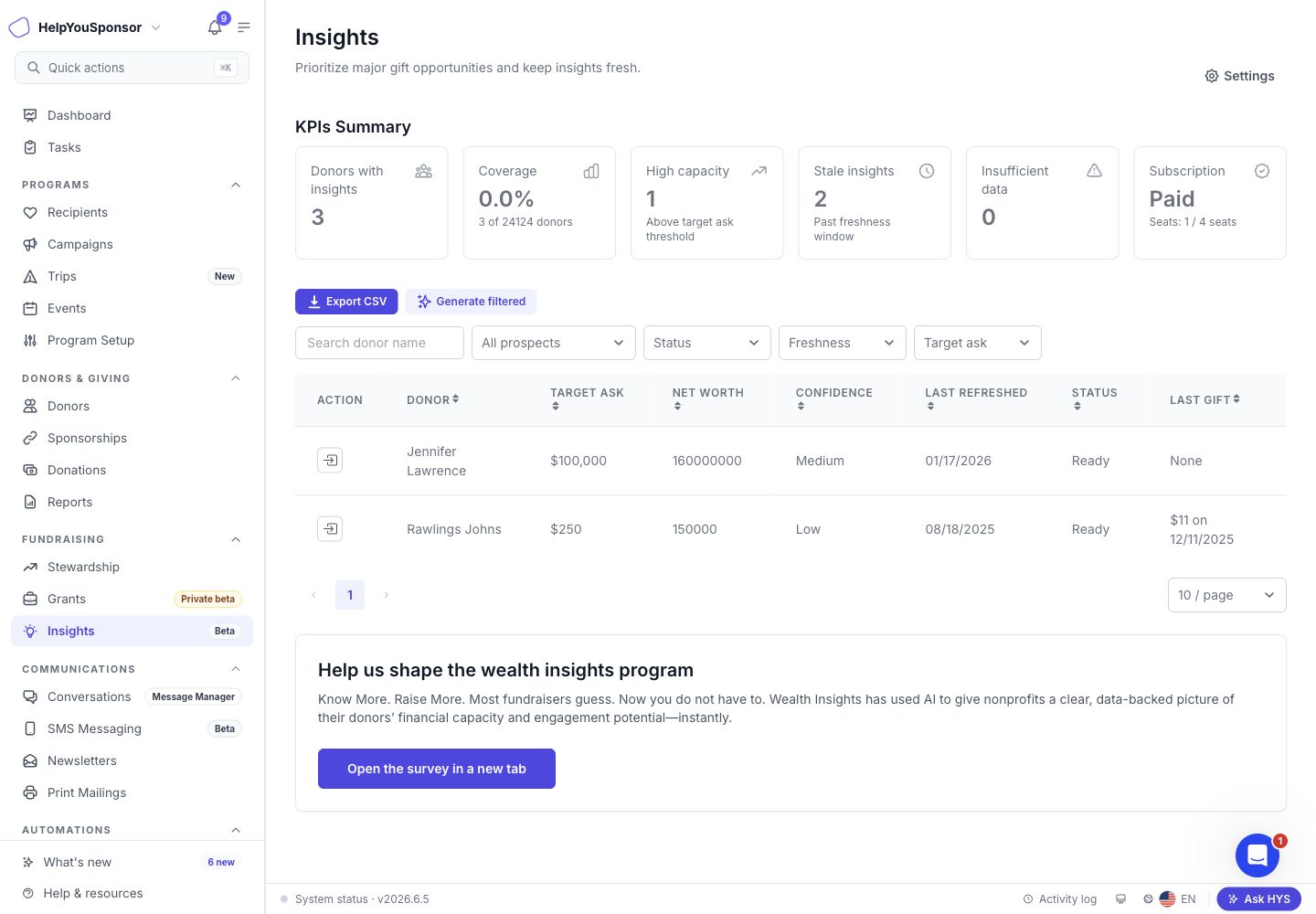
<figure><img src="/files/juFGrD823c2n0OyOGRwG" alt=""><figcaption><p>Insights dashboard with KPI summary, queue filters, and donor rows.</p></figcaption></figure>

### Before you start

Your account may not show Wealth Insights. Access depends on your organization's enabled features, subscription status, and admin permissions.

Before generating or using insights, keep these expectations in mind:

* Wealth, income, asset, and giving-capacity values are estimates.
* Public wealth claims depend on available public evidence.
* Internal donor notes, donation history, and relationship activity can help shape the fundraising guidance, but they should not be treated as public proof.
* If there is not enough reliable data, HelpYouSponsor can show **Insufficient data** and display partial guidance.
* If a donor's data has been suppressed, the Wealth Insights tab shows that the data is unavailable.
* Free accounts can generate a limited number of donor analyses. When the limit is reached, HelpYouSponsor shows an upgrade prompt before more new donors can be analyzed.

### Generate insights for one donor

Use the donor profile when you want to prepare for one relationship.

1. Open the donor profile.
2. Open the **Wealth Insights** tab.
3. If no insight exists yet, click **Generate Insights**.
4. Review the disclaimer and click **Accept & Continue**.
5. Wait while HelpYouSponsor queues and generates the insight.

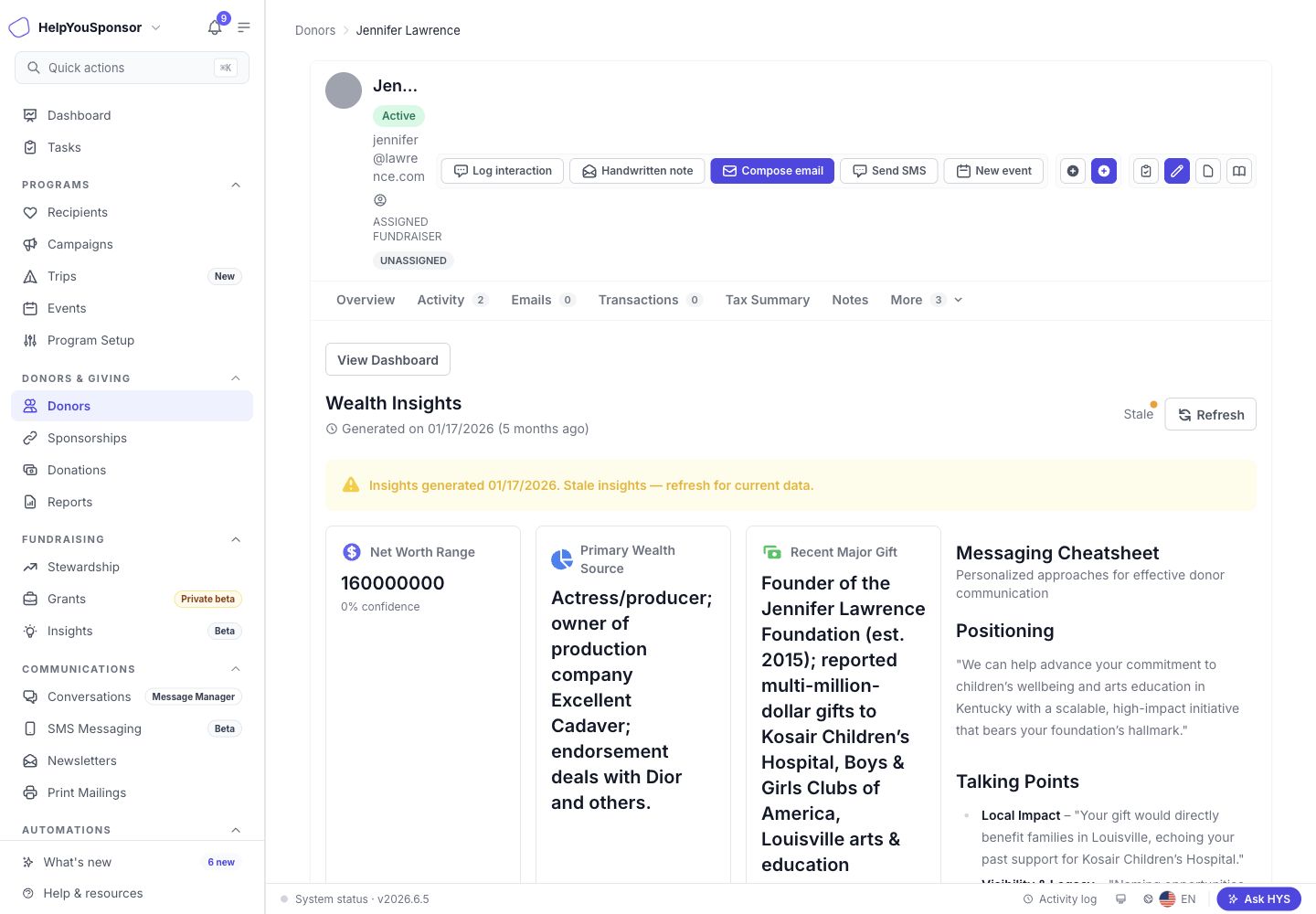
<figure><img src="/files/T3RyYTg96KzzoWoKLvoK" alt=""><figcaption><p>Donor profile Wealth Insights tab with capacity signals, ask guidance, relationship context, and messaging notes.</p></figcaption></figure>

Generation can take a short time. While it is running, the tab shows a progress state. If generation fails, use **Retry**. If HelpYouSponsor finds only weak public evidence, the tab can show an **Insufficient data** warning with partial results.

### Refresh an existing insight

Use **Refresh** on the donor profile Wealth Insights tab when you want HelpYouSponsor to regenerate the insight for that donor.

Insights are considered stale after the dashboard freshness window. The default window is 90 days unless your organization changes it in Wealth Insights settings. Stale insights are not automatically refreshed; HelpYouSponsor marks them so your team can decide when to refresh.

### Review the donor insight

The donor profile tab is designed to help you move from research to a prepared conversation.

The **Snapshot** section can include:

* **Net Worth Range:** Estimated bracket and confidence.
* **Primary Wealth Source:** Public business, professional, or asset signals when available.
* **Recent Major Gift:** Public philanthropy signal when available.
* **Affinity Tags:** Topic or mission interests identified from available context.

The **Ask Amount Guide** shows:

* **Conservative:** A lower ask amount.
* **Recommended:** The target ask.
* **Stretch:** A higher-capacity ask.
* **Donor Capacity Bucket:** A broad capacity category.
* **Rationale:** Why the ask range was suggested.

The **Deep Dive** gives more detail about the available evidence and fundraising interpretation.

The **Relationship Connections** section lists possible relevant connections when HelpYouSponsor identifies them. Relationship strength is shown as a rating, and some connections may include a source link.

The **Messaging Cheatsheet** gives talking points and suggested language. Use this as a starting point, not as a final donor-facing message.

### Use the Insights dashboard

Use the Insights dashboard when you want to work across many donors instead of one donor at a time.

Open **Fundraising** > **Insights**, use Quick actions to search for **Insights**, or click **View Dashboard** from a donor's Wealth Insights tab.

The KPI summary helps you understand account-level coverage:

* **Donors with insights:** How many distinct donors have Wealth Insights.
* **Coverage:** Donors with insights compared with all donors.
* **High capacity:** Donors whose target ask meets your high-capacity threshold.
* **Stale insights:** Insights older than your freshness window.
* **Insufficient data:** Donors whose latest insight could not be fully generated.
* **Free tier or Subscription:** Current usage or subscription status.

### Filter donor opportunities

Use filters when you want to decide which donors to review next.

The dashboard includes these queues:

* **All prospects:** Donors with current Wealth Insights.
* **High capacity + under-giving:** Donors whose target ask is at or above the high-capacity threshold and whose last gift is missing or below that target ask.
* **Stale insights to refresh:** Donors whose latest insight is outside the freshness window.
* **Top donors with no insights:** Donors who do not have Wealth Insights yet.

You can also search by donor name, filter by **Ready** or **Insufficient data**, filter by freshness, choose a minimum target ask, and sort by target ask, net worth, or last refreshed date.

When the **Top donors with no insights** queue is selected, status, freshness, and target ask filters are disabled because those donors do not have insight data yet.

### Preview a donor from the dashboard

Use the preview action when you want enough context to decide whether to open the full donor profile.

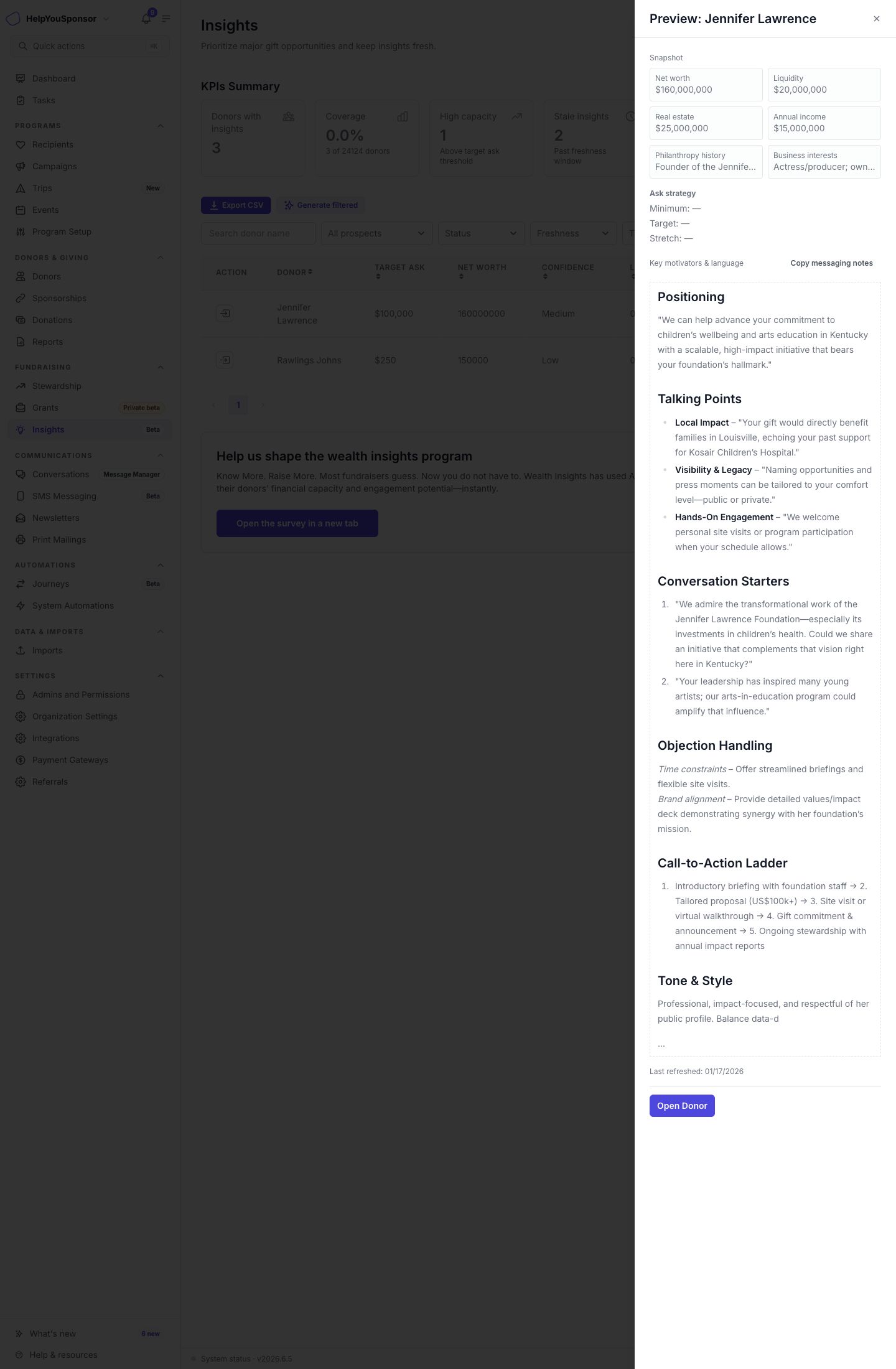
<figure><img src="/files/8CFQVrsekGirc5HcbpkW" alt=""><figcaption><p>Donor preview drawer with snapshot, ask strategy, messaging notes, and Open Donor action.</p></figcaption></figure>

The preview drawer can show:

* Snapshot signals.
* Minimum, target, and stretch ask amounts.
* Capacity bucket.
* Messaging notes.
* Last refreshed date.

Use **Copy messaging notes** to copy the messaging guidance. Use **Open Donor** to open the donor profile directly on the Wealth Insights tab.

### Generate insights for a filtered list

Use **Generate filtered** when you want to queue AI generation for the current filtered donor list.

HelpYouSponsor first shows a preview. Review the counts before confirming:

* **Eligible:** Donors that can be queued.
* **Filtered:** Donors matching the current filters.
* **Already running:** Donors already being generated and skipped for this run.
* **Free tier skipped:** New donor analyses that cannot be queued because the free tier has no remaining uses.

<figure><img src="/files/54eBXU5W2Z11SThPfgfp" alt=""><figcaption><p>Generate filtered confirmation showing eligible donors, filtered count, already-running donors, and free-tier skipped donors.</p></figcaption></figure>

If donors already have insights, the confirmation notes that they will be refreshed. If the filtered list is larger than the current processing limit, the confirmation also notes how many matching donors will be processed first.

After you confirm, HelpYouSponsor queues the work and shows progress in the table toolbar. Completed donors appear as ready or insufficient data. Failed donors are counted in the run status so your team can retry later.

### Export the current prospect list

Use **Export CSV** when you need a spreadsheet of the current dashboard results.

The export uses the filters currently applied to the table. HelpYouSponsor starts the export in the background and emails the CSV file to the signed-in admin when it is ready.

The CSV includes donor ID, donor name, donor email, target ask, net worth, confidence, status, last refreshed date, last gift amount, and last gift date.

### Adjust Wealth Insights settings

Admins with settings access can use **Settings** on the Insights dashboard.

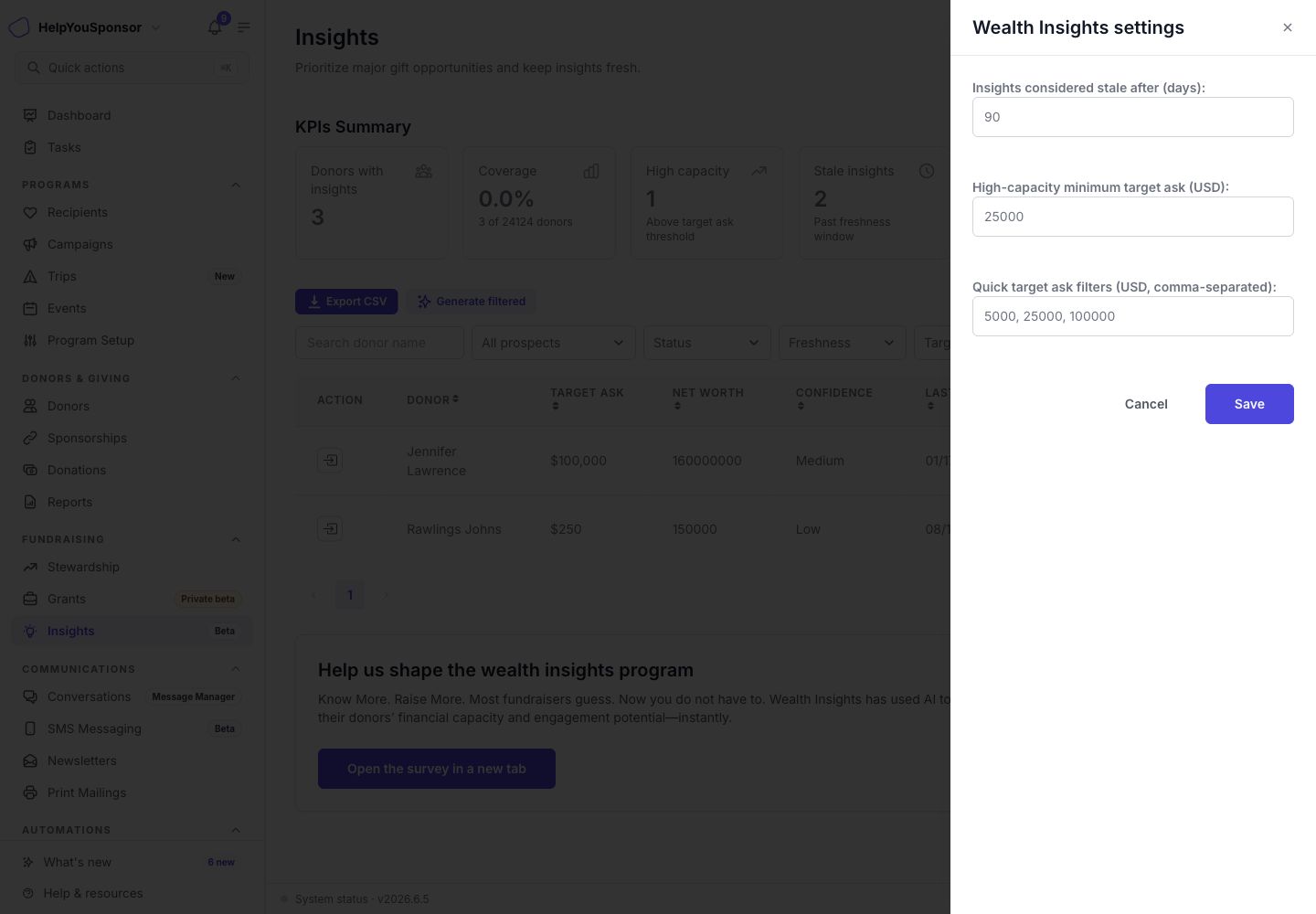
<figure><img src="/files/DE4ZNRok6dHkMblobrQJ" alt=""><figcaption><p>Wealth Insights settings drawer with freshness, high-capacity threshold, and quick target ask filters.</p></figcaption></figure>

Settings include:

* **Insights considered stale after:** Number of days before an insight is marked stale.
* **High-capacity minimum target ask:** The target ask threshold used for high-capacity counts and queues.
* **Quick target ask filters:** Preset target ask amounts used in the dashboard filter.

Save changes when you want the dashboard queues and filters to use the updated thresholds.

### Use Ask HYS AI with Wealth Insights

Use **Ask HYS AI** from Quick actions when you want a dashboard-level summary or next-step ideas. In some layouts you may also see an **Ask HYS** footer or mobile control. If the assistant is not enabled for your workspace, HelpYouSponsor shows an availability message instead of the chat.

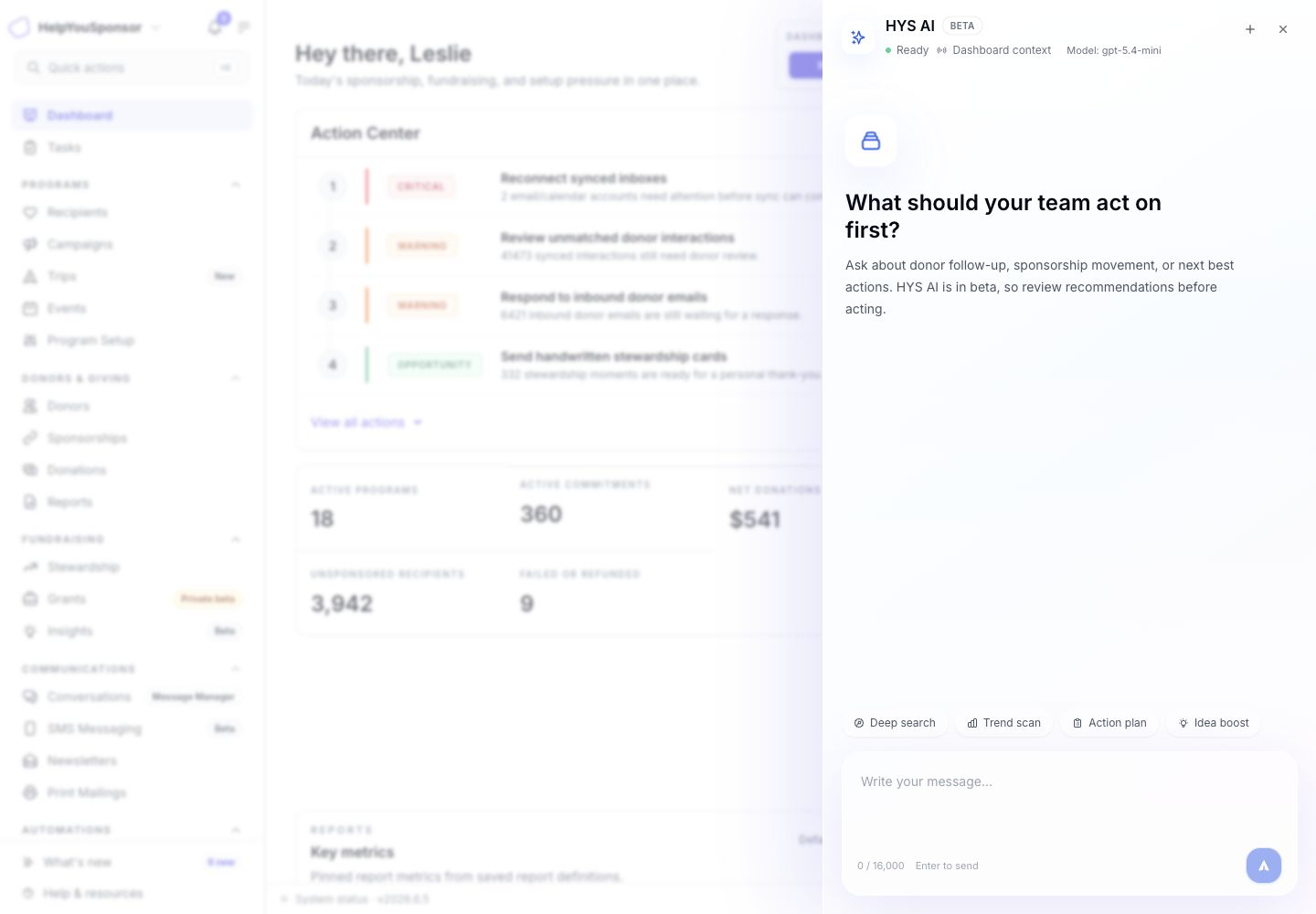
<figure><img src="/files/pqeyeVrULy7JjxQntN4E" alt=""><figcaption><p>HYS AI drawer using dashboard context to answer fundraising operations questions.</p></figcaption></figure>

Ask HYS AI can help you summarize dashboard context, explain trends, and think through next actions. It uses bounded dashboard context and recent conversation history for the current admin.

Ask HYS AI does not:

* Generate or refresh Wealth Insights.
* Edit donor records.
* Send emails, SMS messages, or other outreach.
* Replace your review of public evidence and donor context.

Use Ask HYS AI for planning and interpretation, then use the donor profile or Insights dashboard to review the source workflow and take action.

### Related guides

* [Donor Profile Page](/guides/core-features/donor-management/donor-profile-page.md)
* [Dashboard](/guides/getting-started/dashboard.md)
* [Navigation](/guides/getting-started/navigation.md)
* [Permissions and Access Control](/guides/administration/permissions-and-access-control.md)


---

# Agent Instructions
This documentation is published with GitBook. GitBook is the documentation platform designed so that both humans and AI agents can read, navigate, and reason over technical content effectively. Learn more at gitbook.com.

## Querying This Documentation
If you need additional information that is not directly available in this page, you can query the documentation dynamically by asking a question.

Perform an HTTP GET request on the current page URL with the `ask` query parameter, and the optional `goal` query parameter:

```
GET https://docs.helpyousponsor.com/guides/core-features/donor-management/wealth-insights.md?ask=<question>&goal=<endgoal>
```

`ask` is the immediate question: it should be specific, self-contained, and written in natural language.
`goal` is optional and describes the broader end goal you are ultimately trying to accomplish on behalf of the user. GitBook uses it to tailor the answer towards what is most useful for that goal.

The response will contain a direct answer to the question and relevant excerpts and sources from the documentation.

Use this mechanism when the answer is not explicitly present in the current page, you need clarification or additional context, or you want to retrieve related documentation sections.