> For the complete documentation index, see [llms.txt](https://docs.helpyousponsor.com/guides/llms.txt). Markdown versions of documentation pages are available by appending `.md` to page URLs; this page is available as [Markdown](https://docs.helpyousponsor.com/guides/core-features/events/event-results-and-follow-up.md).

# Review Event Results and Follow Up

Use event results after registration opens, during the event, and after the event to understand attendance, revenue, sponsors, giving, and follow-up opportunities.

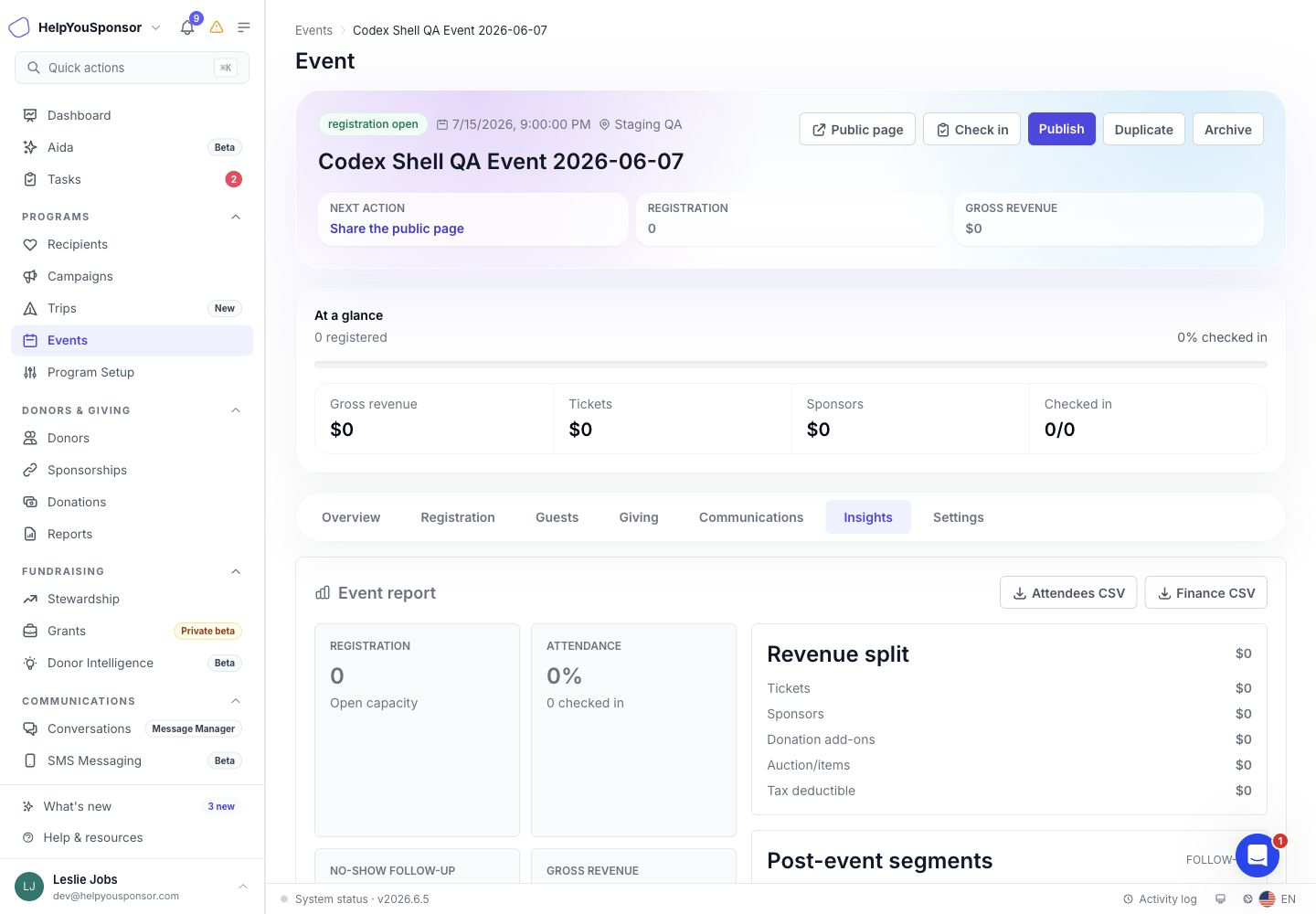
The event workspace summarizes registration, check-in, gross revenue, ticket revenue, sponsor revenue, auction or fixed-price item revenue, donation add-ons, discounts, fee coverage, deductible amounts, and non-deductible amounts.

<figure><img src="/files/4SawoOaX49uQ8GxNyg0G" alt="The Insights area summarizes event revenue, attendance, ticket mix, sponsor activity, check-in timeline, and follow-up segments."><figcaption><p>The Insights area summarizes event revenue, attendance, ticket mix, sponsor activity, check-in timeline, and follow-up segments.</p></figcaption></figure>

## Review registration and attendance

Use the event overview and guest list to answer questions like:

* How many people registered?
* How many checked in?
* What is the attendance rate?
* Which ticket types were used?
* Which guests are tied to tables?
* Which guests were no-shows or cancelled?

The **Guests** area includes attendee rows, ticket type, table assignment, order context, and status. Use it to review event attendance and update seating before the event.

## Reconcile event giving

Use the **Giving** and **Insights** areas when you need to understand event revenue.

Review:

* completed and pending revenue
* ticket revenue
* sponsor revenue
* auction or fixed-price item revenue
* donation add-ons
* discounts
* fee coverage
* tax-deductible amount
* non-deductible amount
* payment status
* receipt status
* QuickBooks event revenue fields when configured

<figure><img src="/files/6uscnPDFoG9qufJCZbzm" alt="The Giving area lists event orders with purchaser, payment, receipt, promo, sponsor, and revenue details."><figcaption><p>The Giving area lists event orders with purchaser, payment, receipt, promo, sponsor, and revenue details.</p></figcaption></figure>

## Export event records

Use exports when finance, event staff, or follow-up teams need a spreadsheet.

### Attendees CSV

The attendees export includes guest identity, ticket type, order number, purchaser, table, status, checked-in time, ticket code, and QR status.

Use this export for event-day backup, attendance review, table review, and no-show follow-up.

### Orders CSV

The orders export includes purchaser, donor ID, order status, payment status, payment method, gateway, transaction ID, promo code, subtotal, discount, fee coverage, donation add-on, sponsorship revenue, deductible and non-deductible amounts, total, donation ID, receipt timing, sponsor packages, and conversion intents.

Use this export for reconciliation, receipt review, and finance handoff.

## Track sponsor fulfillment

Use sponsor tracking when sponsor packages include deliverables.

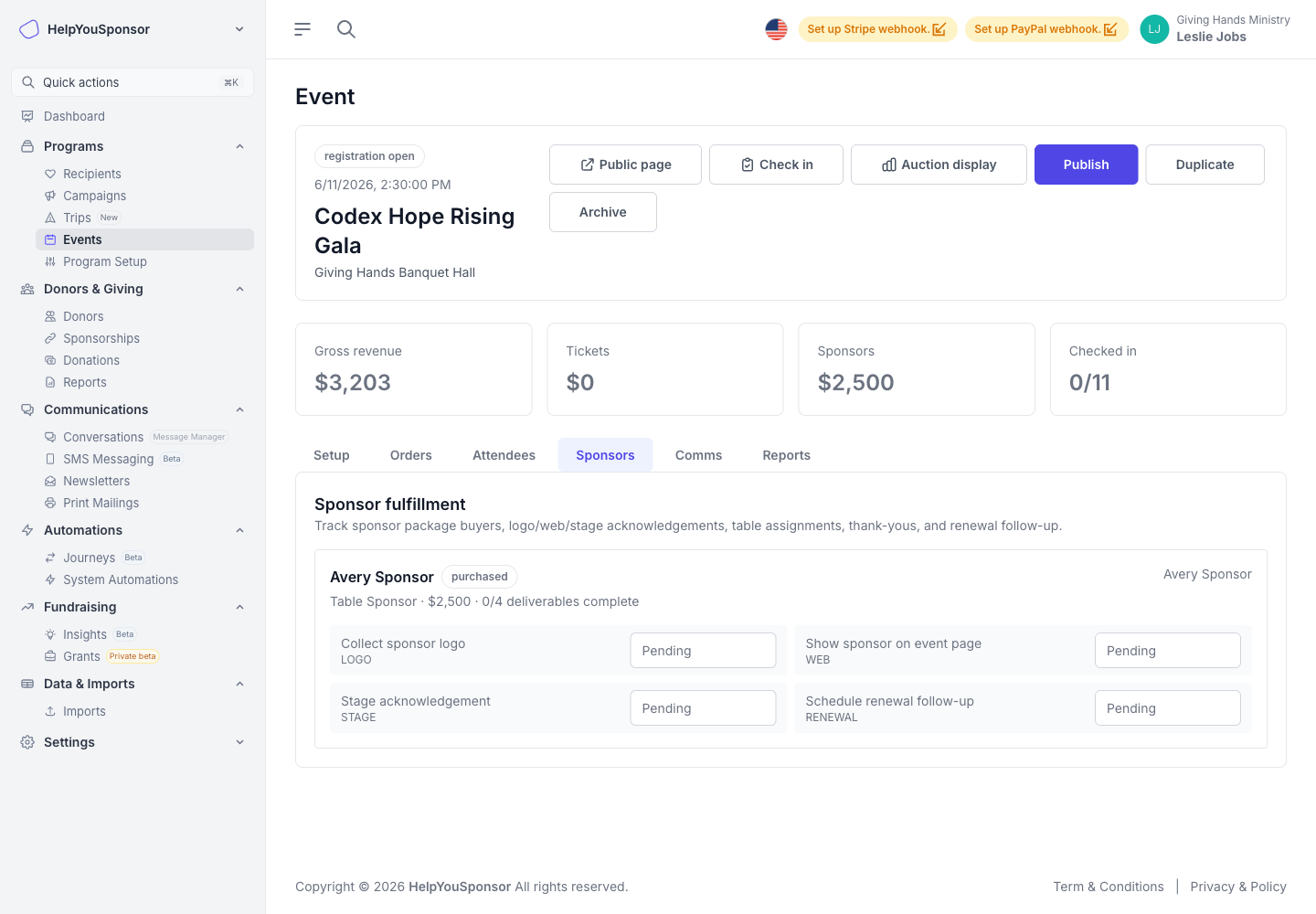
Review each sponsor's package, contact, logo, included guests, public visibility, and deliverable statuses. Mark deliverables as pending, in progress, completed, or waived as work is finished.

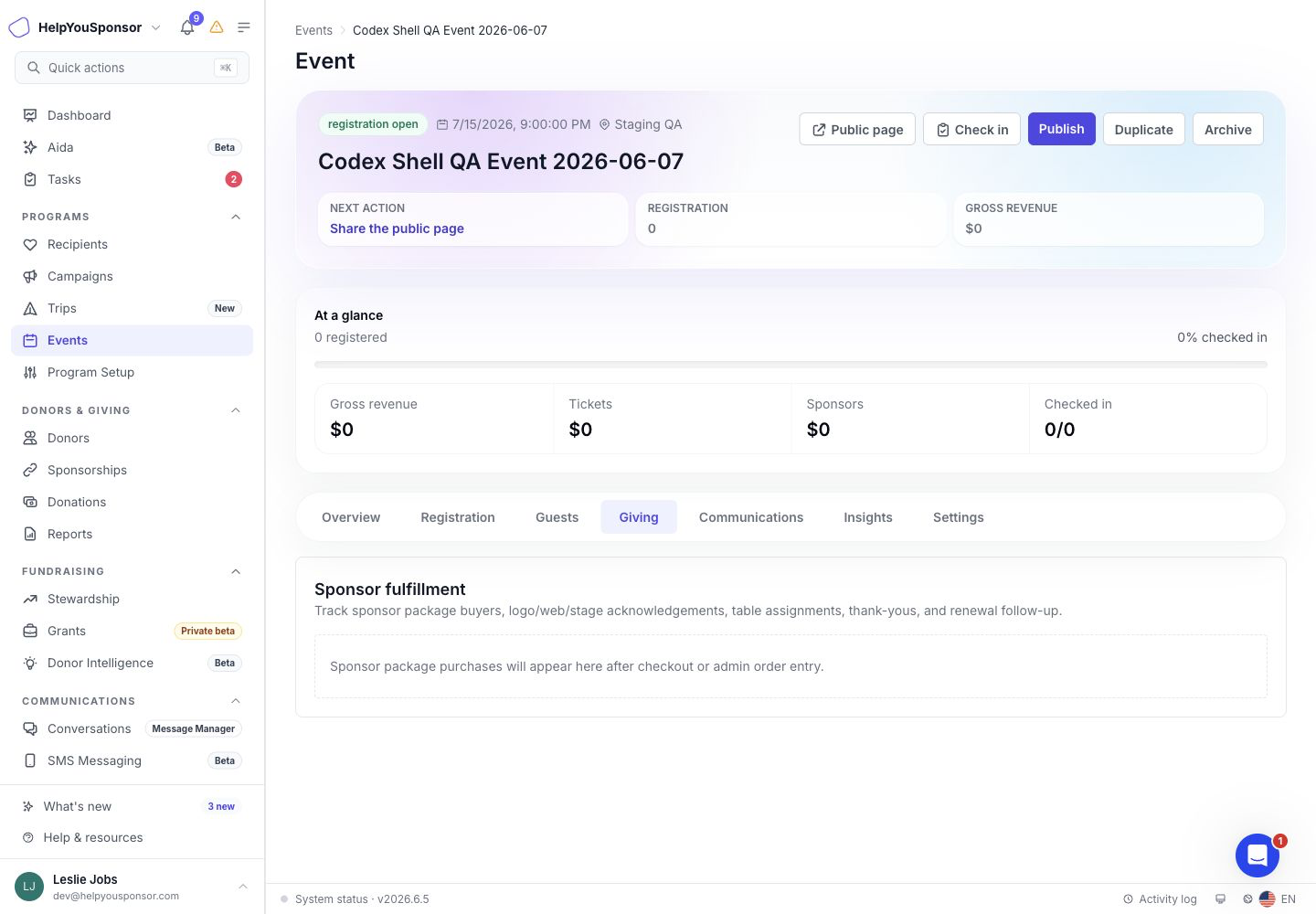
<figure><img src="/files/fKDp8bYdXG2J4nBEwr2w" alt="The sponsor area tracks sponsor package details, included guests, logo information, and deliverable fulfillment."><figcaption><p>The sponsor area tracks sponsor package details, included guests, logo information, and deliverable fulfillment.</p></figcaption></figure>

## Send event communications

Use event communications when you need confirmation, reminder, thank-you, no-show, sponsor, recurring gift, sponsorship, or campaign follow-up messages.

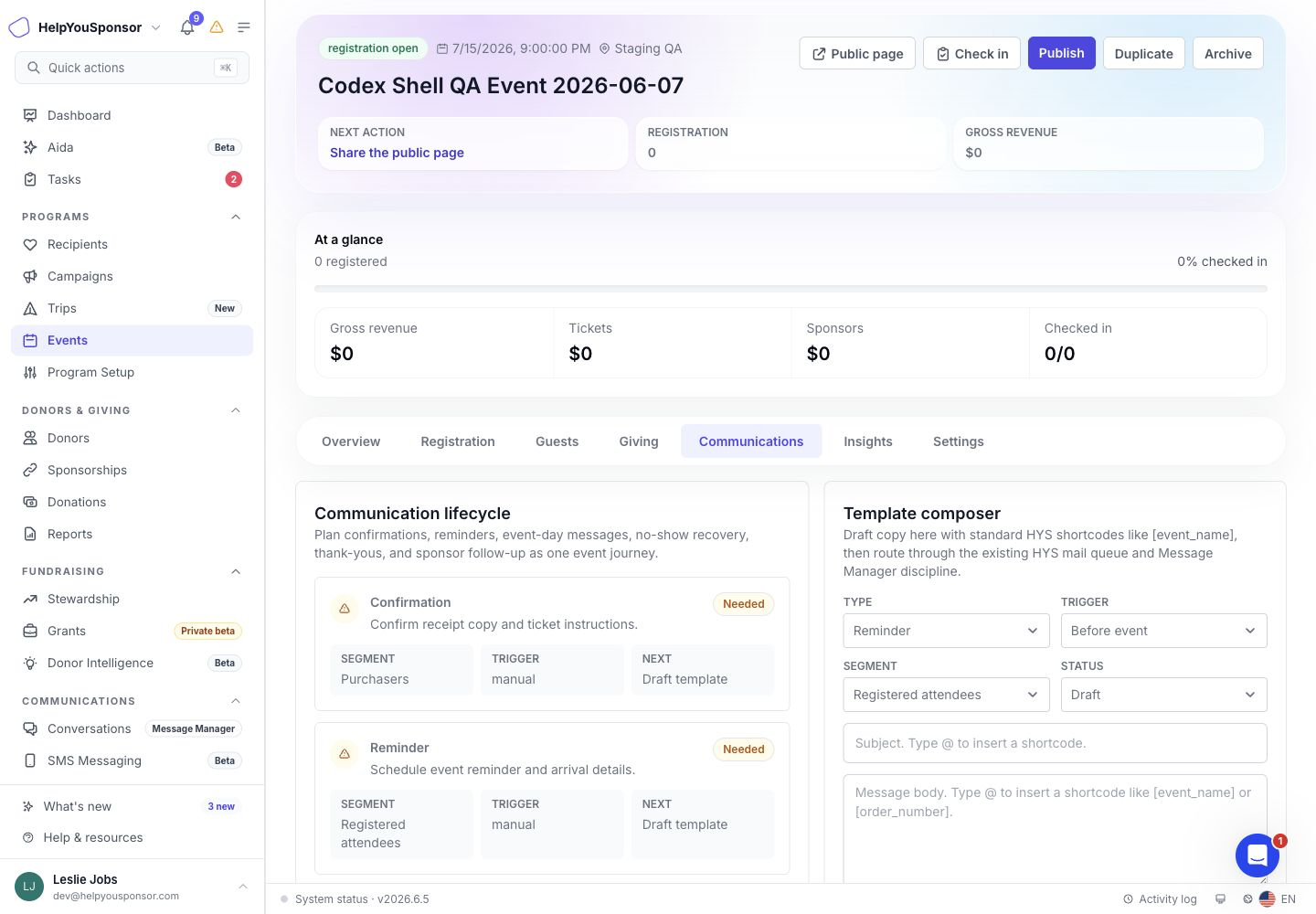
Templates can use event shortcodes such as event name, event date, location, order number, ticket details, receipt details, sponsor details, and manage links. Drafts can be scheduled relative to event activity when the communication type supports it.

Before sending or scheduling a communication, confirm:

* the audience segment is correct
* the subject and body match the event
* receipt or tax language matches the order data
* approval rules for your organization have been followed
* donor email suppression and notification preferences are respected

<figure><img src="/files/gsGNXZIBYUhELIp9AyLV" alt="The Communications area keeps event confirmation, reminder, thank-you, no-show, sponsor, and follow-up message drafts together."><figcaption><p>The Communications area keeps event confirmation, reminder, thank-you, no-show, sponsor, and follow-up message drafts together.</p></figcaption></figure>

## Use follow-up segments

Use post-event segments when you want to turn event activity into next actions.

Events can summarize groups such as:

* attended and gave
* attended with no gift
* no-show
* sponsor package buyers
* potential sponsorship prospects when the event is linked to a recipient group

Use these groups to plan thank-you messages, no-show follow-up, recurring gift asks, sponsorship asks, sponsor renewal work, or campaign follow-up.

## Use Reports Hub for reusable reporting

Use the event workspace for live event operations and quick exports.

Use [Reporting and Analytics](/guides/advanced-features/reporting-and-analytics.md) when you need reusable Events reports, scheduled exports, or broader reporting across event orders.