> For the complete documentation index, see [llms.txt](https://docs.helpyousponsor.com/guides/llms.txt). Markdown versions of documentation pages are available by appending `.md` to page URLs; this page is available as [Markdown](https://docs.helpyousponsor.com/guides/core-features/events/public-event-registration.md).

# Manage Public Event Registration

Use the public event page when guests, donors, sponsors, or bidders need to register without an admin entering the order for them.

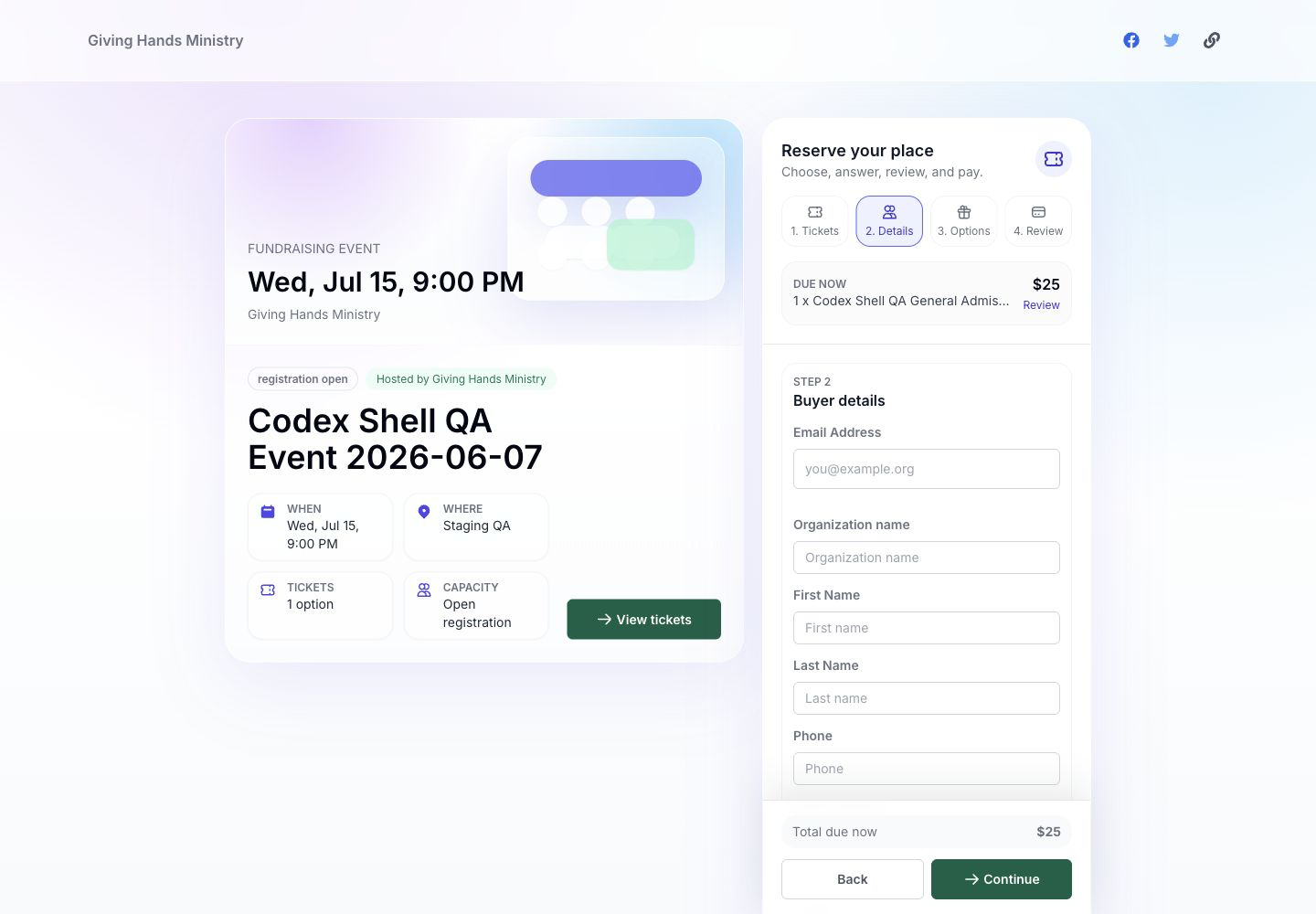
The public page shows the event details, ticket and sponsor options, fixed-price or auction items, donation prompts, registration questions, and checkout review. It also uses the donor form fields configured for the event context, so required donor fields can be collected during registration.

<figure><img src="/files/WlfZVykE6OPrwp6UKeSO" alt="The public event page lets guests review event details, choose tickets or sponsor packages, add giving options, and complete registration."><figcaption><p>The public event page lets guests review event details, choose tickets or sponsor packages, add giving options, and complete registration.</p></figcaption></figure>

## Share the registration page

Share the public page only after the event has been published and reviewed.

1. Open the event.
2. Confirm that the public page is enabled.
3. Select **Public page**.
4. Review the event page as a guest.
5. Share the public URL with the audience.

If the public page is disabled, the event will not return a shareable public registration URL.

## Help guests choose the right option

Guests can register by choosing one or more available options:

* a ticket type
* a sponsor package
* fixed-price event items
* auction bids or auction checkout when enabled
* an add-on donation when enabled
* fee coverage when enabled

Availability is controlled by the event setup. Sold-out ticket types or unavailable items should not be treated as open inventory.

## Collect guest and donor details

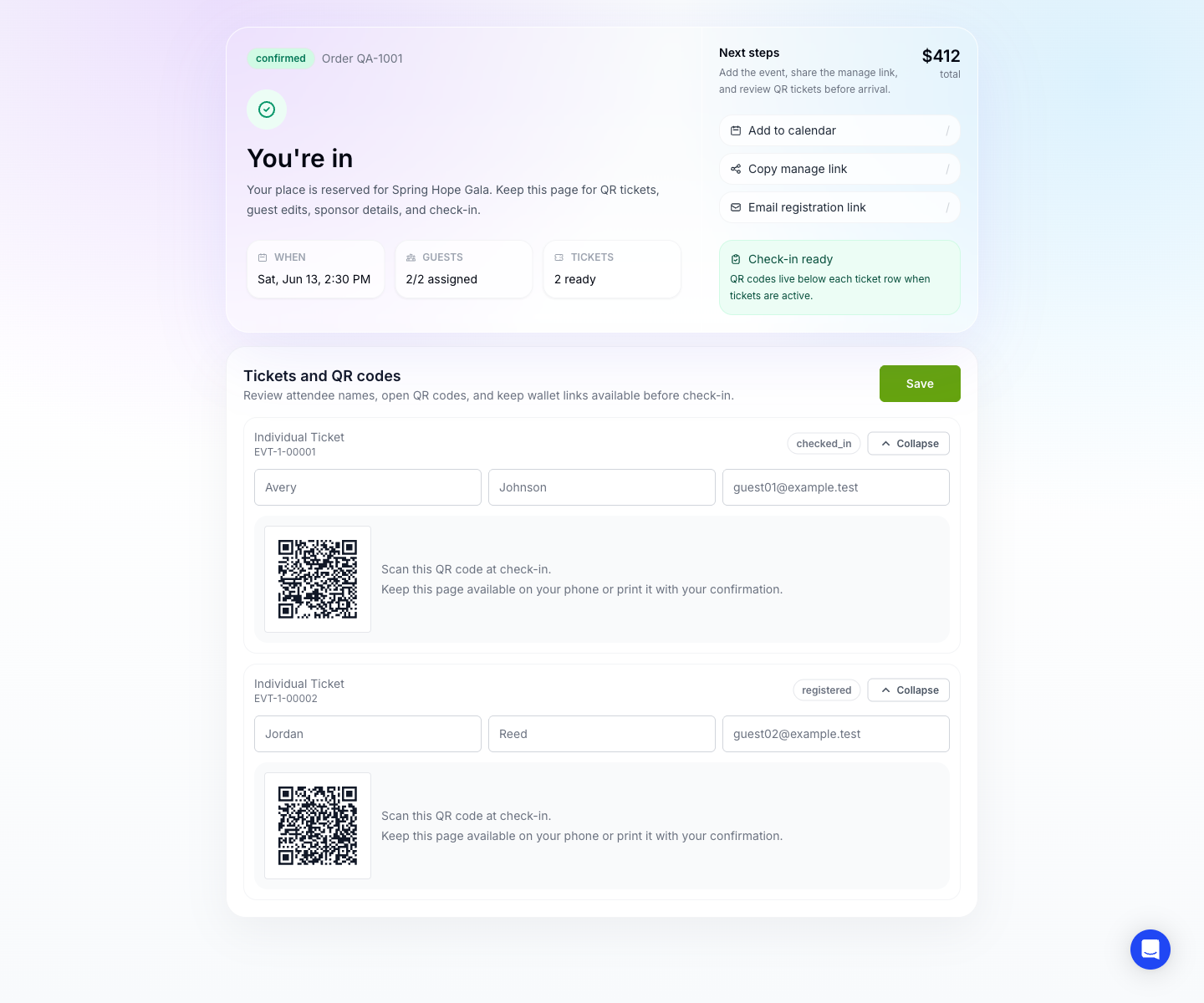
The public form collects the purchaser email and any donor fields that are visible or required for the event donor form context. It can also collect event-specific questions.

Use donor fields for information that belongs on the donor profile, such as address, phone, or organization information.

Use event questions for information that only belongs to this event, such as meal choice, accessibility needs, table preference, or attendee acknowledgement.

<figure><img src="/files/4rjwc5BkHLUf03yw3s0E" alt="The registration form collects donor fields, buyer questions, attendee questions, promo code, donation add-on, and review details before checkout."><figcaption><p>The registration form collects donor fields, buyer questions, attendee questions, promo code, donation add-on, and review details before checkout.</p></figcaption></figure>

## Understand payment and ticket activation

Free registrations and offline registrations can complete without a payment gateway.

Paid public checkout depends on the payment methods configured for your account and available for public event checkout. When paid checkout requires a gateway handoff, tickets remain pending until payment is verified.

After an order is completed, Gratona prepares:

* the event order
* attendee records
* ticket codes
* QR ticket links
* receipt and tax split details
* sponsor records when a sponsor package was purchased
* donation records for deductible portions when applicable

QR codes and wallet links are shown only after the order is free, offline, or paid. Pending or failed paid orders do not receive active QR tickets.

## Use the registration manage link

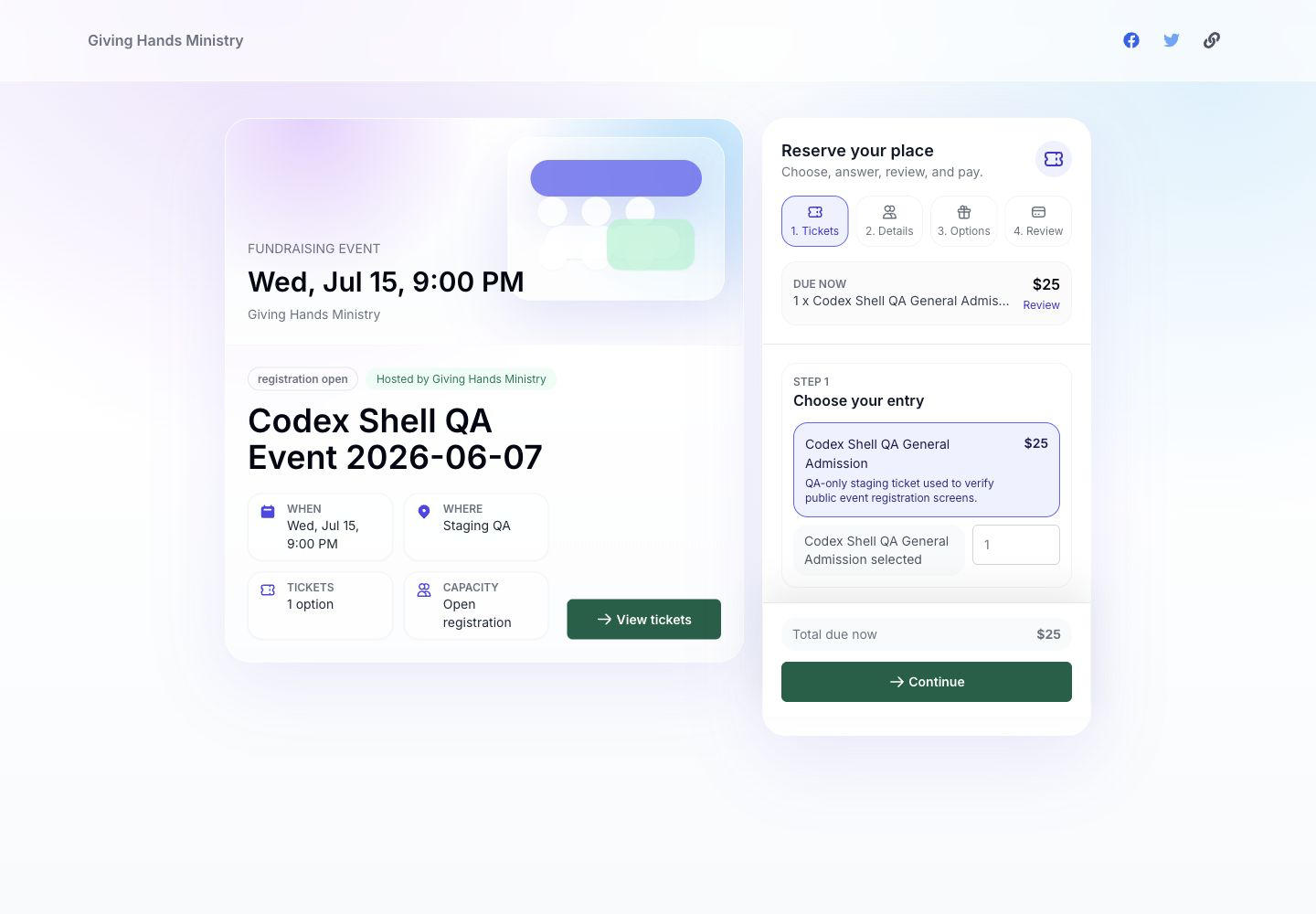
After checkout, guests can use their manage link to review the registration.

The manage page can show:

* order summary
* receipt details
* ticket and attendee details
* QR codes
* wallet links when wallet passes are configured
* sponsor package details
* included sponsor guest slots
* sponsor logo and contact fields

<figure><img src="/files/kiVLjUZWd05AYJ3rSZZ8" alt="The manage link lets guests and sponsors review tickets, QR codes, sponsor details, and included guest slots."><figcaption><p>The manage link lets guests and sponsors review tickets, QR codes, sponsor details, and included guest slots.</p></figcaption></figure>

## Manage sponsor guests

When a sponsor package includes guest slots, the sponsor can use the manage link to fill in guest names and contact details. Sponsors can also update sponsor company information, contact details, public visibility, logo, and renewal follow-up interest when those fields are available.

Use this workflow when sponsors should provide their own guest list instead of sending names to an admin by email.

## Manage table-host guest lists

A table host link gives a host a limited guest-list view for one table. Table hosts can add, edit, or cancel host-managed guests while ticket-order guests remain read-only.

Use table-host links when a table captain should manage a guest list without seeing event finances or full admin tools.

<figure><img src="/files/FRa9EX2OfpObfFFlKE3R" alt="The table-host view gives a limited guest-list workspace for one hosted table."><figcaption><p>The table-host view gives a limited guest-list workspace for one hosted table.</p></figcaption></figure>

## Handle public checkout issues

If a guest cannot complete registration:

1. Confirm the event is published and registration is open.
2. Confirm the selected ticket, sponsor package, or item is public and available.
3. Check that required donor fields and event questions are complete.
4. Confirm the payment gateway is available for the selected payment method.
5. If payment fails, ask the guest to retry or create/admin-complete an offline order when that matches your event policy.