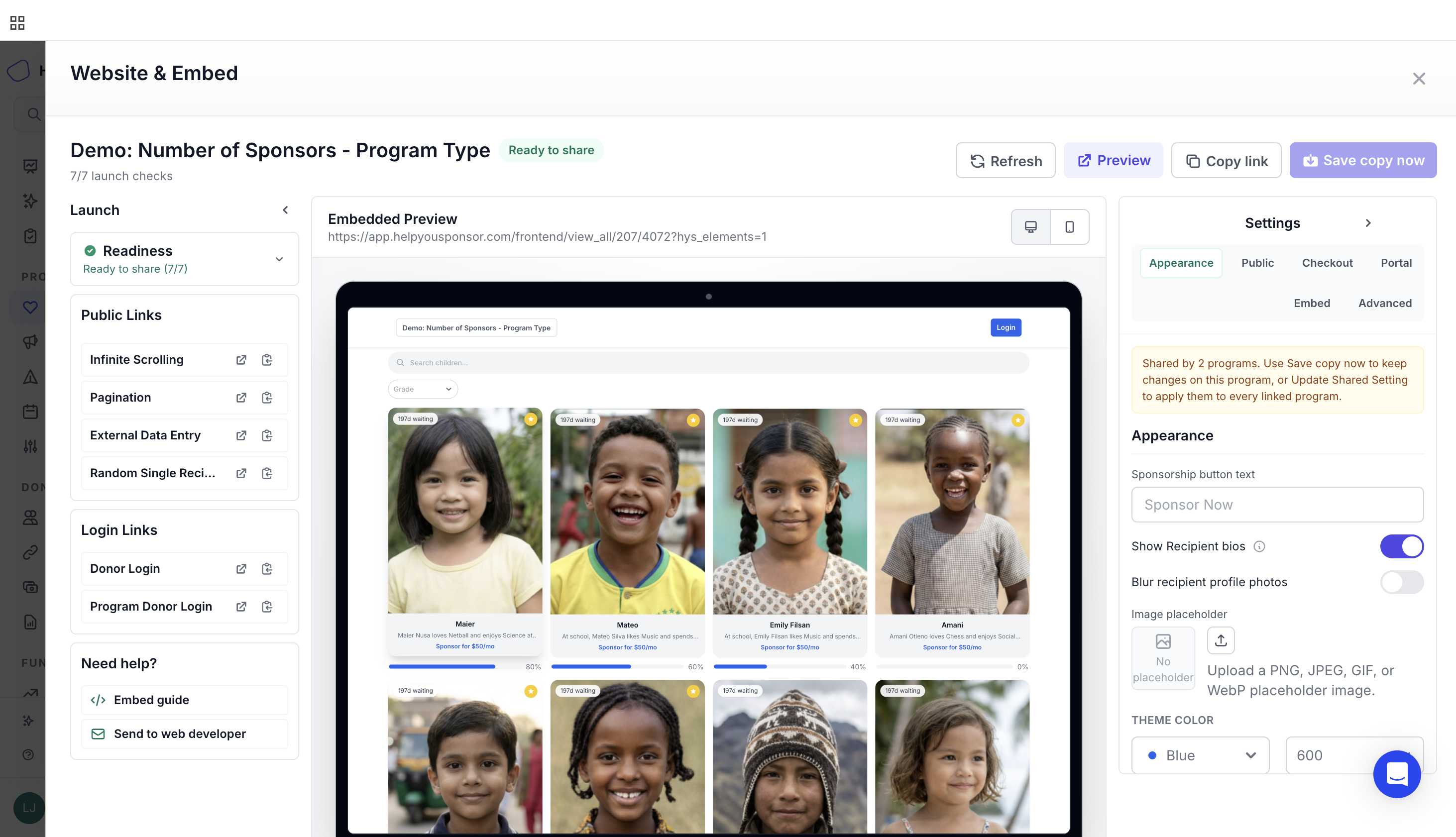
# Manage Programs & Campaigns

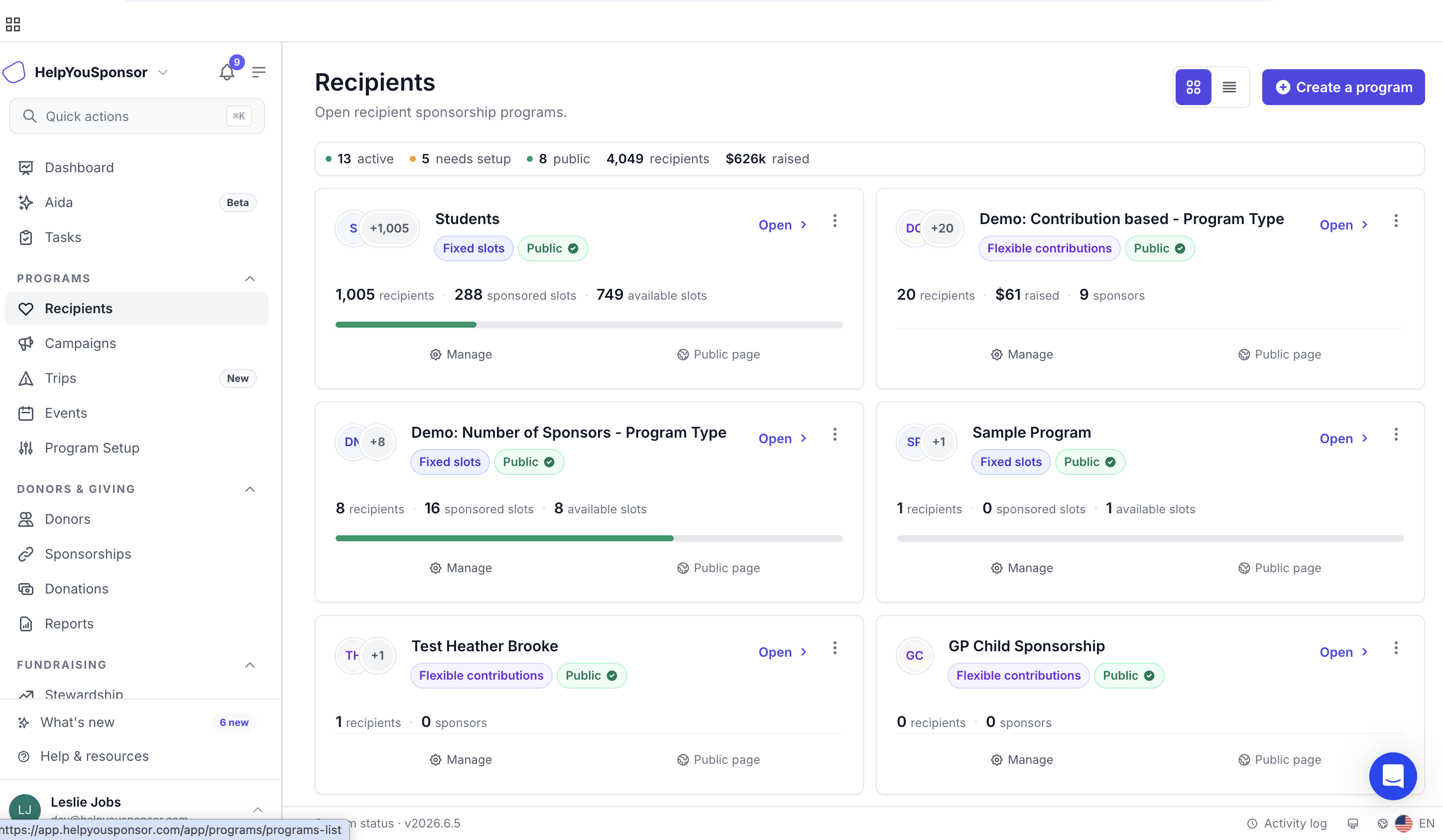
Manage Programs and Campaigns is where you view and manage all current programs or campaigns in your HelpYouSponsor account. This central hub provides easy access to your organization's various programs and their settings. You can perform actions like;

* Create a program or campaign
* Create a sub-program
* Deleting a program
* Managing program attachments

To see these views, you can navigate to **"Recipients"** or you can navigate to "**Campaigns"** under **Programs** on the main menu.

<figure><img src="https://3594793218-files.gitbook.io/~/files/v0/b/gitbook-x-prod.appspot.com/o/spaces%2FoKO2daI6MQ1KQOLltE3m%2Fuploads%2FAtUvq0vy0SpjnHvoIMwo%2Fimage.png?alt=media&#x26;token=0a095f17-eaf1-436a-948c-a50ced8ad353" alt=""><figcaption></figcaption></figure>

<figure><img src="https://3594793218-files.gitbook.io/~/files/v0/b/gitbook-x-prod.appspot.com/o/spaces%2FoKO2daI6MQ1KQOLltE3m%2Fuploads%2FxUdkLMGqF0Jz3QNy7bD4%2Fimage.png?alt=media&#x26;token=b75cf09e-1ed7-4e27-ae3f-c9ca87ece7a2" alt=""><figcaption></figcaption></figure>

### Creating a Program

Two primary action buttons are available in the top-right corner for creating a program and creating a sub program.

Creating a Program button will open up a drawer with two fields;

* Program name (Required)
* Program Abbreviation (Optional)

<figure><img src="https://3594793218-files.gitbook.io/~/files/v0/b/gitbook-x-prod.appspot.com/o/spaces%2FoKO2daI6MQ1KQOLltE3m%2Fuploads%2Fyrjl2JkFvkpCZ7TTzvyx%2Fimage.png?alt=media&#x26;token=e2118feb-99cb-453b-81a5-62407d469140" alt="" width="375"><figcaption><p>Creating a Program Form</p></figcaption></figure>

Creating a subprogram button will open up a drawer with two fields

* Sub program name (required)
* Parent program (required): This lists all the parent program already in the system

<figure><img src="https://3594793218-files.gitbook.io/~/files/v0/b/gitbook-x-prod.appspot.com/o/spaces%2FoKO2daI6MQ1KQOLltE3m%2Fuploads%2FwMNMD6WYo2zbg3nhtOmg%2Fimage.png?alt=media&#x26;token=aedfc28f-5f88-44c1-a389-9468e2208f77" alt="" width="375"><figcaption><p>Creating a sub program form.</p></figcaption></figure>

### Program Cards

The program cards show the programs you have in the system. These show a summary of the state of your programs.

<figure><img src="https://3594793218-files.gitbook.io/~/files/v0/b/gitbook-x-prod.appspot.com/o/spaces%2FoKO2daI6MQ1KQOLltE3m%2Fuploads%2FJcLTcAM6kxSn491ESfIc%2Fimage.png?alt=media&#x26;token=c20a0f4a-e822-448f-8e21-63c3633032f7" alt="" width="375"><figcaption></figcaption></figure>

Each program is displayed as a card showing:

* Program name
* Program setup status indicator (green checkmark or red warning icon)
* Three vertical dots show a dropdown with the options of importing data into the program and deleting the program.

  <figure><img src="https://3594793218-files.gitbook.io/~/files/v0/b/gitbook-x-prod.appspot.com/o/spaces%2FoKO2daI6MQ1KQOLltE3m%2Fuploads%2FDFFscXobBJ9HDX7Me6In%2Fimage.png?alt=media&#x26;token=f3699fe1-1040-4c89-a97a-35b6192976b3" alt="" width="243"><figcaption></figcaption></figure>
* Number of recipients (displayed as a counter, e.g., "4" for Child Sponsorship)
* Settings icon: This opens up the drawer for managing the programs attachments and editing the program.

<figure><img src="https://3594793218-files.gitbook.io/~/files/v0/b/gitbook-x-prod.appspot.com/o/spaces%2FoKO2daI6MQ1KQOLltE3m%2Fuploads%2FK9vJJ52kTpoSufiVNqjS%2Fimage.png?alt=media&#x26;token=72294b1d-e6c5-46bd-8628-14d4fd1db479" alt=""><figcaption><p>Manage program drawer</p></figcaption></figure>

Lastly, below the program cards on the manage programs page you will find the link to the donors login page. This link can be copied and shared with your donors to log into their HelpYouSponsor accounts.

<figure><img src="https://3594793218-files.gitbook.io/~/files/v0/b/gitbook-x-prod.appspot.com/o/spaces%2FoKO2daI6MQ1KQOLltE3m%2Fuploads%2FLIrLtgcqaT5ZasNahMR6%2Fimage.png?alt=media&#x26;token=18dc127b-0cdf-4a07-a123-682ed7c4a4b8" alt=""><figcaption></figcaption></figure>