> For the complete documentation index, see [llms.txt](https://docs.helpyousponsor.com/guides/llms.txt). Markdown versions of documentation pages are available by appending `.md` to page URLs; this page is available as [Markdown](https://docs.helpyousponsor.com/guides/core-features/program-management/website-and-embed.md).

# Website & Embed

Use the Website & Embed workspace when you are ready to share a program with donors, review what the public page looks like, or send embed code to your website developer.

The workspace is available from public recipient programs, campaigns, and other program types that have a public donor-facing page. You may also see **Website & Embed** inside the Manage Program drawer or after completing program setup.

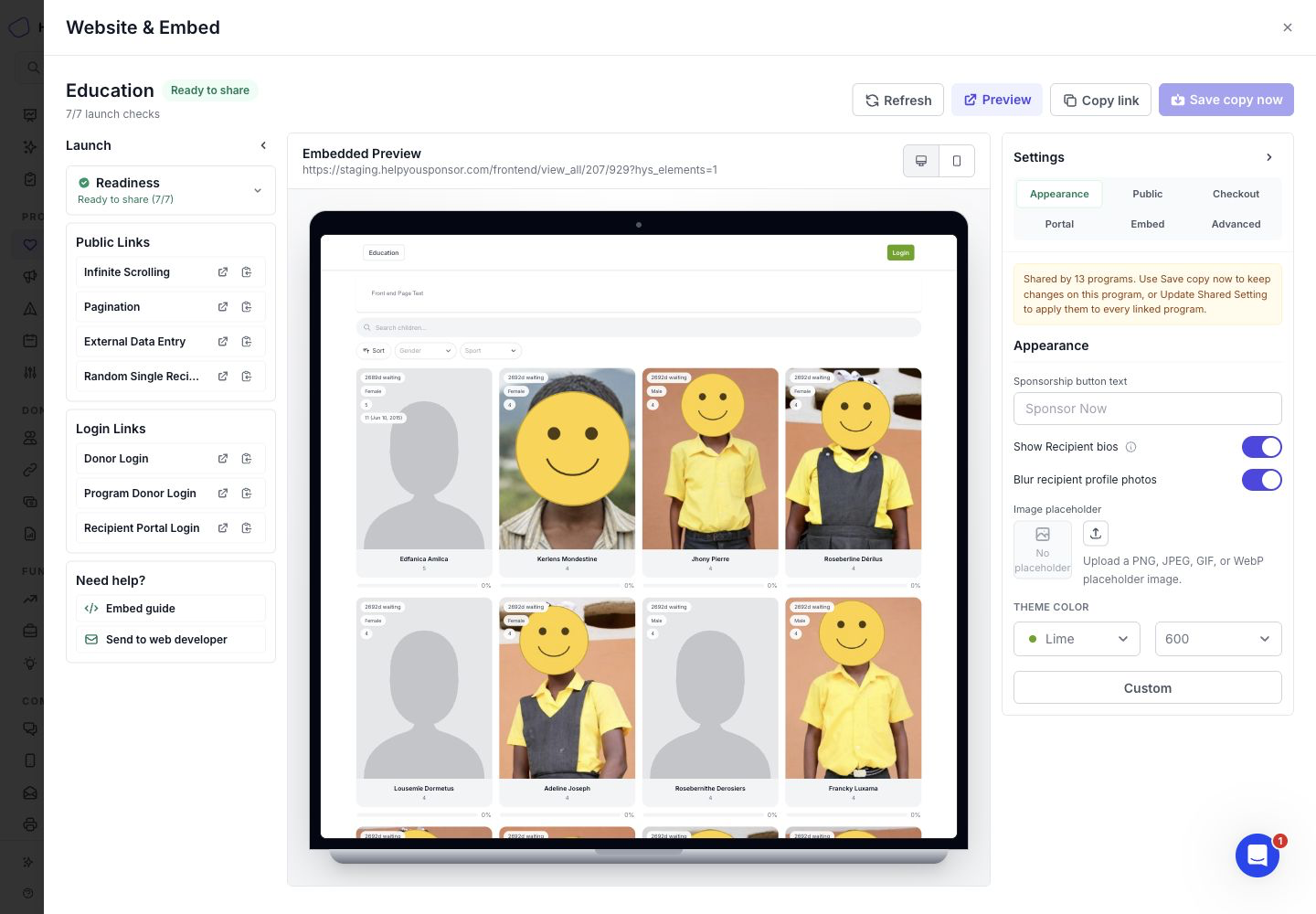
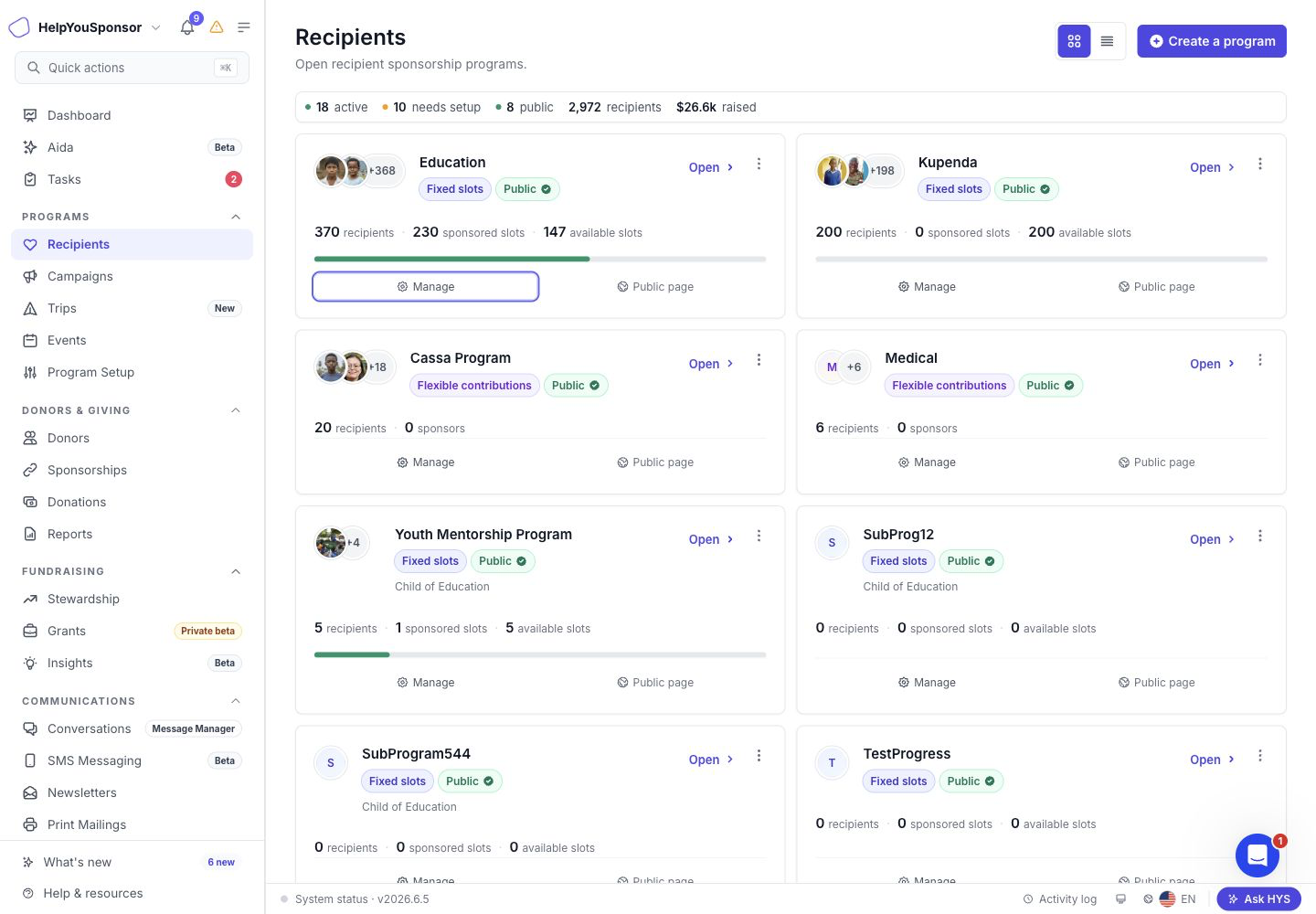
<figure><img src="/files/pl2zNi4asBVzTwe77bxJ" alt=""><figcaption><p>Open the Website &#x26; Embed workspace from a program card.</p></figcaption></figure>

## Share a program with donors

1. Open the program you want to share.
2. Select **Manage** to open the Website & Embed workspace.
3. Review the **Readiness** section. If the program is ready, HelpYouSponsor shows it as ready to share. If something is missing, the readiness list shows what needs attention before you share the page.
4. Use **Preview** to open the public page in a new browser tab.
5. Use **Copy link** to copy the main public page link.

For recipient sponsorship programs, the public links can include:

* **Infinite Scrolling**: the full recipient list.
* **Pagination**: a paginated recipient list.
* **External Data Entry**: a public form for adding records.
* **Random Single Recipient**: a link that sends donors to one available recipient.

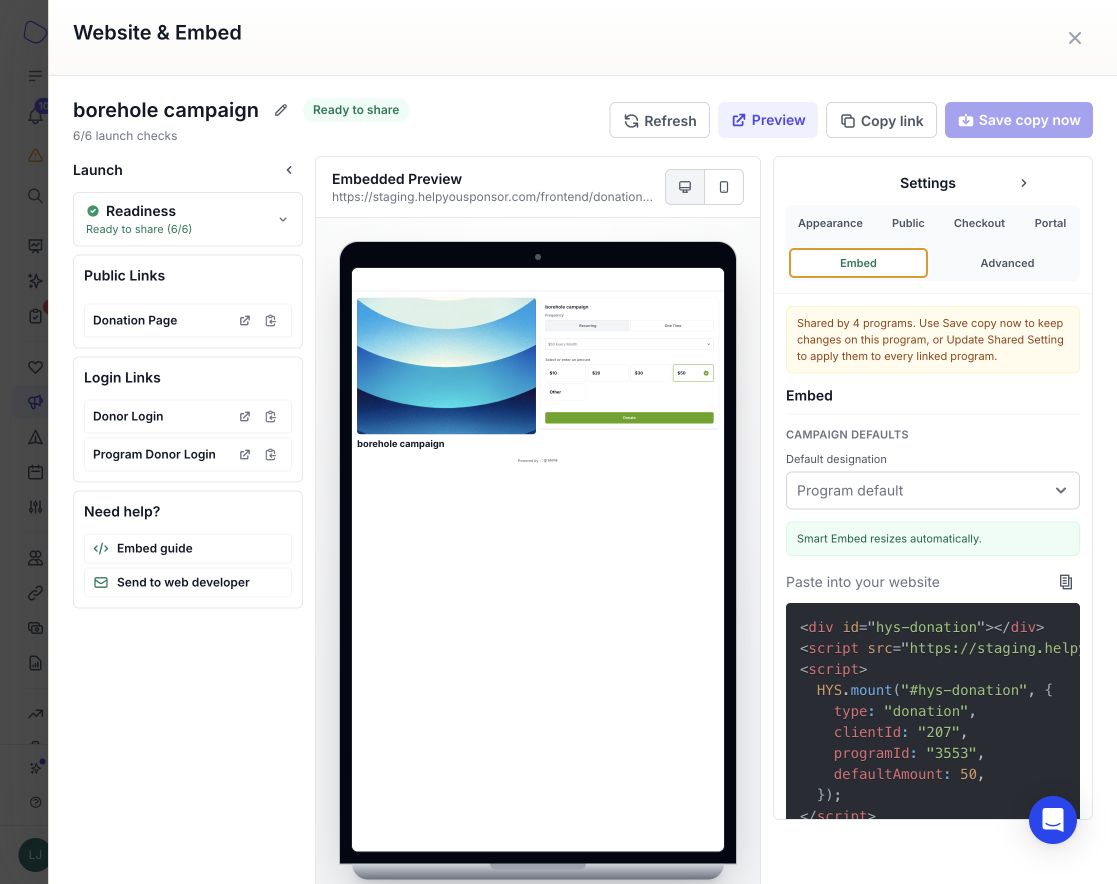
For campaign-style programs, the workspace shows the campaign donation page or fundraising page links instead.

<figure><img src="/files/RYINT4fJqYVkGJnHJQGk" alt=""><figcaption><p>The Website &#x26; Embed workspace shows readiness, public links, login links, an embedded preview, and launch settings.</p></figcaption></figure>

## Send links to donors or recipients

Use **Public Links** for pages donors can visit directly.

Use **Login Links** when you want to send someone to a portal:

* **Donor Login**: the general donor login page for your organization.
* **Program Donor Login**: the donor login page scoped to this program.
* **Recipient Portal Login**: the recipient-facing login page, when the recipient portal is enabled for the program.

Each link has an open action and a copy action, so you can check the page before sharing it.

## Add the program to your website

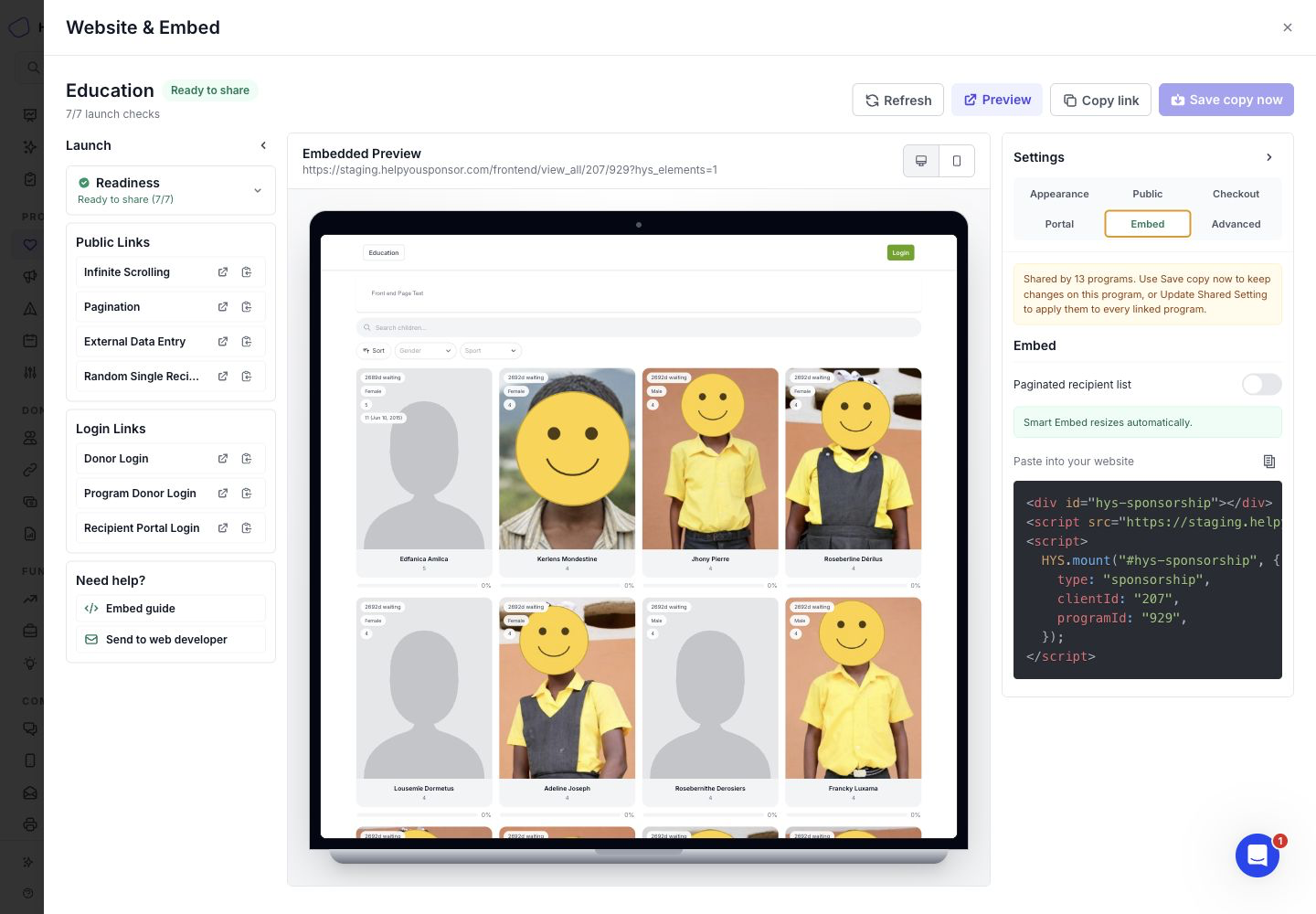
Use **Smart Embed** when you want the program to appear inside your organization website. Smart Embed uses a short code snippet and resizes automatically as donors move through the public page.

1. Open the **Embed** section in the Website & Embed settings panel.
2. Choose any available embed defaults, such as a paginated recipient list for sponsorship programs or campaign defaults for campaign programs.
3. Copy the code under **Paste into your website**.
4. Send the code to the person who manages your website, or paste it into the page where the donor experience should appear.

<figure><img src="/files/xVM4tGp5jMFK3JISu2c9" alt=""><figcaption><p>The Embed section provides the Smart Embed code for your website.</p></figcaption></figure>

The **Need help?** section can also copy a developer handoff message that includes the program name, public page link, and Smart Embed code.

> **Note:** Smart Embed is the recommended website option for programs. The Website & Embed workspace does not provide a separate fixed-height iframe option.

## Preview the donor experience

The center of the workspace shows an embedded preview of the public page. Use the desktop and mobile buttons above the preview to check how the page will look on different screen sizes.

Use **Refresh** after saving settings or changing setup details if you want the preview to reload.

## Adjust what donors see

The settings panel is organized by what you are trying to control:

* **Appearance**: button text, recipient bios, photo privacy, image placeholder, and theme color.
* **Public**: public page visibility, featured recipients, waiting time, fully sponsored recipients, recipient order, progress, sponsorship amounts, and fulfilled contribution levels.
* **Checkout**: default amount, default frequency, recurring donations, payment methods, processing fee options, additional gifts, in-honor-of field, and sponsorship start date.
* **Portal**: donor login on checkout, recipient portal, recipient portal visibility, recipient profile actions, and recipient-to-donor messaging.
* **Embed**: Smart Embed code and supported embed defaults.
* **Advanced**: program setup, forms, emails, SMS, and the full settings editor.

If your role can preview but cannot manage settings, the settings panel is read-only. You can still copy links and embed code.

## Save changes safely

Some program settings are shared across multiple programs. When a setting is shared, HelpYouSponsor shows a shared-setting notice in the workspace.

If you want the change to apply only to the current program, use **Save copy now**. HelpYouSponsor creates a program-specific copy of the setting and leaves the other linked programs unchanged.

If you want the change to apply to every linked program, use **Update Shared Setting** from the **Advanced** section. HelpYouSponsor asks you to confirm the shared update and shows a summary of the changes before saving.

If no website settings have changed, the save actions stay disabled.

## Related guides

* [Manage Programs & Campaigns](/guides/core-features/program-management/manage-programs-and-campaigns.md)
* [Program Settings](/guides/core-features/program-management/program-settings.md)
* [Website Integration](/guides/getting-started/account-setup/website-integration.md)


---

# Agent Instructions
This documentation is published with GitBook. GitBook is the documentation platform designed so that both humans and AI agents can read, navigate, and reason over technical content effectively. Learn more at gitbook.com.

## Querying This Documentation
If you need additional information that is not directly available in this page, you can query the documentation dynamically by asking a question.

Perform an HTTP GET request on the current page URL with the `ask` query parameter, and the optional `goal` query parameter:

```
GET https://docs.helpyousponsor.com/guides/core-features/program-management/website-and-embed.md?ask=<question>&goal=<endgoal>
```

`ask` is the immediate question: it should be specific, self-contained, and written in natural language.
`goal` is optional and describes the broader end goal you are ultimately trying to accomplish on behalf of the user. GitBook uses it to tailor the answer towards what is most useful for that goal.

The response will contain a direct answer to the question and relevant excerpts and sources from the documentation.

Use this mechanism when the answer is not explicitly present in the current page, you need clarification or additional context, or you want to retrieve related documentation sections.