> For the complete documentation index, see [llms.txt](https://docs.helpyousponsor.com/guides/llms.txt). Markdown versions of documentation pages are available by appending `.md` to page URLs; this page is available as [Markdown](https://docs.helpyousponsor.com/guides/core-features/recipient-management/file-management-and-deleted-file-history.md).
# File Management and Deleted-file History
Gratona lets administrators manage files for the recipients in a program from the **Files** tab. This page is useful when you need to review uploaded files, search across recipient files, update file permissions, set profile photos, download file bundles, or confirm which files were deleted.
To navigate to file management, click **"Recipients"** under Programs on the main menu, click **"View Recipients"** on the program you want to manage, and then click the **"Files"** tab.
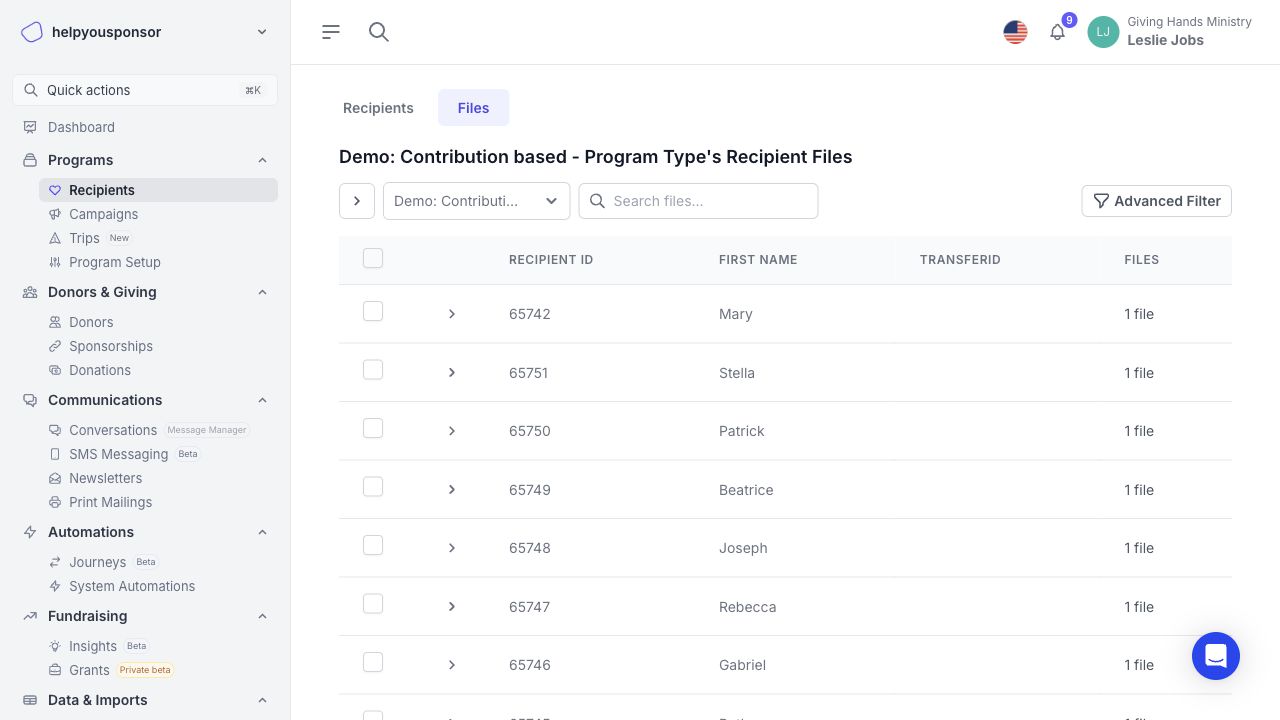
Recipient Files tab
### Recipient file table
The Files tab groups files by recipient. Each row shows the recipient, the number of files currently attached to that recipient, and a checkbox for selecting files.
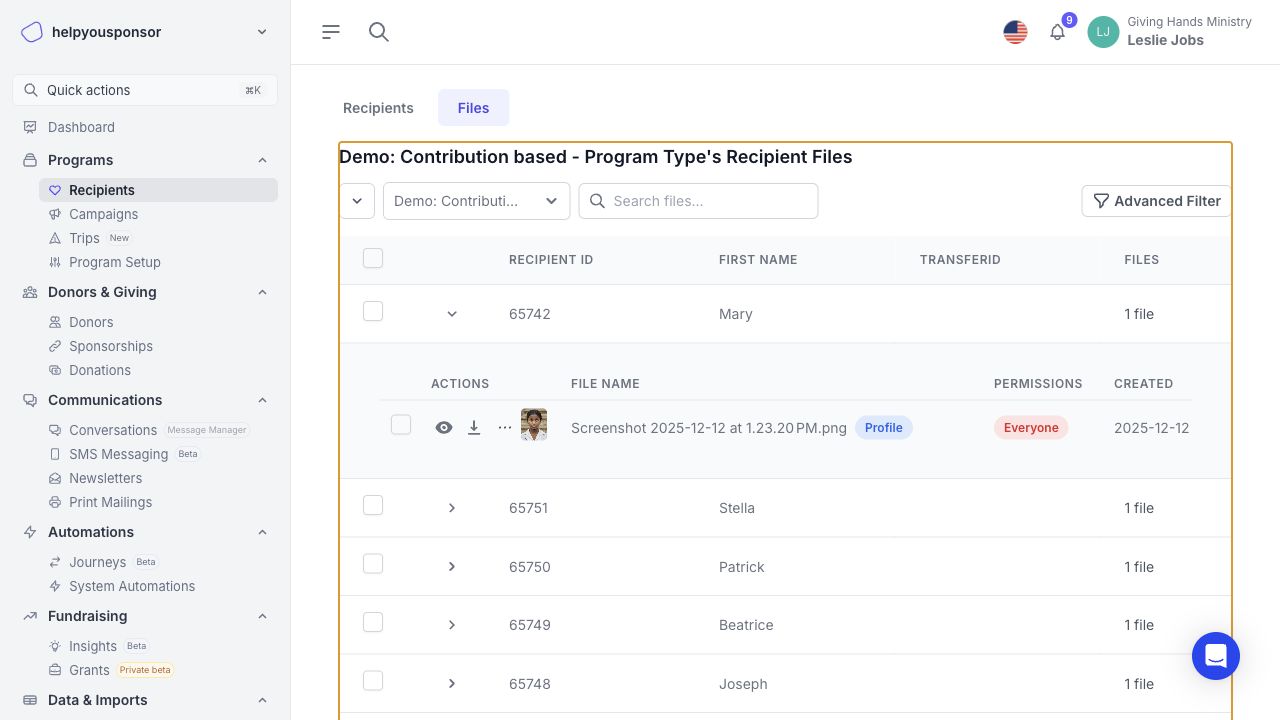
Click the arrow beside a recipient to expand the row and view that recipient's files.
Expanded recipient file list
Each file row includes:
* **Preview**: For image files, click the eye icon or thumbnail to view the image.
* **Download**: Click the download icon to download the file.
* **File name**: The uploaded file name.
* **Permissions**: The current visibility level.
* **Created**: The date the file was uploaded.
* **Profile**: A badge shown when the image is the recipient's profile file.
Use the three-dot menu on a file to rotate an image, make or unset a profile image, edit the file details, or delete the file.
### Search and filter files
Use the **"Search files..."** input to search uploaded file names in the current program. Search results show the matching recipients and matching files.
Use **"Advanced Filter"** when you need more specific filtering. Advanced filters can include file fields such as file name, permission level, profile status, file type, date uploaded, and date updated. They can also include recipient fields, including custom recipient fields and system fields such as sponsorship status, profile photo, visibility, tags, and whether the recipient has files.
After applying an advanced filter, you can save it for reuse. Saved file filters appear in the advanced filter drawer.
### Select files
Use the checkboxes to select files before running a bulk action.
You can select:
* A single file.
* All files for a recipient.
* All files shown on the current page.
* All matching files across all pages after selecting the visible page.
When all files on the current page are selected, Gratona shows a banner that lets you extend the selection across all pages in the current program, search result, or filtered result. The exact scope depends on the bulk action you run.
### Update file permissions
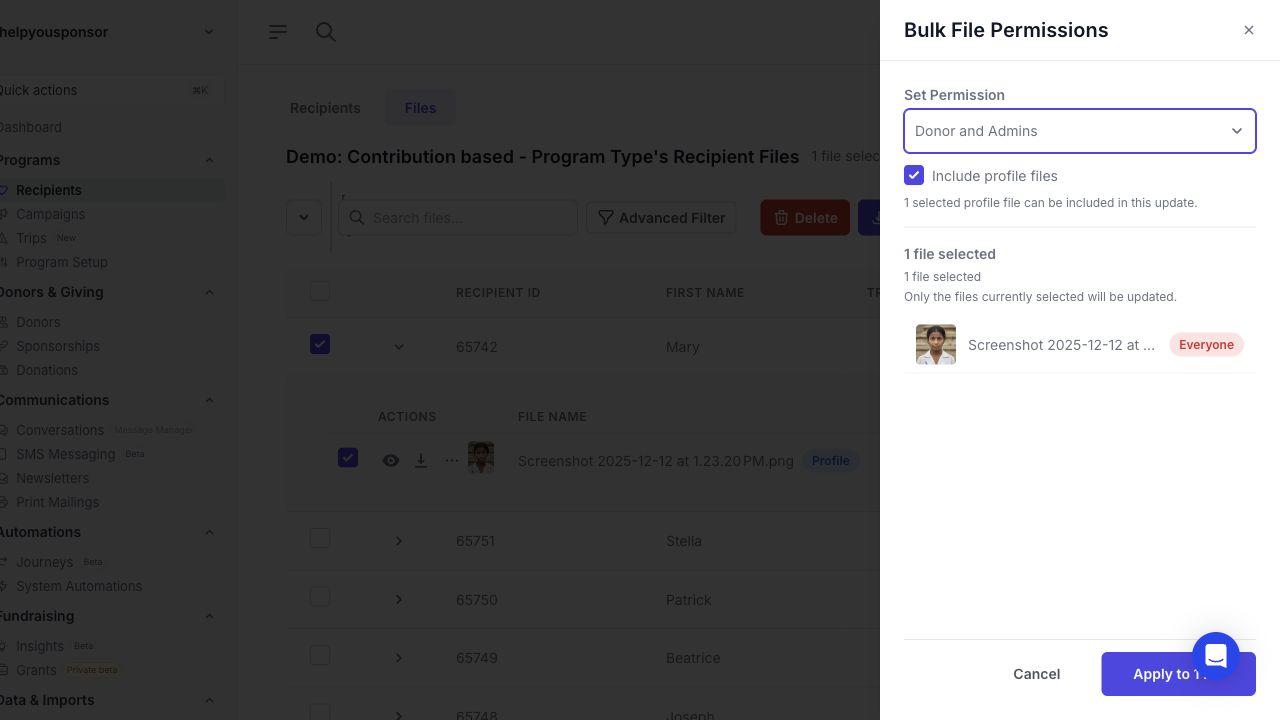
Select one or more files and click **"Edit Permissions"** to open the bulk permissions drawer.
Bulk File Permissions drawer
Choose one of the following permission levels:
* **Everyone**: Makes the file public.
* **Donor and Admins**: Makes the file available to admins and related donors.
* **Admins Only**: Keeps the file visible only to administrators.
Profile files are excluded from bulk permission changes by default. If the selection may include profile files, check **"Include profile files"** before applying the update.
When changing permissions to **Everyone**, you can also schedule the update for a future date. If donor notifications are available for the selected files, you can choose to notify donors when the permission update is processed.
Bulk permission changes are processed in the background. After submitting, refresh the page in a moment to see the updated permission tags.
### Set profile files in bulk
Select one image per recipient and click **"Set Profile"**. Gratona will queue the profile updates in the background.
If every selected image is already the current profile file, the button changes to **"Unset Profile"**. Use this to remove the selected image as the active profile file.
Profile updates require a specific file selection. They cannot be run from the all-pages selection, and each selected file must be an image.
### Download files
Select files and click **"Download"** to open the download dialog. You can download only the selected files or request all files in the program.
Loaded file selections are downloaded as a ZIP file in your browser. All-pages selections, selections that include recipients whose files have not been loaded, and **"Download All Files"** requests are prepared in the background. When the ZIP is ready, Gratona emails you a download link.
### Delete files
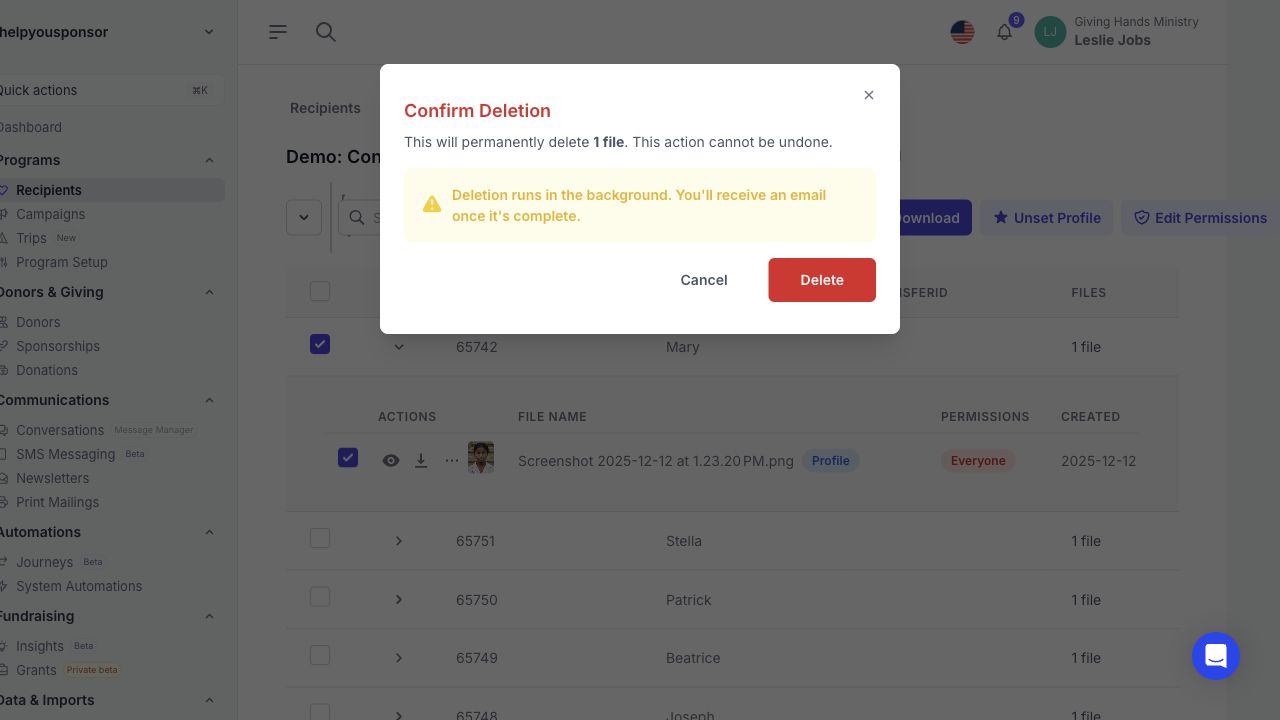
Select files and click **"Delete"**. Gratona opens a confirmation dialog before the deletion request is submitted.
Confirming a file deletion request
Deletion runs in the background for bulk selections. After you confirm, Gratona removes the selected files from the file list and sends you an email when processing is complete.
> **Note**: *File deletion cannot be undone from the file management page. Before deleting files in bulk, review the selected count and make sure the selection matches what you intend to remove.*
### Deleted-file history
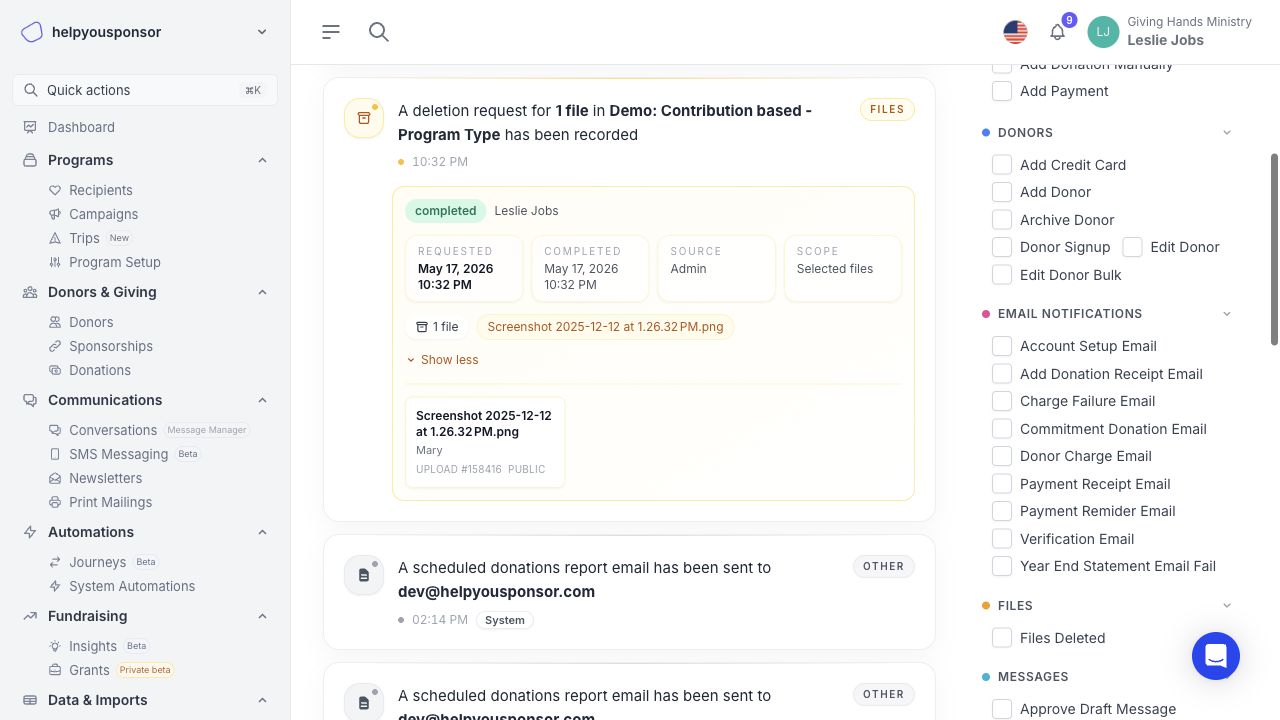
Every recipient file deletion request is recorded in the Activity Log. This includes single-file deletions and bulk deletion requests from the Files tab.
To review deleted-file history, open the account dropdown in the top bar and click **"Activity Log"**. File deletion records appear under the file activity category.
Deleted-file history in the Activity Log
A deleted-file history record can show:
* The deletion status, such as pending, processing, completed, or failed.
* The date and time the deletion was requested.
* The date and time the deletion completed.
* Whether the request came from an admin or the donor portal.
* Whether the request was for selected files, all files in a program, search results, or advanced filter results.
* A preview of deleted file names.
* The full file manifest when you expand the record.
Use this history when you need to confirm what was deleted, who requested the deletion, which recipients the files belonged to, and whether the background deletion finished successfully.
### Related docs
* [Recipients Table](/guides/core-features/recipient-management/recipients-table.md)
* [Add Recipient](/guides/core-features/recipient-management/add-recipient.md)
* [How do I bulk upload files?](/guides/troubleshooting/faqs/how-do-i-bulk-upload-files.md)
* [Activity Log](/guides/advanced-features/reporting-and-analytics.md)