> For the complete documentation index, see [llms.txt](https://docs.helpyousponsor.com/guides/llms.txt). Markdown versions of documentation pages are available by appending `.md` to page URLs; this page is available as [Markdown](https://docs.helpyousponsor.com/guides/core-features/stewardship-hub.md).

# Stewardship Hub

The Stewardship Hub helps your team decide which donor relationships need attention, act on those moments, and keep acknowledgement history current. Use it when you want to follow up after a gift, review giving anniversaries, plan reactivation work, or check whether recent gifts still need a thank-you.

The in-app navigation labels this area **Stewardship** under **Fundraising**. The page itself opens as the Stewardship Hub and includes tabs for Overview, Work, Transactions, Interactions, Donor Cohorts, and Caseload.

{% hint style="info" %}
Your account may not show every section in this guide. Giving Anniversaries, Handwrytten cards, and some actions depend on your organization's enabled features and your admin permissions.
{% endhint %}

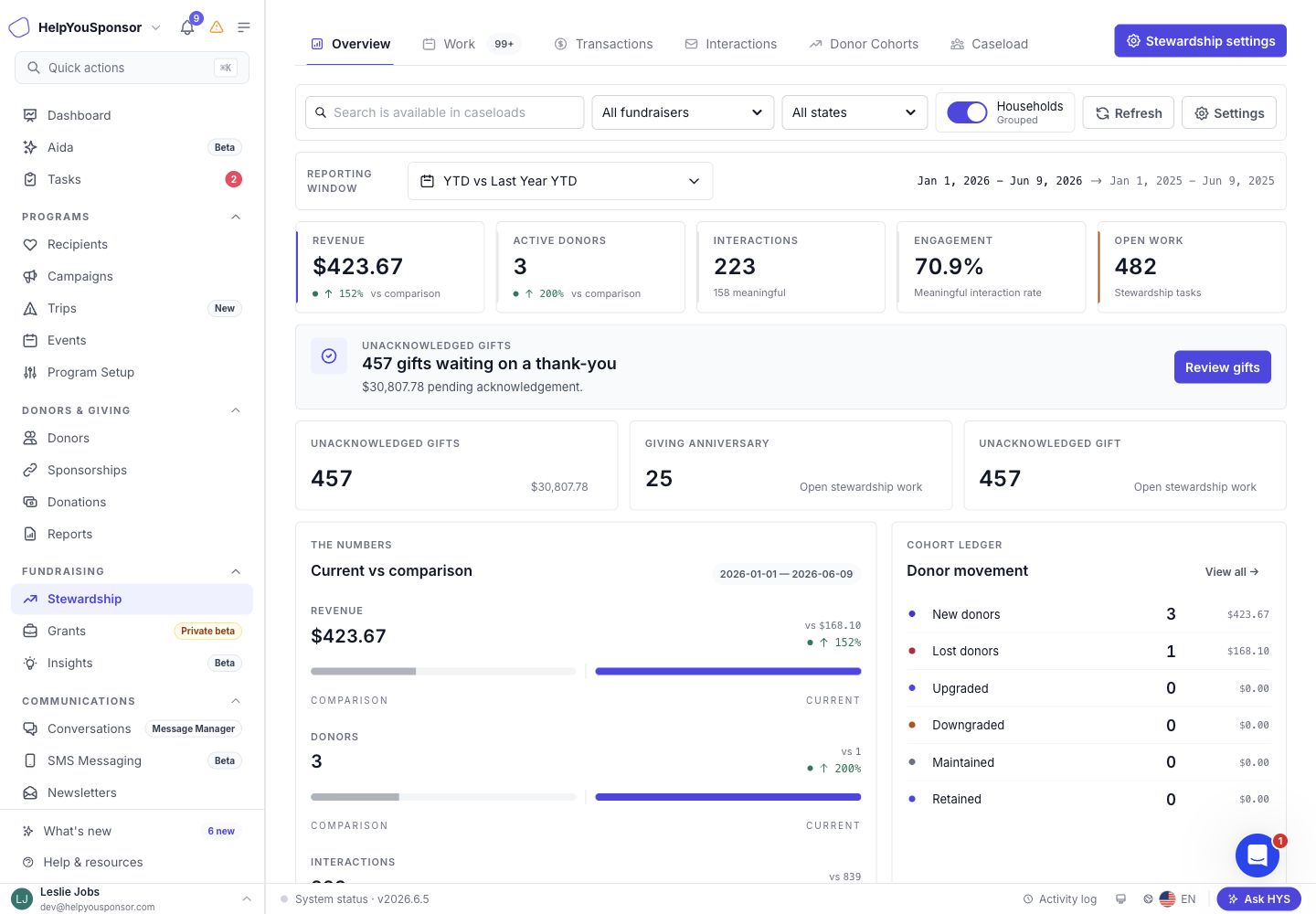
<figure><img src="/files/kcWDoBWs13JWyp69DVI2" alt=""><figcaption><p>Stewardship Hub Overview tab with fundraising metrics, acknowledgement alerts, and donor movement.</p></figcaption></figure>

### Use the shared filters

Most Stewardship Hub tabs include shared filters so you can review the same fundraising data by fundraiser, state, household grouping, and comparison period.

Depending on the tab, you can use:

* **Search**: Find donors, gifts, or interactions.
* **Fundraiser**: Focus on all fundraisers, unassigned records, or one fundraiser.
* **State**: Limit results to a donor state.
* **Grouped / Per donor**: Group household records together or review each donor separately.
* **Comparison period**: Compare current performance against another period, such as YTD vs Last Year YTD or a custom period.
* **Refresh**: Reload the current tab.
* **Export**: Download the current tab's results when export is available.

### Review the Overview tab

Use **Overview** when you want a quick fundraising and stewardship health check before deciding where to work next.

The Overview tab shows:

* **Revenue**: Current revenue and percent change compared with the selected comparison period.
* **Active donors**: Donors with qualified giving activity in the current period.
* **Interactions**: Total interactions and how many count as meaningful.
* **Engagement**: Meaningful interaction rate.
* **Open work**: Stewardship tasks still waiting for action.
* **Unacknowledged gifts**: Gifts waiting on a thank-you, with a button to review the gift ledger.
* **Alerts**: Clickable alerts for unacknowledged gifts or open stewardship work.
* **Current vs comparison**: Side-by-side bars for revenue, donors, and interactions.
* **Donor movement**: Cohort counts for new, lost, upgraded, downgraded, maintained, and retained donors.

Use **Review gifts** to jump directly to unacknowledged transactions. Use **View all** in the donor movement panel to open the Donor Cohorts tab.

### Review stewardship work

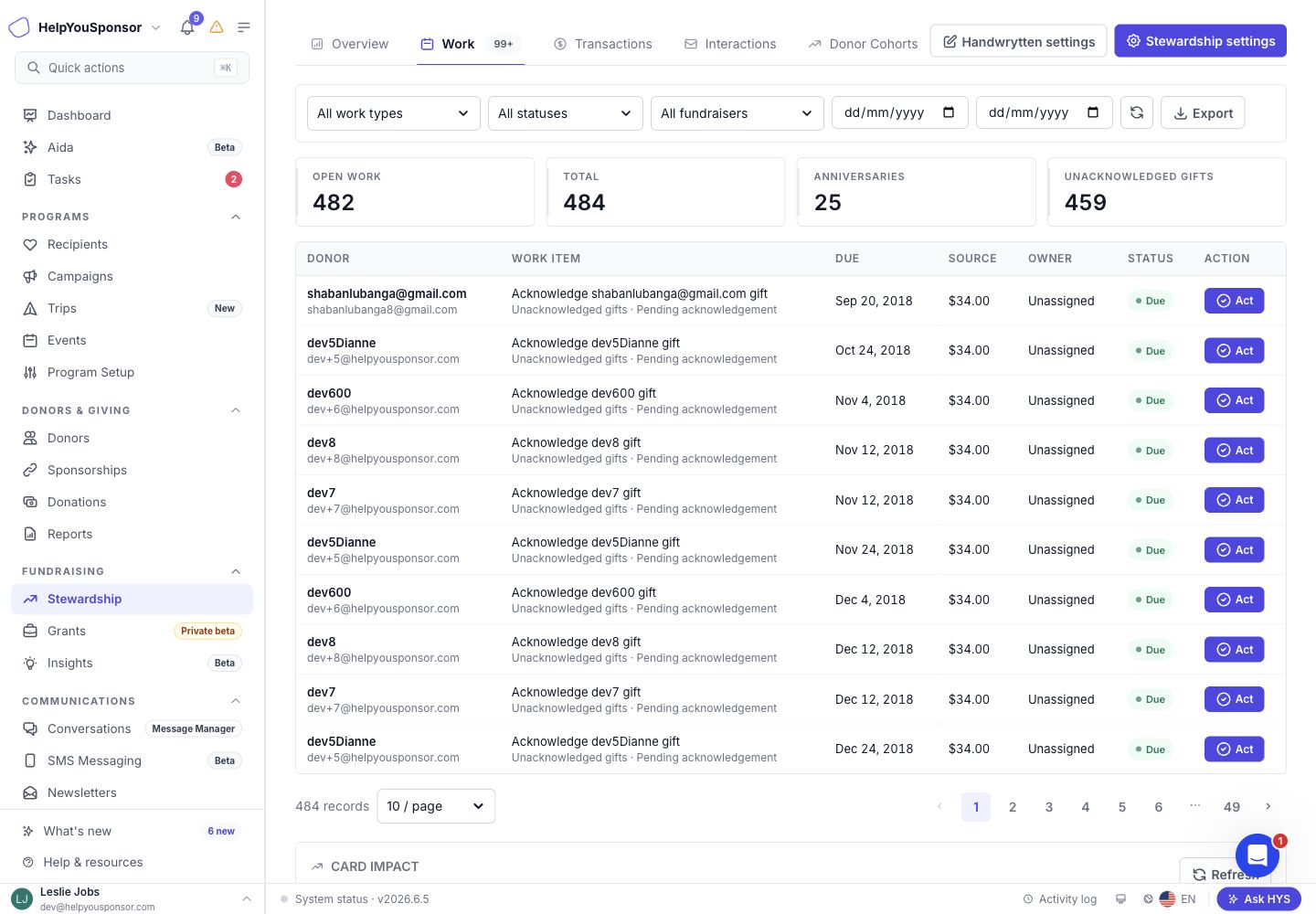
Use the **Work** tab when you want to see the follow-up tasks HelpYouSponsor has identified for donors.

<figure><img src="/files/p7fOfVlMgeo5CdPjyoLM" alt=""><figcaption><p>Stewardship Hub Work queue with filters, summary tiles, and work item actions.</p></figcaption></figure>

You can filter the queue by:

* **Work type**: All work types, Giving anniversaries, Unacknowledged gifts, or Reactivation.
* **Status**: Due, Missed, Upcoming, Snoozed, Acted, or Dismissed.
* **Owner**: All fundraisers, unassigned work, or a specific owner.
* **Due dates**: A start date, end date, or both.

The summary tiles show the number of open work items, total items, giving anniversaries, and unacknowledged gifts in the current view. Use **Refresh** to reload the queue and **Export** to download the current results as a CSV file.

Each work item shows the donor, the work item title, due date, source gift or source type, owner, status, and available action.

### Complete stewardship work

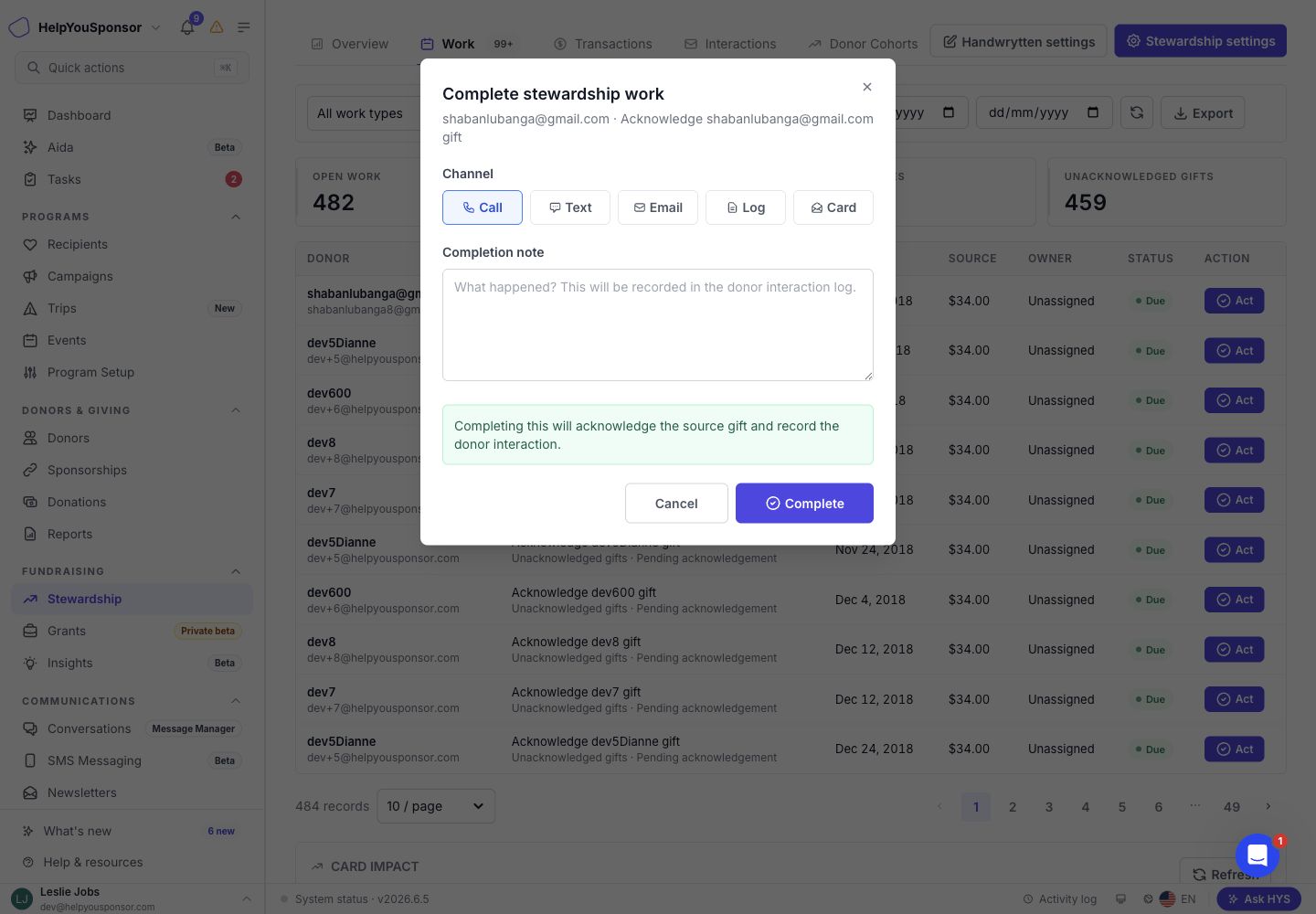
When a work item is ready to be handled, use **Act** to record the follow-up.

1. Choose the channel you used, such as **Call**, **Text**, **Email**, **Log**, or **Card**.
2. Add a completion note for the donor interaction log.
3. Use **Complete** to close the work item.

<figure><img src="/files/kH1PSbLf8LJpZy6u4wG3" alt=""><figcaption><p>Complete stewardship work dialog with channel choices, completion note, and acknowledgement impact.</p></figcaption></figure>

Completing a work item records the donor interaction and closes the stewardship work. If the work item is connected to a donation, HelpYouSponsor also acknowledges the source gift. If your organization uses Handwrytten cards and you choose **Card**, HelpYouSponsor creates a Handwrytten card draft, links it to the work item, records the interaction, and acknowledges the source gift.

### Work through giving anniversaries

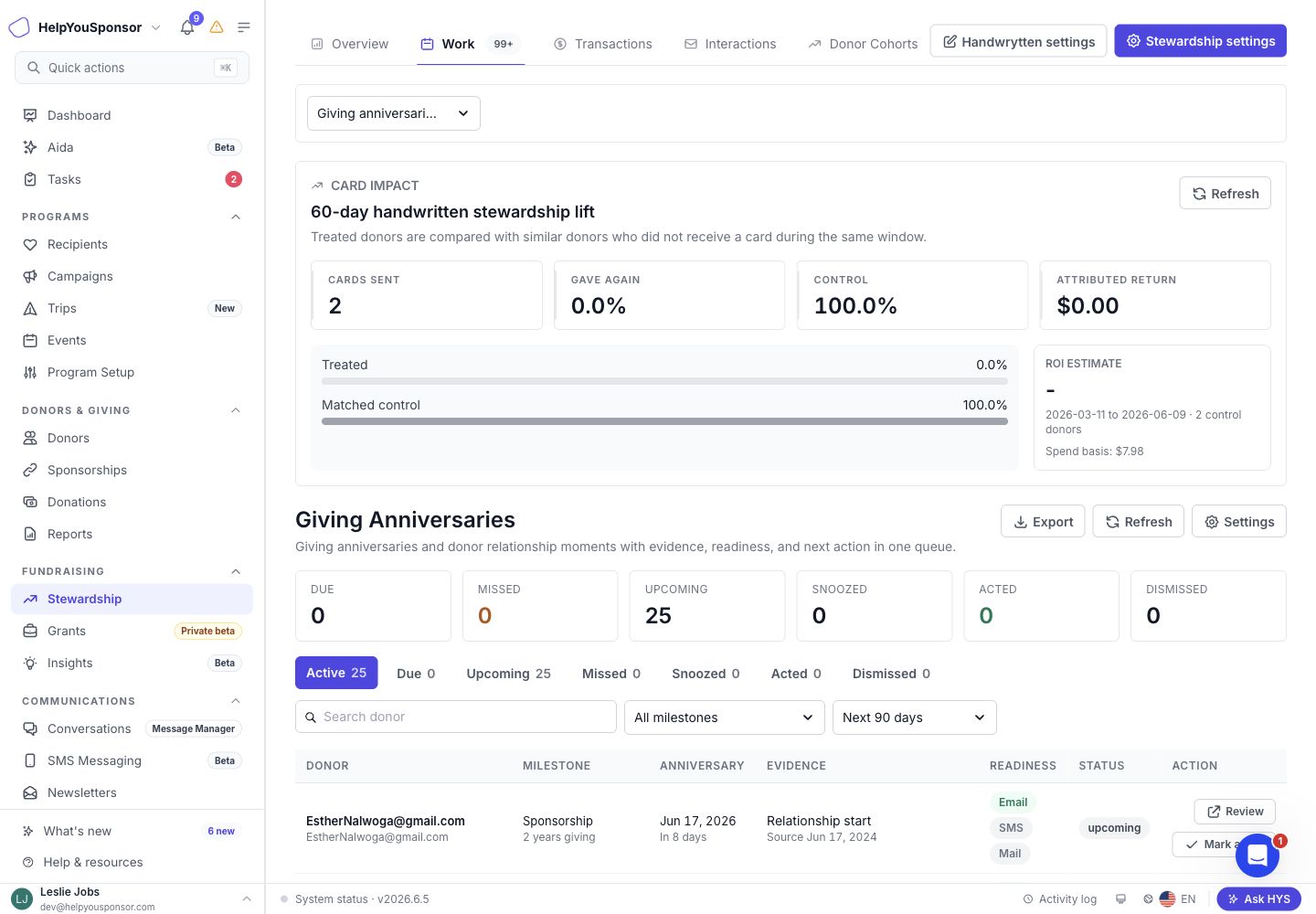
Use **Giving anniversaries** when you want to recognize donors around first-gift, first one-time gift, first recurring gift, or first sponsorship milestones.

Change **Work type** to **Giving anniversaries** to open the anniversary queue. From there you can:

* Review summary counts for Due, Missed, Upcoming, Snoozed, Acted, and Dismissed anniversaries.
* Use the status tabs to focus on active, due, upcoming, missed, snoozed, acted, or dismissed items.
* Search for a donor.
* Filter by milestone type.
* Change the lookahead window to the next 7, 30, 60, or 90 days.
* Export the current anniversary list.

<figure><img src="/files/fuxhVjwGhXp7RGM70hSp" alt=""><figcaption><p>Giving Anniversaries queue with summary metrics, status tabs, milestone filters, and lookahead controls.</p></figcaption></figure>

Each anniversary row includes the donor, milestone, anniversary date, evidence from the original gift or sponsorship, readiness for email, SMS, and mailing, current status, and available actions.

### Review and act on an anniversary

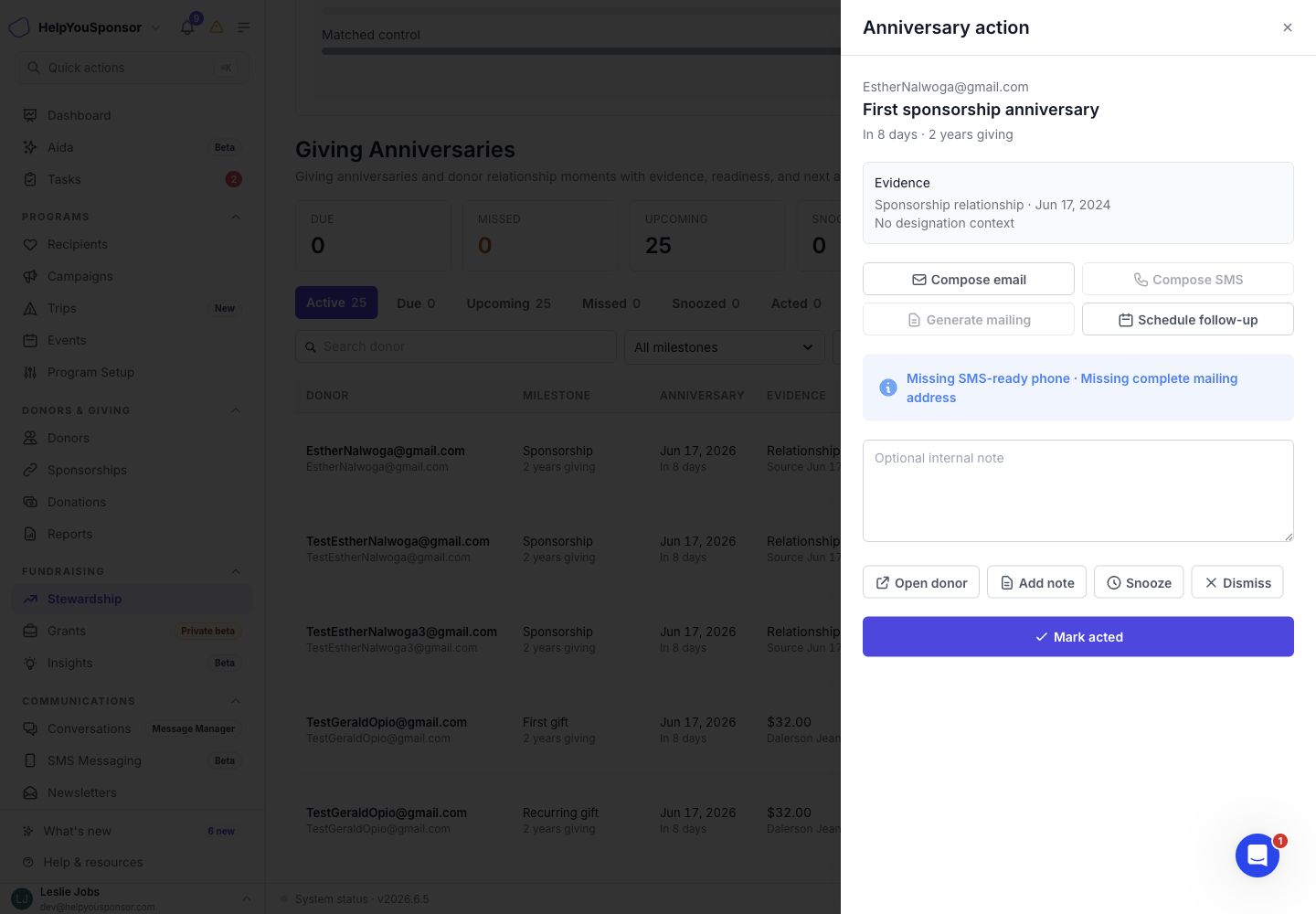
Use **Review** when you want more context before taking action on a giving anniversary.

The anniversary action drawer shows the donor, milestone, source evidence, readiness notes, and available next steps.

<figure><img src="/files/Mp1gccYBjR1nh52pISgP" alt=""><figcaption><p>Anniversary action drawer with source evidence, communication actions, note field, and status controls.</p></figcaption></figure>

From the drawer, you can:

* Compose an email when the donor is email-ready.
* Compose an SMS when the donor is SMS-ready.
* Generate a mailing when the donor is mailing-ready.
* Schedule a follow-up.
* Open the donor profile.
* Add an internal note.
* Snooze the anniversary until a later date.
* Dismiss the anniversary for the current cycle.
* Mark the anniversary as acted.
* Reopen a snoozed, acted, or dismissed anniversary.

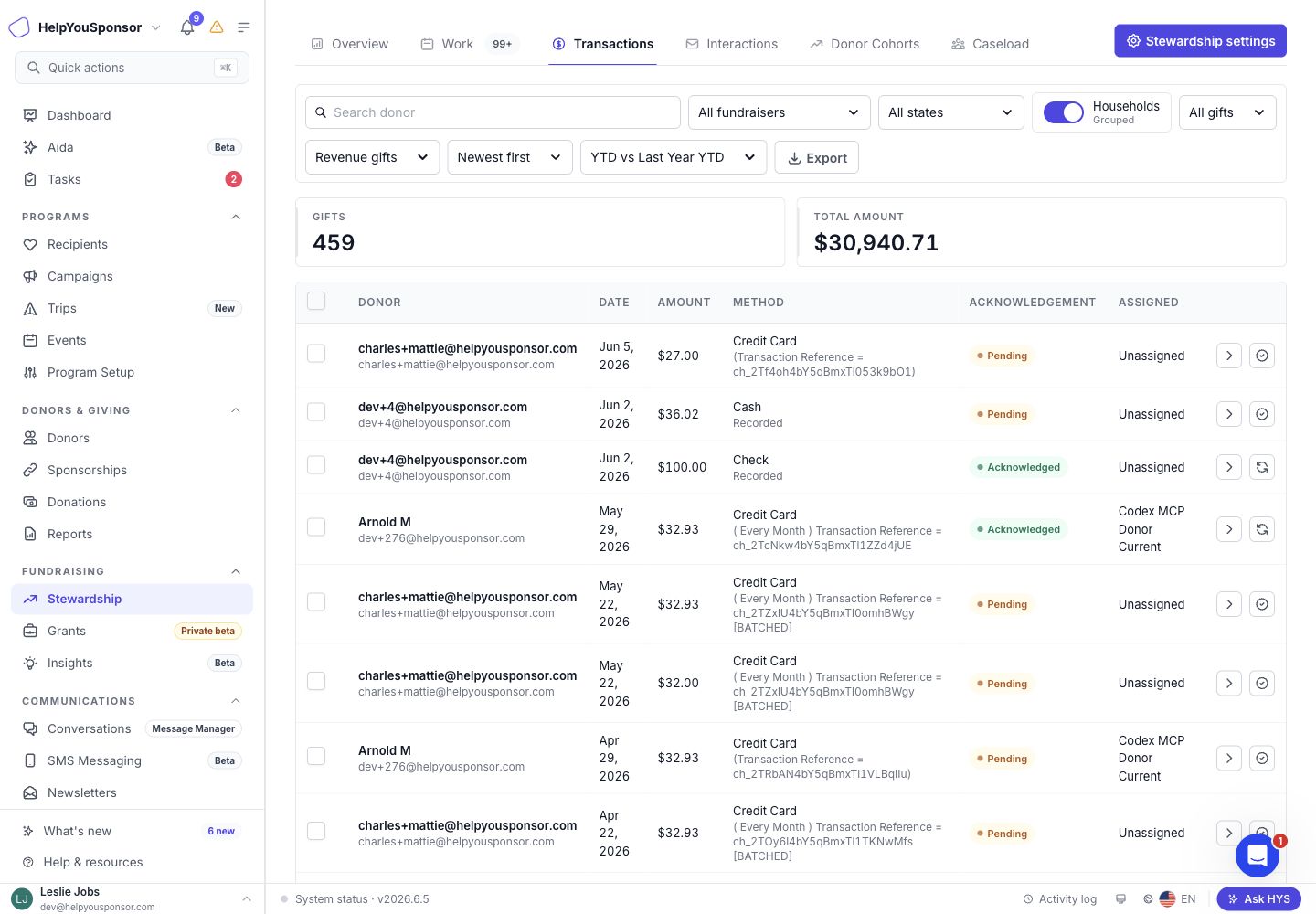
### Review the Transactions tab

Use **Transactions** when you want to review giving records, inspect acknowledgement status, or work through gifts waiting on follow-up.

<figure><img src="/files/FIPII5VSFDl5Mm5lzeNs" alt=""><figcaption><p>Transactions tab with gift filters, acknowledgement status, selected gifts, and gift ledger rows.</p></figcaption></figure>

You can filter transactions by:

* **Search**: Find gifts by donor context.
* **Fundraiser**: Focus on one fundraiser, all fundraisers, or unassigned gifts.
* **State**: Limit gifts by donor state.
* **Acknowledgement**: Show all gifts, only unacknowledged gifts, or only acknowledged gifts.
* **Transaction scope**: Review revenue gifts, failed/refunded/pending records, or all transaction records.
* **Sort order**: Sort by newest, oldest, largest, or smallest gifts.
* **Comparison period**: Choose the period used for evidence and comparison context.

The summary tiles show gift count and total amount for the current filter set. Use **Export** to download the current transaction list.

Each row includes the donor, date, amount, method, acknowledgement status, assigned fundraiser, and row actions. Use the checkbox column when you want to select multiple pending gifts and acknowledge them together.

### Acknowledge gifts

Use stewardship work or the **Transactions** tab when you want to keep gift acknowledgement status current.

In the Work queue, **Unacknowledged gifts** shows gifts that still need a thank-you based on your acknowledgement settings. Completing a donation-based work item acknowledges the source gift and records the interaction.

In the **Transactions** tab, filter by **Unacknowledged** to review gifts waiting on acknowledgement. You can acknowledge one gift, acknowledge selected gifts in bulk, or reopen an acknowledged gift as unacknowledged when follow-up needs to happen again. Reopening an acknowledgement requires a reason.

Use the evidence button on a gift row when you want to compare the donor's current-period and comparison-period transaction history before deciding what kind of stewardship touch is appropriate.

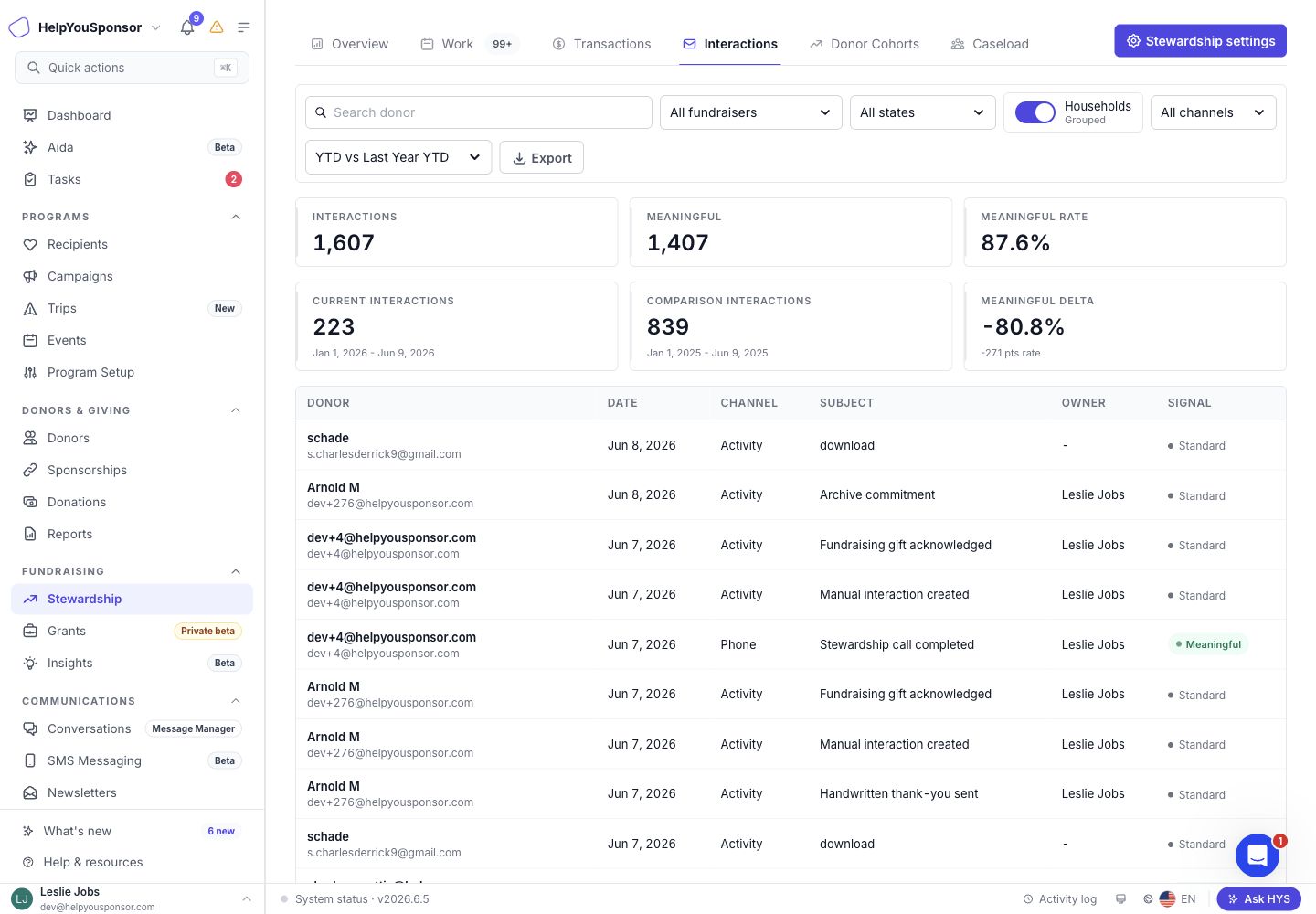
### Review the Interactions tab

Use **Interactions** when you want to understand the relationship touches your team has recorded.

<figure><img src="/files/erFRx5N3hkvmQXytRByz" alt=""><figcaption><p>Interactions tab with meaningful contact metrics, channel filters, and interaction rows.</p></figcaption></figure>

You can filter interactions by:

* **Search**: Find donor interactions by donor context.
* **Fundraiser**: Focus on one fundraiser, all fundraisers, or unassigned records.
* **State**: Limit interactions by donor state.
* **Channel**: Review all channels or focus on Email, Phone, SMS, In person, or Activity.
* **Comparison period**: Compare current activity against another period.

The Interactions tab shows:

* Total interactions.
* Meaningful interactions.
* Meaningful interaction rate.
* Current interactions for the selected period.
* Comparison interactions for the comparison period.
* Meaningful delta.

Each row includes the donor, date, channel, subject, owner, and whether the interaction is **Meaningful** or **Standard**. Use **Export** to download the current interaction list.

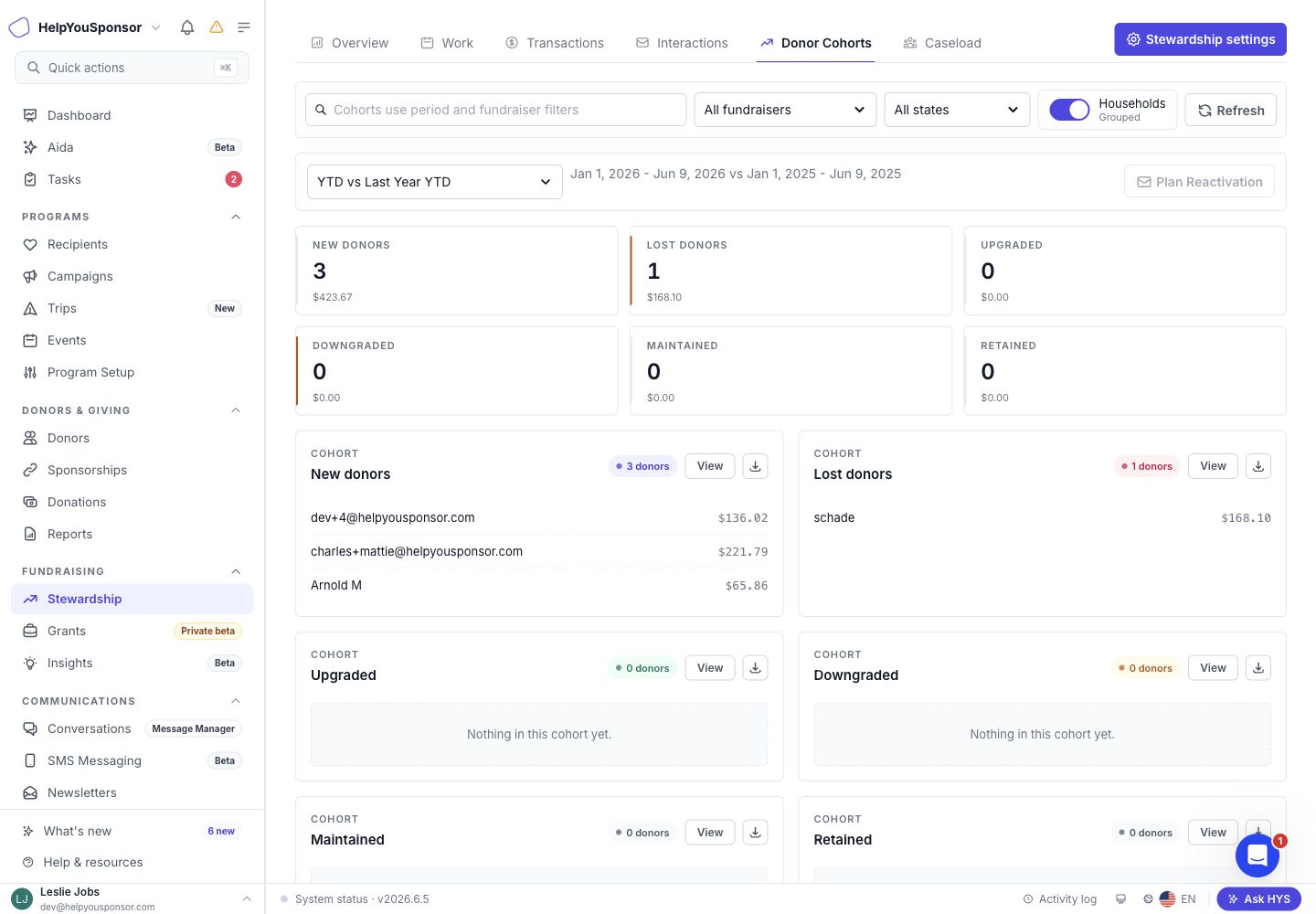
### Review the Donor Cohorts tab

Use **Donor Cohorts** when you want to understand how donors moved between the current period and the comparison period.

<figure><img src="/files/RapiHcAmu3Bm38fUyfN7" alt=""><figcaption><p>Donor Cohorts tab with comparison period controls, cohort summaries, and cohort cards.</p></figcaption></figure>

The Donor Cohorts tab groups donors into:

* **New donors**: Donors who gave in the current period but not the comparison period.
* **Lost donors**: Donors who gave in the comparison period but not the current period.
* **Upgraded**: Donors whose giving increased enough to meet the upgrade threshold.
* **Downgraded**: Donors whose giving decreased enough to meet the downgrade threshold.
* **Maintained**: Donors whose giving stayed within the maintained-giving tolerance.
* **Retained**: Donors who gave in both periods.

Each cohort shows a donor count, amount, sample donor rows, a **View** button, and an export button. Use **View** to open the cohort detail drawer. The drawer lets you sort by donor, state, amount, current giving, comparison giving, change, or fundraiser. Use the row expander to review transaction evidence for a donor.

The **Plan Reactivation** button is visible but disabled in the current implementation.

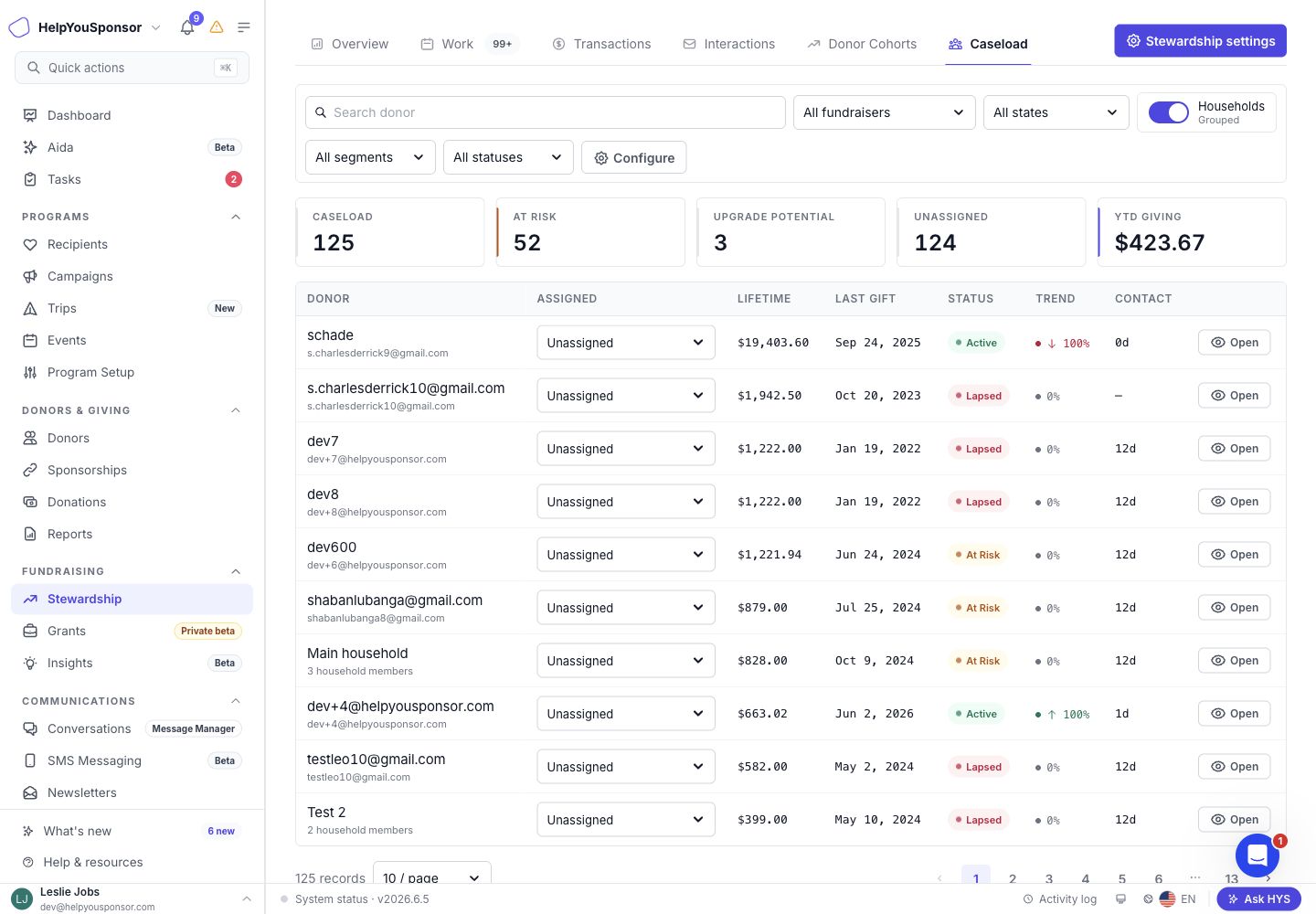
### Review the Caseload tab

Use **Caseload** when you want to manage fundraiser ownership and identify donors who need attention.

<figure><img src="/files/00uiMAdygKntudNXIl0J" alt=""><figcaption><p>Caseload tab with donor assignment controls, retention status, trend, and contact timing.</p></figcaption></figure>

You can filter the caseload by:

* **Search**: Find donors by name or contact context.
* **Fundraiser**: Focus on one fundraiser, all fundraisers, or unassigned donors.
* **State**: Limit donors by state.
* **Segment**: Review all segments, Major, Mid-Level, Annual, or Prospect.
* **Status**: Review all statuses, Active, New, At Risk, Lapsed, or No giving yet.
* **Grouped / Per donor**: Assign and review donors by household or individual donor.

The summary tiles show total caseload, at-risk donors, upgrade potential, unassigned donors, and YTD giving.

Each row includes the donor, assigned fundraiser, lifetime giving, last gift, retention status, giving trend, and days since contact. Use the assignment selector to assign a fundraiser. When household grouping is on, the assignment is applied at the household level. When household grouping is off, the assignment is applied to the donor.

Use **Open** to review the fundraising profile drawer. The drawer shows lifetime giving, YTD giving, total gifts, interaction count, household members, recent gifts, and recent interactions.

### Adjust stewardship settings

Use **Stewardship settings** when you want to change how the hub identifies and presents stewardship work.

The settings drawer includes:

* **Comparison**: Set the organization default and your personal default comparison period.
* **Suggestions**: Choose a playbook, set the default channel for each stewardship moment, choose where suggestions appear, and adjust touch caps or cooldowns.
* **Caseload**: Set thresholds for major gifts, mid-level donors, at-risk donors, lapsed donors, contact timing, and upgrade potential.
* **Donor Cohorts**: Set upgrade, downgrade, and maintained-giving thresholds.
* **Acknowledgements**: Choose when a gift becomes pending and whether automatic email can acknowledge by default.
* **Meaningful Contact Classification**: Define which channels, activity purposes, and log keywords count as meaningful contact.
* **Reports Hub**: Install or refresh the **Upcoming Giving Anniversaries** saved report, then open Reports to schedule or review it.

Giving Anniversaries also has its own **Settings** button inside the anniversary queue. Use it to enable or disable the anniversary queue and adjust lookahead days, due window days, and missed grace days.

### Review handwritten card impact

If Handwrytten stewardship is enabled for your organization, the Stewardship Hub can show a **Card impact** panel. This panel compares donors who received a card with similar donors who did not receive a card during the same 60-day window.

Use it to review:

* Cards sent.
* Repeat giving rate for donors who received cards.
* Repeat giving rate for the comparison group.
* Attributed return and ROI estimate.

### Related guides

* [Dashboard](/guides/getting-started/dashboard.md)
* [Donor Profile Page](/guides/core-features/donor-management/donor-profile-page.md)
* [Donation Management](/guides/core-features/donation-management.md)
* [Message Manager](/guides/core-features/communication-tools/message-manager.md)
* [Reporting and Analytics](/guides/advanced-features/reporting-and-analytics.md)


---

# Agent Instructions
This documentation is published with GitBook. GitBook is the documentation platform designed so that both humans and AI agents can read, navigate, and reason over technical content effectively. Learn more at gitbook.com.

## Querying This Documentation
If you need additional information that is not directly available in this page, you can query the documentation dynamically by asking a question.

Perform an HTTP GET request on the current page URL with the `ask` query parameter:

```
GET https://docs.helpyousponsor.com/guides/core-features/stewardship-hub.md?ask=<question>
```

The question should be specific, self-contained, and written in natural language.
The response will contain a direct answer to the question and relevant excerpts and sources from the documentation.

Use this mechanism when the answer is not explicitly present in the current page, you need clarification or additional context, or you want to retrieve related documentation sections.