> For the complete documentation index, see [llms.txt](https://docs.helpyousponsor.com/guides/llms.txt). Markdown versions of documentation pages are available by appending `.md` to page URLs; this page is available as [Markdown](https://docs.helpyousponsor.com/guides/getting-started/quick-start-guide/personal-profile.md).

# Profile

Use **Profile** when you need to review your own sign-in details, personal preferences, and account actions. This page is part of **Personal settings** and is separate from [Account Information](/guides/getting-started/quick-start-guide/account-information.md), which controls organization-wide profile details.

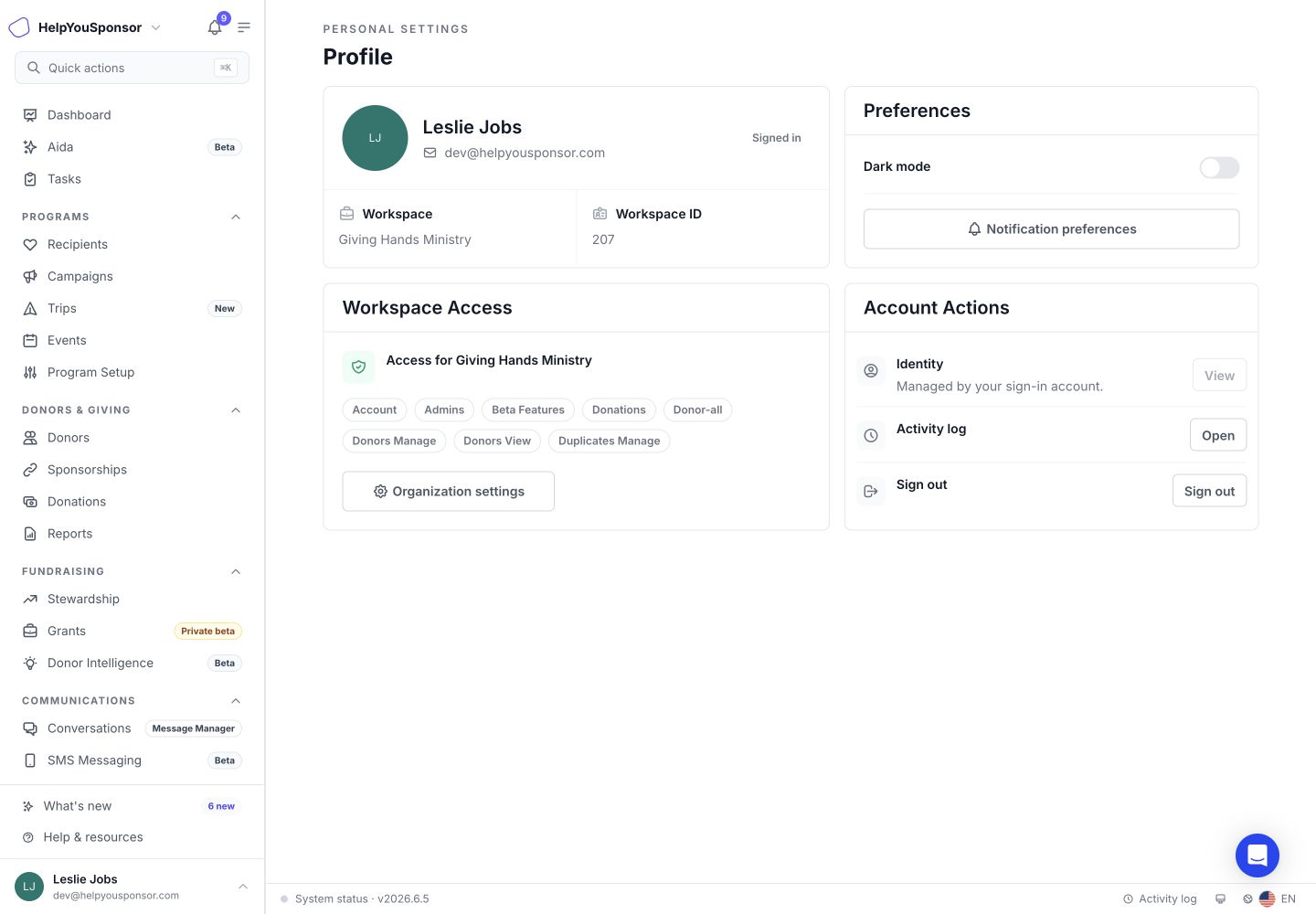
<figure><img src="/files/kqLEKJcehzmzgJitXuHD" alt=""><figcaption><p>Personal settings > Profile shows your signed-in user, workspace, personal preferences, workspace access, and account actions.</p></figcaption></figure>

## Open Your Profile

Open your profile when you want to review your personal HelpYouSponsor settings.

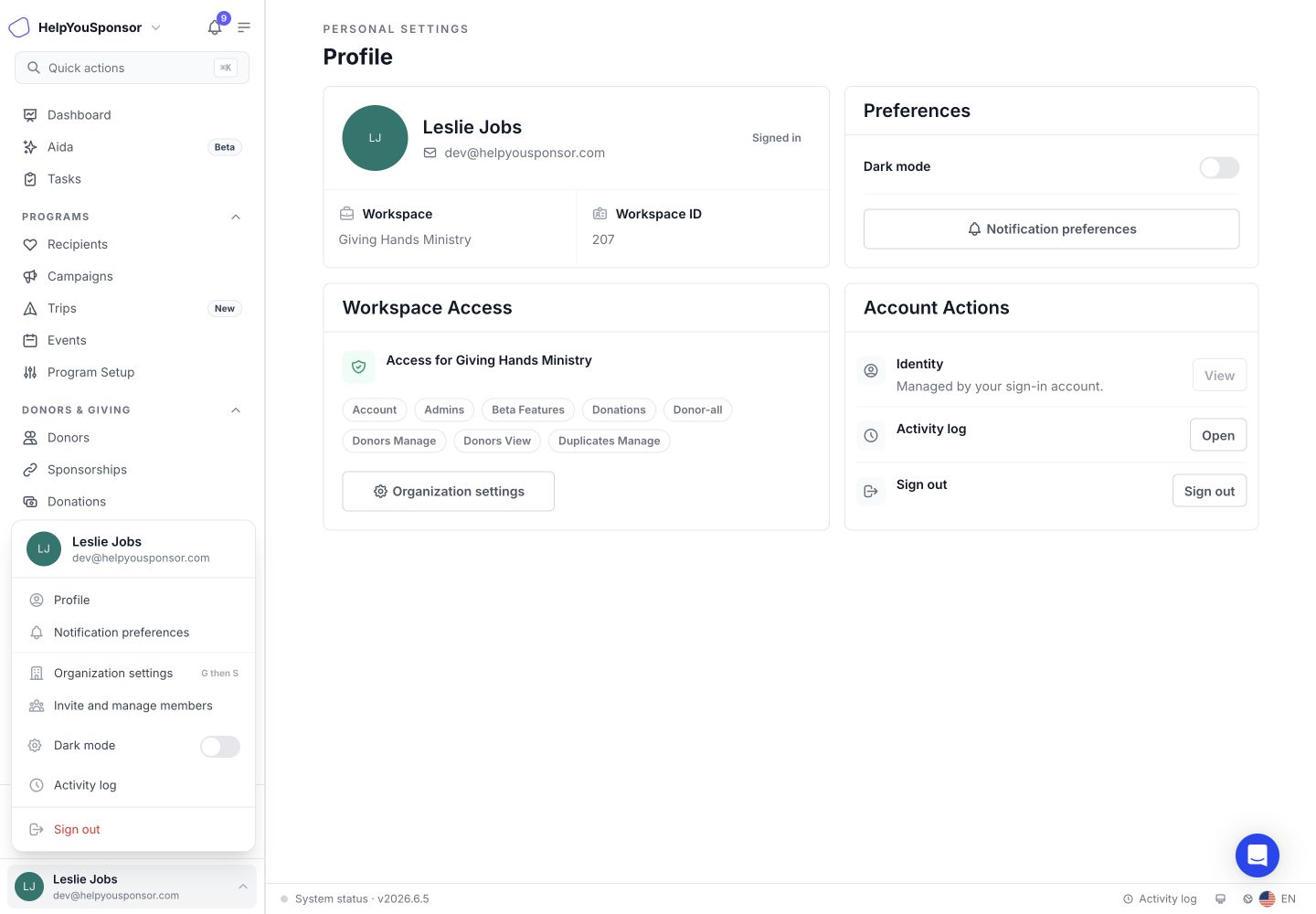
1. Open the account menu at the bottom of the sidebar.
2. Select **Profile**.

<figure><img src="/files/vT6MTu5cfZCx46pw2oEf" alt=""><figcaption><p>The account menu includes Profile, notification preferences, organization settings, dark mode, activity log, and sign out actions when available.</p></figcaption></figure>

## Review Your Sign-In Details

The top of the Profile page shows the user currently signed in to HelpYouSponsor.

Use this section to confirm:

* your signed-in name
* your email address
* your signed-in status
* the workspace you are currently using
* the workspace ID

Your **Identity** is managed by your sign-in account. It is view-only from this page.

## Set Personal Preferences

Use **Dark mode** to change your own interface theme. This is a personal preference and does not change the theme for other admins.

Use **Notification preferences** when you want to choose which HelpYouSponsor updates appear for you. Notification preferences are personal. Changing them does not change another admin's notifications.

## Review Workspace Access

Use **Workspace Access** to see the role and permission tags connected to your user in the current workspace.

<figure><img src="/files/kqLEKJcehzmzgJitXuHD" alt=""><figcaption><p>Workspace Access shows your role tags and the actions available to your user.</p></figcaption></figure>

If you have permission, **Organization settings** opens the organization-wide settings area. Use that for account-level details such as Organization profile, email sender setup, payment gateways, billing, and advanced settings.

If you have permission, **Activity log** opens recent workspace activity.

Use **Sign out** when you are finished working in HelpYouSponsor.

## Related Guides

* [Account Information](/guides/getting-started/quick-start-guide/account-information.md)
* [Notification Preferences](/guides/administration/notification-preferences.md)
* [Navigation](/guides/getting-started/navigation.md)
* [User Management](/guides/administration/user-management.md)