> For the complete documentation index, see [llms.txt](https://docs.helpyousponsor.com/guides/llms.txt). Markdown versions of documentation pages are available by appending `.md` to page URLs; this page is available as [Markdown](https://docs.helpyousponsor.com/guides/core-features/donor-management/donor-duplicate-detection.md).

# Donor Duplicate Detection

Use **Donor Duplicate Detection** when you need to clean up donor records that may represent the same person or organization. The Duplicates tab helps you scan one donor form at a time, review suggested duplicate groups, choose the record to keep, merge duplicate records, and undo eligible merge batches from merge history.

Open **Donors** from the sidebar, then select **Duplicates**.

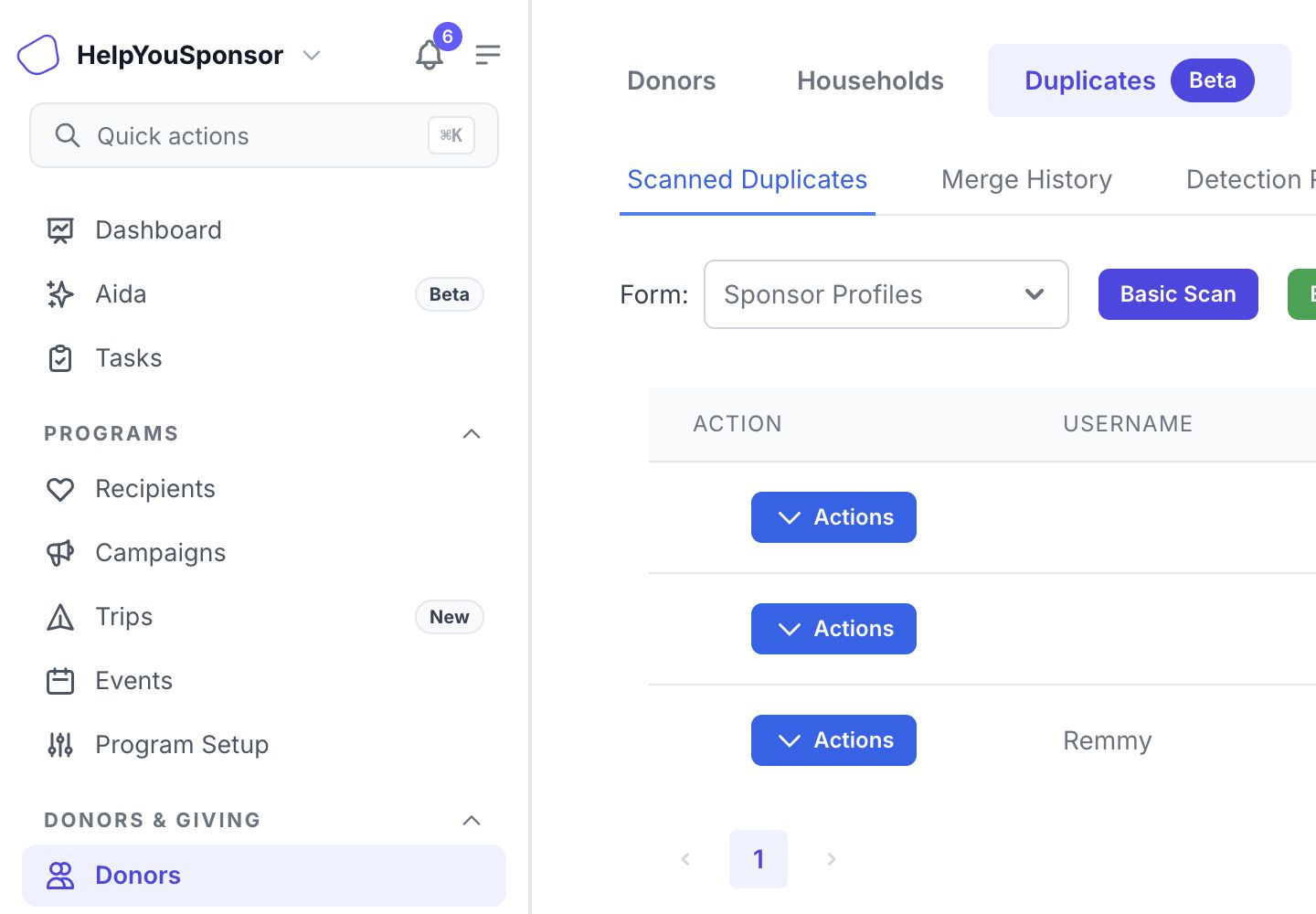
<figure><img src="/files/STtFKNl2Js3XNCBu7HSv" alt=""><figcaption><p>The Duplicates tab shows scan controls, the active donor form, and grouped duplicate results.</p></figcaption></figure>

## Choose the Donor Form to Clean Up

Start by choosing the donor form that contains the records you want to review. Duplicate scans and merge history are scoped to the selected form.

1. Open **Donors**.
2. Select the **Duplicates** tab.
3. Use **Form** to choose the donor profile/form you want to scan.

If no donor form is available, duplicate detection cannot run from this page. Your role also needs duplicate-detection management access or donor-management access to see and use this tab.

## Run a Duplicate Scan

Use a scan when you want HelpYouSponsor to refresh the suggested duplicate groups for the selected donor form.

You can choose:

* **Basic Scan**: checks for donors that match on username, email, and the donor display name for the selected form.
* **Enhanced Scan**: uses the saved detection rules for the form, including field weights, comparators, similarity threshold, fuzzy matching, normalization, excluded fields, and incremental processing settings.

After you start a scan, HelpYouSponsor shows scan progress with processed donors and duplicate groups found. When the scan finishes, results refresh on the page and the user who started the scan receives an email notification.

Running a scan refreshes the duplicate suggestions for the selected form. Review the results before merging because a suggestion still needs human confirmation.

## Review Suggested Duplicate Groups

Each row in **Scanned Duplicates** represents a group of records that may belong to the same donor. The table can show:

* **Action**
* **Username**
* **Email**
* **Count**
* **Oldest Record**
* contribution totals when those columns are enabled
* custom donor-form fields when those columns are enabled

Use **Search duplicates** when you need to find a possible match by donor identity details.

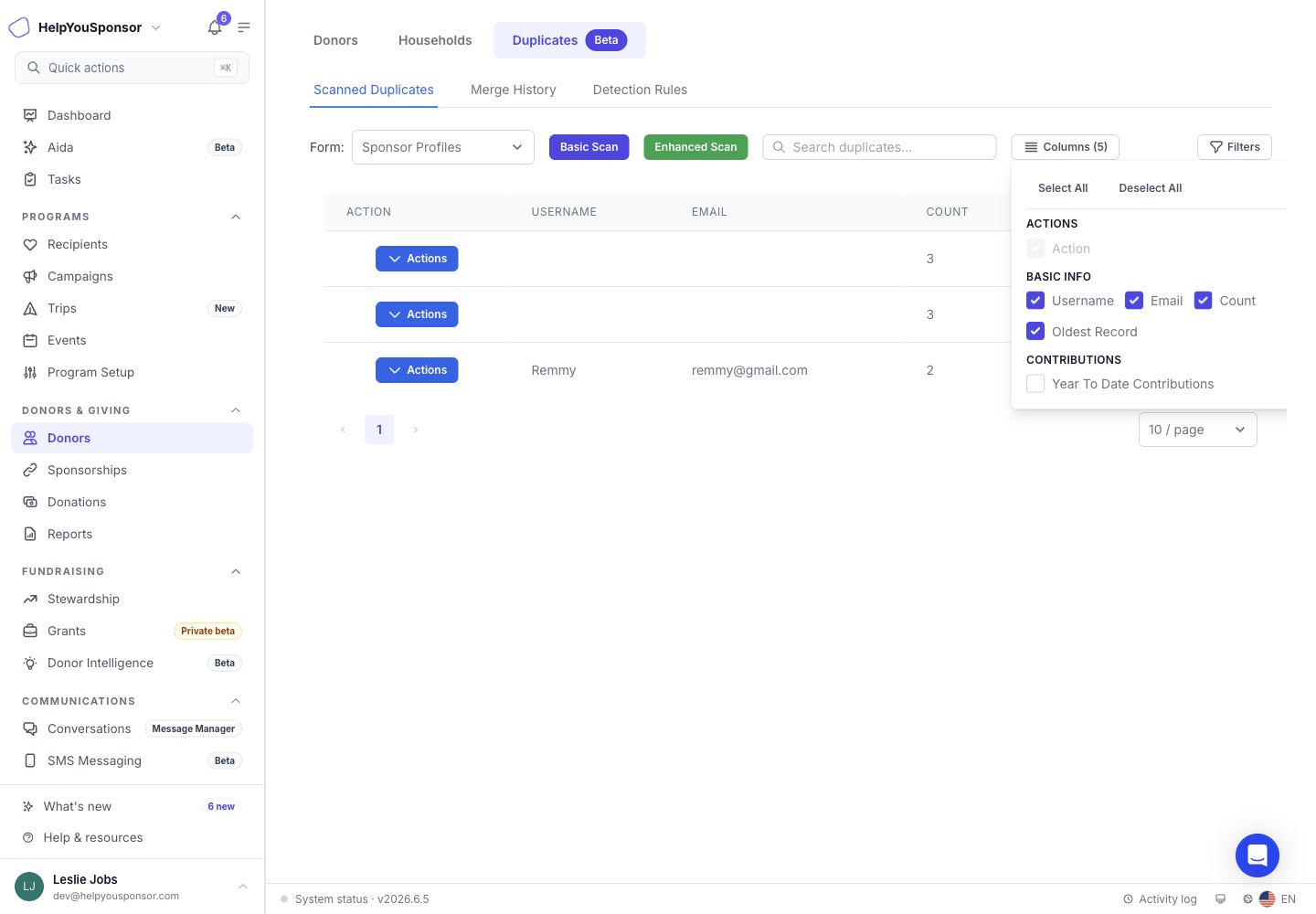
Use **Columns** when you want to compare more information before deciding whether records belong together.

<figure><img src="/files/0a4T4EAvGe9umV8YzlOO" alt=""><figcaption><p>The Columns menu lets you add basic information, contribution metrics, and custom donor-form fields to the duplicate review table.</p></figcaption></figure>

Use **Filters** when you need to narrow duplicate groups by a field value, blank field, or contribution amount.

<figure><img src="/files/X7jx6YrUUKudQsGZF38u" alt=""><figcaption><p>Advanced Filters narrows duplicate groups by selected fields and comparison rules.</p></figcaption></figure>

## Choose the Record to Keep

Before you merge, open the duplicate group and choose the donor record that should remain active.

1. In a duplicate group, open **Actions**.
2. Select **Show Duplicates**.
3. Review the records in the expanded group.
4. Select the checkbox for the donor that should be kept as the primary record.

The selected donor becomes the primary record. HelpYouSponsor keeps that donor active and merges the other records into it. The selected donor's payment method is the one used when merged details are combined.

## Merge Duplicate Donors

Use **Merge Selected** only after you have confirmed the records represent the same donor and have selected the primary record.

When a merge runs, HelpYouSponsor:

* keeps the selected donor as the primary record
* fills blank primary donor fields from secondary records when values are available
* fills blank custom donor fields from secondary records when values are available
* moves donations, commitments, sponsorship links, and activity logs from secondary donors to the primary donor
* soft-deletes the secondary donor records
* recalculates the primary donor's giving totals and refreshes donor cache data

Merge processing runs as a tracked batch. A progress bar shows how many merge operations have processed, succeeded, or failed.

## Mark Records as Not Duplicate

Use **Mark as Not Duplicate** when a suggested group is not actually the same donor.

1. Open the duplicate group.
2. Select the donor record you want to remove from duplicate suggestions.
3. Open **Actions**.
4. Select **Mark as Not Duplicate**.

HelpYouSponsor removes active duplicate links for that donor in the selected form, so the matching group no longer appears in the current duplicate results.

## Review and Undo Merge History

Use **Merge History** when you need to review merge batches, check their status, or undo a completed merge batch that is still eligible for undo.

<figure><img src="/files/iLnCca3i3AIFlMDA0IE9" alt=""><figcaption><p>Merge History shows batch status, merge counts, progress, date, merged donor, and available undo or restore actions.</p></figcaption></figure>

The history table shows:

* **Batch ID**
* **Status**
* **Merges**
* **Progress**
* **Date**
* **Merged Donor**
* available actions

Select **Undo** when a completed batch needs to be reversed. Undo restores the soft-deleted donor records and moves donations, commitments, sponsorship links, and activity logs back to their original donors when the original assignment data is available.

If a batch has already been undone, **Restore** re-applies that merge and moves the records back to the primary donor.

## Adjust Detection Rules

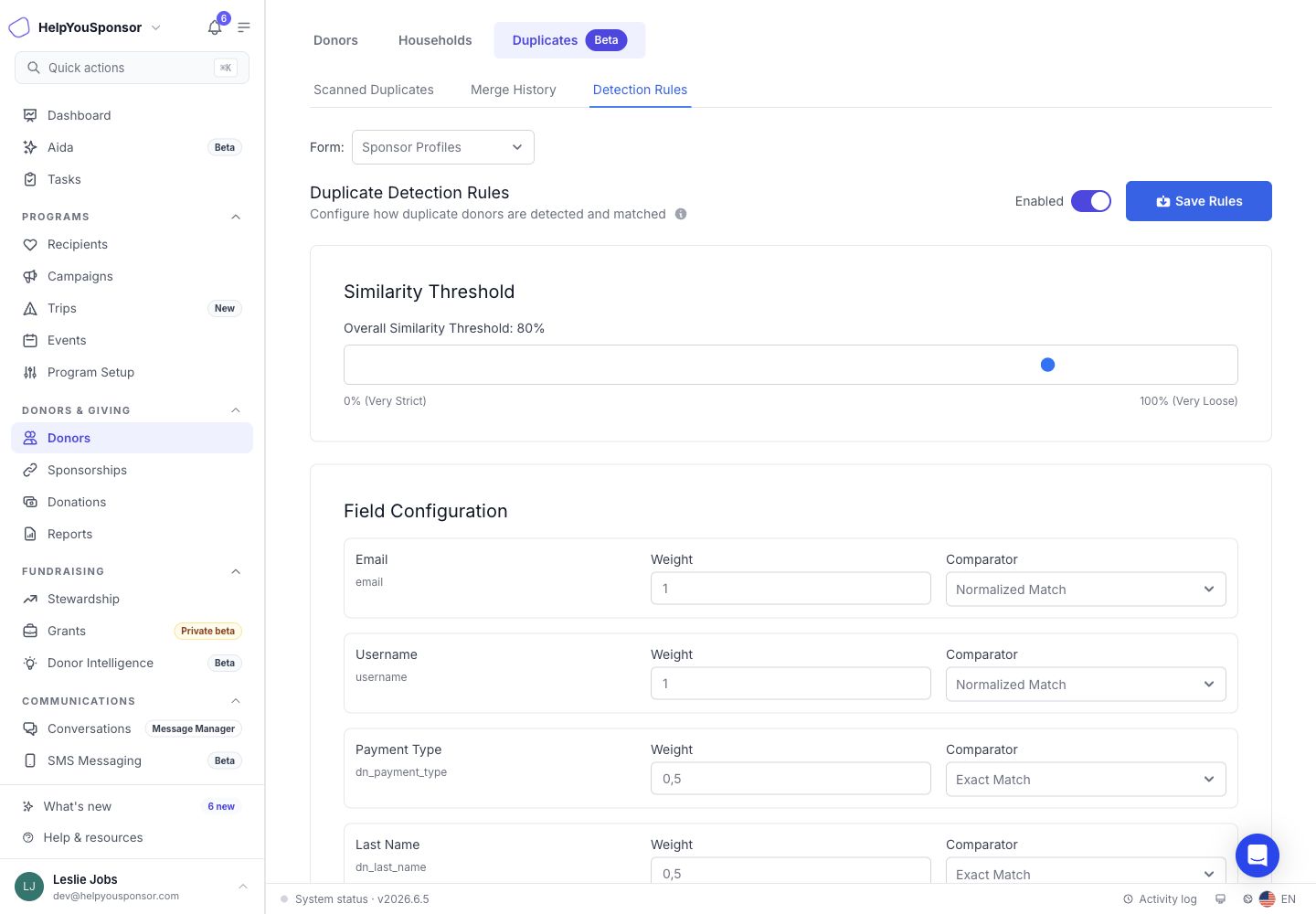
Use **Detection Rules** when the enhanced scan is finding too many weak matches or missing likely duplicates for a specific donor form.

<figure><img src="/files/mukeoD53OjRfebXwG6up" alt=""><figcaption><p>Detection Rules controls how the enhanced scan compares donor fields for the selected form.</p></figcaption></figure>

You can adjust:

* **Enabled**: turns the saved rule set on or off for the selected form.
* **Similarity Threshold**: sets how strong the overall match needs to be. Higher values require a stronger match.
* **Field Configuration**: controls each field's weight and comparator.
* **Comparators**: include exact, normalized, fuzzy, and phonetic matching.
* **Fuzzy Matching Settings**: controls minimum fuzzy similarity and fuzzy matching options.
* **Normalization Settings**: controls case sensitivity, whitespace trimming, punctuation removal, and phone normalization.
* **Incremental Processing**: scans donors created or updated since a recent successful scan, plus donors already in duplicate groups.
* **Excluded Fields**: removes fields from enhanced duplicate matching.

Select **Save Rules** after changing the rule set. Run an enhanced scan again to apply the updated rules to duplicate suggestions.

## Permissions

Your role controls whether you can open the Duplicates tab, run scans, change detection rules, merge donors, mark records as not duplicate, or undo merge batches. If the tab or an action is missing, your role may not include duplicate-detection management or donor-management access.

## Related Guides

* [Donors Table](/guides/core-features/donor-management/donors-table.md)
* [Add Donor](/guides/core-features/donor-management/add-donor.md)
* [Donor Profile Page](/guides/core-features/donor-management/donor-profile-page.md)
* [Household Table](/guides/core-features/donor-management/household-table.md)
* [Program Forms](/guides/core-features/program-management/program-forms.md)
* [Permissions and Access Control](/guides/administration/permissions-and-access-control.md)