Task Management

Task management allows you to create a checklist of items that participants need to complete before, during, or after the trip. Tasks can range from simple acknowledgements to document submissions that require administrative approval. The task system includes powerful features such as dependencies between tasks, automatic email reminders, task templates for reuse, and targeting rules to assign tasks to specific groups of participants.

Accessing Task Management

Open the Trip Details page for your trip and click the Tasks tab.

Tasks Table

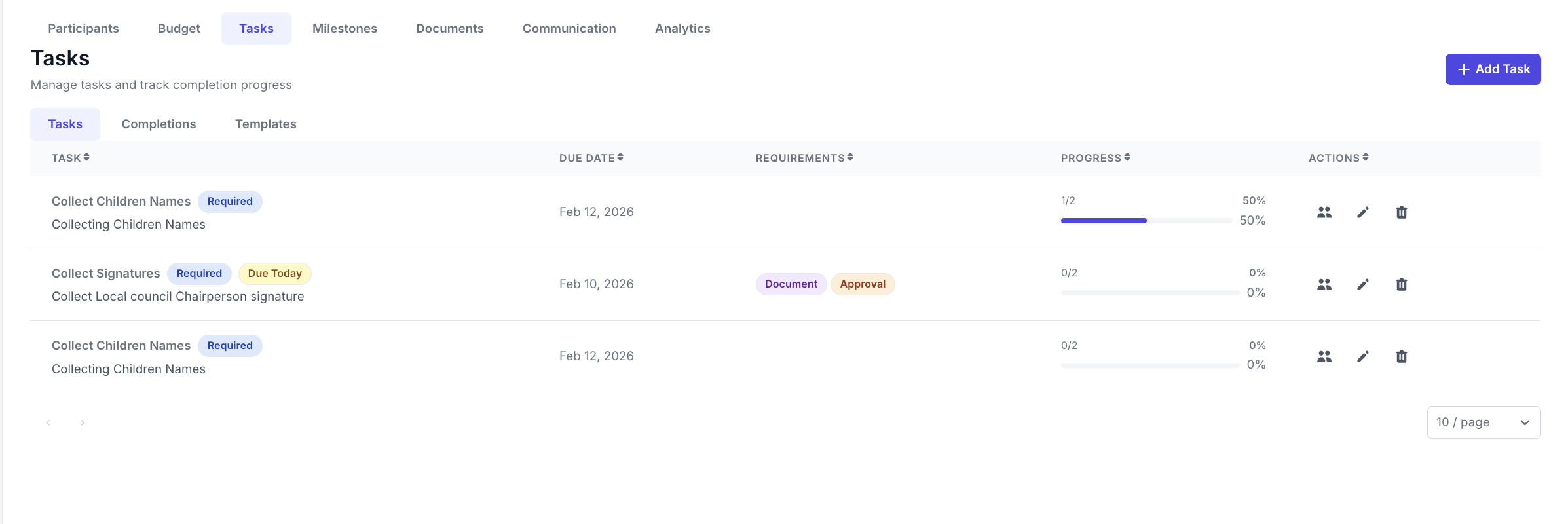
The Tasks tab displays all tasks created for the trip, including the task title, due date, type, and status information. From here you can create new tasks, edit existing ones, view participant completions, and manage task templates.

Creating a Task

Click the Add Task button to open the task creation form. The form includes the following fields:

Title (Required)

Enter a clear, descriptive name for the task. This is what participants will see in their dashboard.

Examples: "Submit Passport Copy," "Complete Medical Form," "Attend Pre-Trip Training"

Task Type

Choose the type of task:

  • Standard (document/signature) - The default task type. Can require a document upload or simply be marked as complete by the participant.

  • Acknowledgement (reviewed) - A simpler task type where the participant confirms they have reviewed information, such as a trip policy or code of conduct.

Task Document (PDF)

For standard tasks, you can upload a PDF document that participants need to review, sign, or reference. The document is uploaded to secure storage and a download link is provided to participants when they view the task.

This is useful for waivers, medical release forms, background check authorisations, and similar documents that participants need to complete.

Description (Optional)

Provide additional instructions or context for the task. The description is displayed to participants when they view the task details.

Due Date (Optional)

Set a deadline for the task. Due dates are used to calculate when reminder emails should be sent. If no due date is set, reminders cannot be scheduled.

Task Dependencies

Tasks can depend on other tasks, meaning a participant cannot work on the current task until prerequisite tasks are completed.

Depends On - Select one or more prerequisite tasks from the list of existing tasks. The current task will only become available to participants after the selected tasks are completed.

Dependency Mode - Choose how multiple prerequisites are evaluated:

  • All prerequisites (AND) - The participant must complete every prerequisite task before this task becomes available.

  • Any prerequisite (OR) - The participant needs to complete only one of the prerequisite tasks.

Task Options

  • Required task - When checked, the task is marked as required. This is a visual indicator to help participants prioritise mandatory items.

  • Requires document upload - When checked, participants must upload a document (such as a signed form or certificate) to complete the task.

  • Requires admin approval - When checked, a submitted task is not marked as complete until an administrator reviews and approves it. This is useful for tasks where you need to verify the submitted document or information.

Reminders

Set up automatic email reminders that are sent to participants before the task's due date. You can add multiple reminders at different intervals.

  • Preset options - Click the 30 days, 7 days, or 1 day buttons to quickly add reminders at common intervals.

  • Custom interval - Enter a custom number of days and click Add to create a reminder at a specific interval.

Each reminder sends at most one email per participant. No reminders are sent after a task has been completed or approved. For minor participants with the "guardians only" targeting enabled, reminders are sent to the guardian's email address instead.

Task Targeting

Task targeting controls which participants see the task. By default, all participants see every task. Use targeting to restrict visibility.

  • Target role - Choose who should see the task:

    • All participants - Everyone enrolled in the trip.

    • Participants only - Only participants (not leaders).

    • Leaders only - Only trip leaders.

  • Minors only - When checked, only participants marked as minors will see this task.

  • Guardians only - When checked, reminders for this task are sent to the guardian's contact email rather than the participant. The participant (minor) can still see and complete the task from their dashboard.

  • Include tags - Specify tags to include. Only participants with at least one of the listed tags will see the task.

  • Exclude tags - Specify tags to exclude. Participants with any of the listed tags will not see the task.

These targeting options can be combined. For example, you could create a medical consent task that targets only minors and sends reminders to their guardians.

Task Completions Dashboard

The task completions dashboard shows the status of each task across all participants. From here, administrators can:

  • View which participants have completed, pending, or not-yet-started tasks.

  • Approve submitted tasks that require admin approval.

  • Reject submitted tasks that do not meet requirements, sending the task back to the participant for resubmission.

  • Add admin notes to completion records for internal tracking.

Task Templates

Task templates allow you to save a set of tasks as a reusable template that can be applied to any trip. This is useful when your organisation runs similar trips repeatedly and the same set of tasks (passport, medical form, training, etc.) applies each time.

Creating a Template

Navigate to the task templates section and click Create Template. Give the template a name and add the tasks you want to include.

Applying a Template

From the Tasks tab on any trip, use the Apply Template option to select a saved template. All tasks from the template will be added to the trip, saving you time from recreating them manually.

Managing Templates

Templates can be edited, renamed, or deleted from the template management interface. Changes to a template do not affect trips where the template has already been applied.

Last updated